Export Messenger PSIDs
Review the earlier contact export workflow and preserve Facebook Page-scoped identifiers.
The earlier Bual Pro interface includes an option to export Facebook Messenger Page-scoped IDs, or PSIDs, from the contact list. A PSID identifies a person in the context of a particular Facebook Page. It is not a universal contact ID for other Pages or messaging channels.
The screenshot and steps below come from the earlier interface. Confirm that PSID export is available in your current account before relying on this workflow. Meta's Messenger Platform API reference describes the Page-scoped identifier used by Messenger.
Export the selected contacts
- Open the contact list. The source calls this Users; your interface may use a different label.
- Select the intended contacts using the checkboxes.
- Open Actions and choose the available PSID export option. The article calls it Export PSIDs (Facebook Ads); the screenshot shows Export PSIDs.
- Review the downloaded file and confirm which selected contacts it contains.
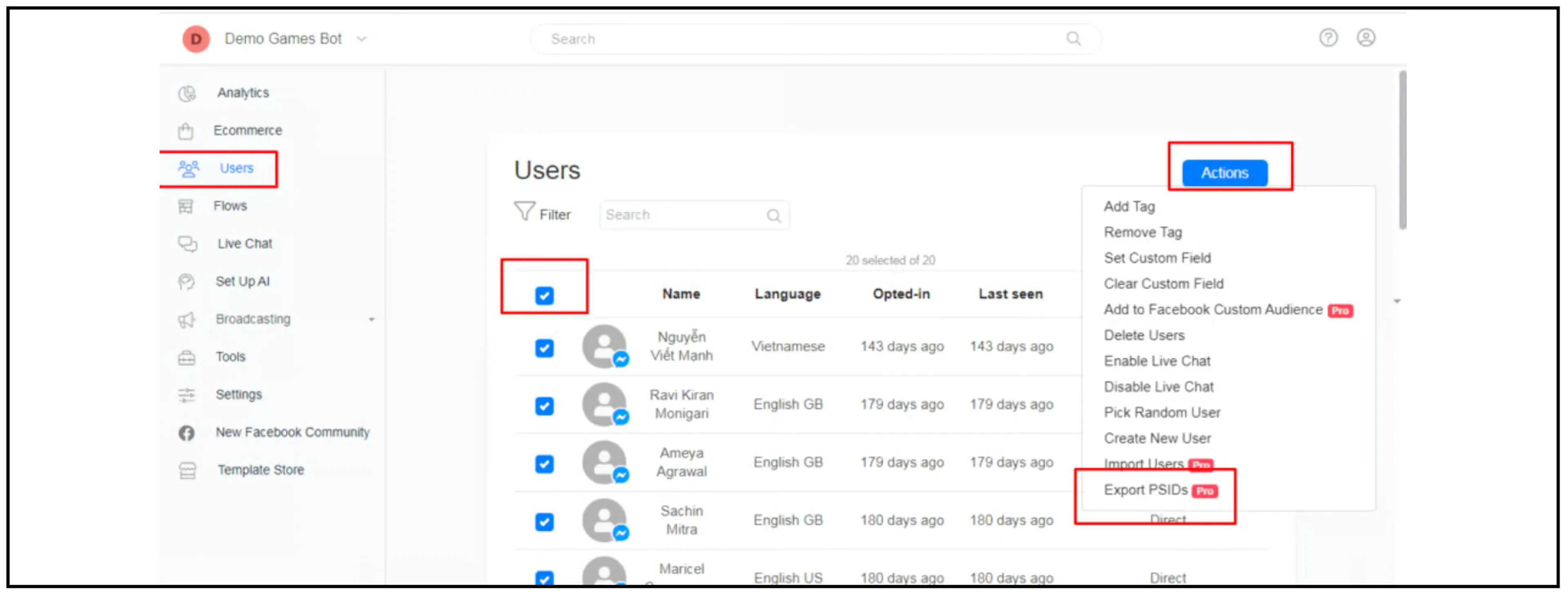
Check whether the top checkbox selects the visible page or every matching contact before exporting. Confirm the selected Facebook Page and any active filters. The older Pro badge does not establish today's account entitlement.
Check the exported file
The source mentions both an Excel download and CSV. It does not establish the current extension or column schema. Check the actual downloaded file, header row, number of records and treatment of contacts without a Messenger PSID.
Keep identifier columns as text when opening or saving the file in a spreadsheet. Preserve the complete digits and the Page context; do not treat a PSID from one Page as an identifier for another.
Before using the data for advertising
The old export label mentions Facebook Ads. That label does not establish that a current Meta audience workflow accepts the file, or that the identifiers alone authorize audience use or messaging. Confirm the supported audience source, account/Page requirements and permitted use in the current Meta interface before uploading data.
Store exports where only the intended team can access them. If the export option is missing or the file differs from what you need, ask Bual Pro support about current PSID export support. This guide has not exported customer data or uploaded an audience.