Generate images with OpenAI
Collect an image description, run the OpenAI action and use its output in an image message.
Use a text description from a contact as the prompt for an OpenAI image-generation action. Save the result in a separate custom field and use that field in an image message.
Before you start
Connect OpenAI, then check that Generate Image is available in your account. Model and size choices depend on the integration. OpenAI's current image-generation options do not establish which models Bual Pro supports.
The screenshots show an earlier Flow Builder. If the action is missing or a model is unsupported, contact Bual Pro support.
Collect the description
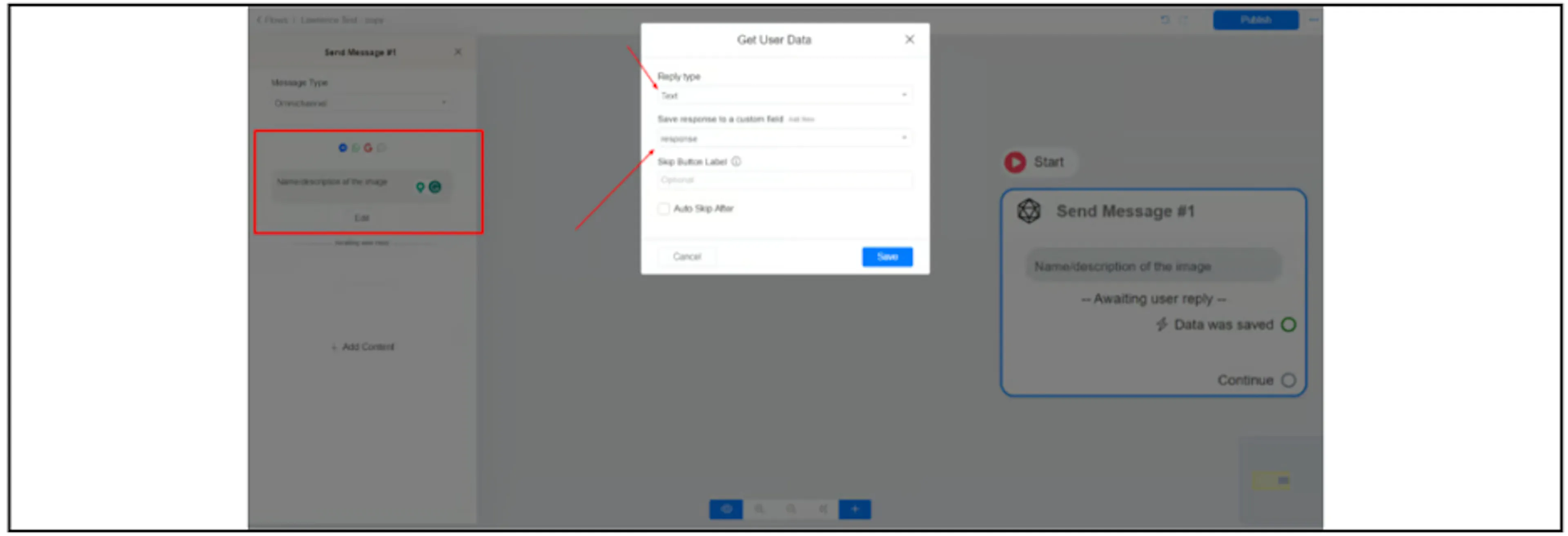
Add Get User Data to your flow and choose a text reply. Ask the contact for the name or description of the image, then save the answer in a custom field. The screenshot uses Response.
Configure the OpenAI action
- Connect the Data was saved branch to an action block.
- Add OpenAI and choose Generate Image.
- In User Message, insert the custom field that holds the contact's description.
- Choose from the model or size options available in your account.
- Under Save response to a custom field, select a separate field for the result. The example flow uses openai_response.
Keep the prompt and result in different fields so the image output does not replace the description.
Send the generated image
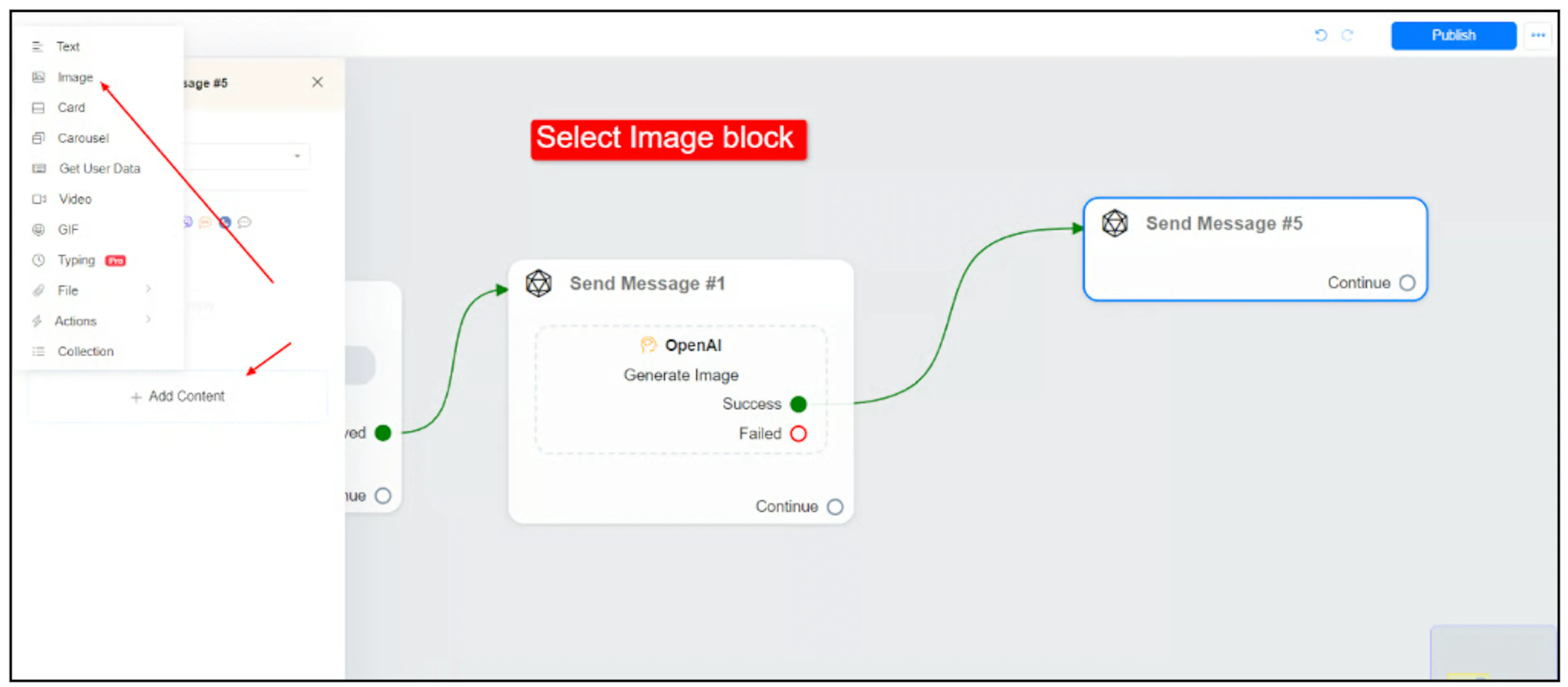
From the action's Success branch, add a message with Image content.
Insert the output custom field into the image input. In the illustrated flow, the field token is {{openai_response}}. Use the token for the field you selected in your own flow.
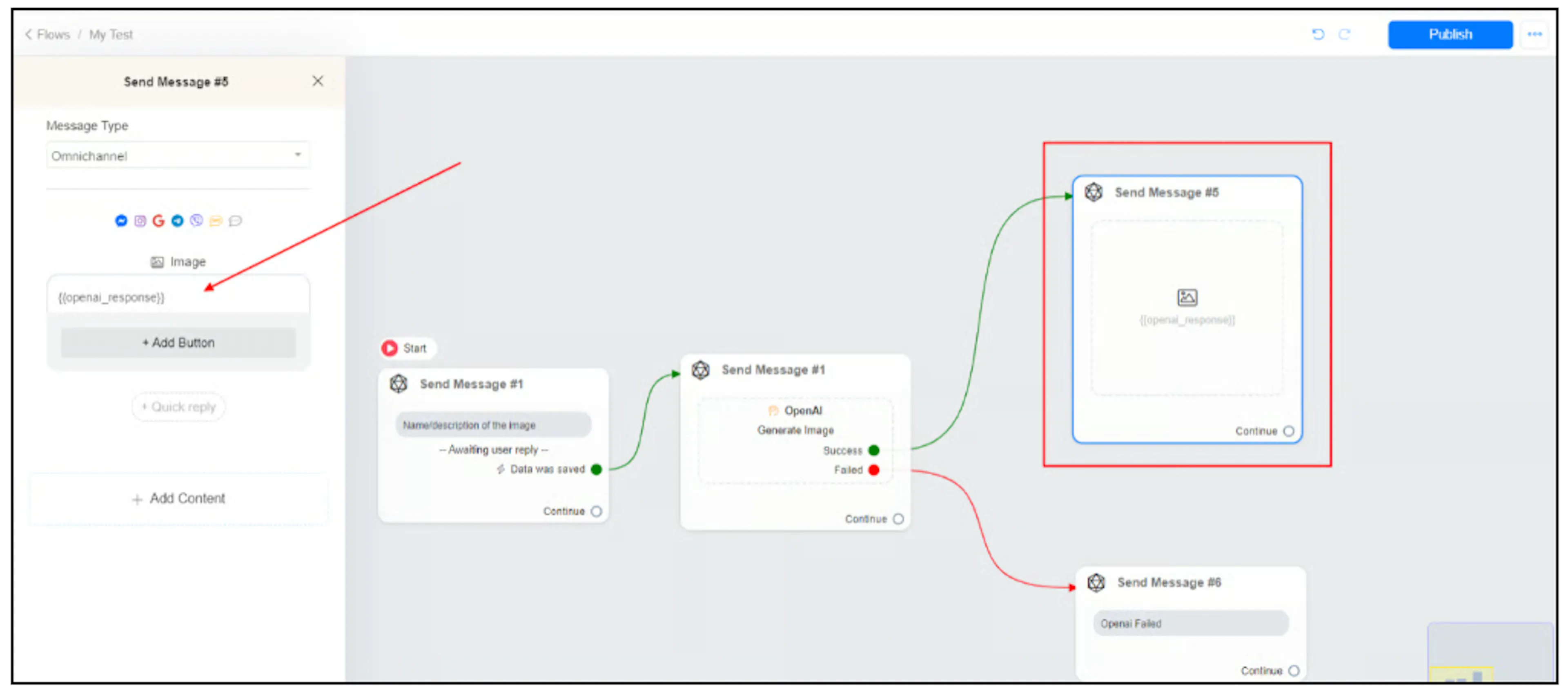
Connect Failed to a separate message or recovery path. Test with a non-sensitive description and check that the output field contains a usable image result before relying on customer delivery. Also check the file requirements for the destination channel.
If generation succeeds but no image appears, check that the Image input references the result field rather than the prompt field. If generation fails, check the OpenAI connection, model access and available API usage.