Set up automated replies
Configure short keywords, business FAQs and keyword variations in Automated Responses.
Use Automated Responses to define the phrases and business questions your bot should answer. Start with short keywords for greetings or acknowledgements, then add FAQs and business keywords for longer questions.
For replies driven by OpenAI business information, follow Connect OpenAI for customer replies.
Add a short keyword
- Open Automated Responses and select Add.
- Enter a short phrase in User Expression, such as
hiorthank you. - Enter or configure the Bot Response.
- Select Save.
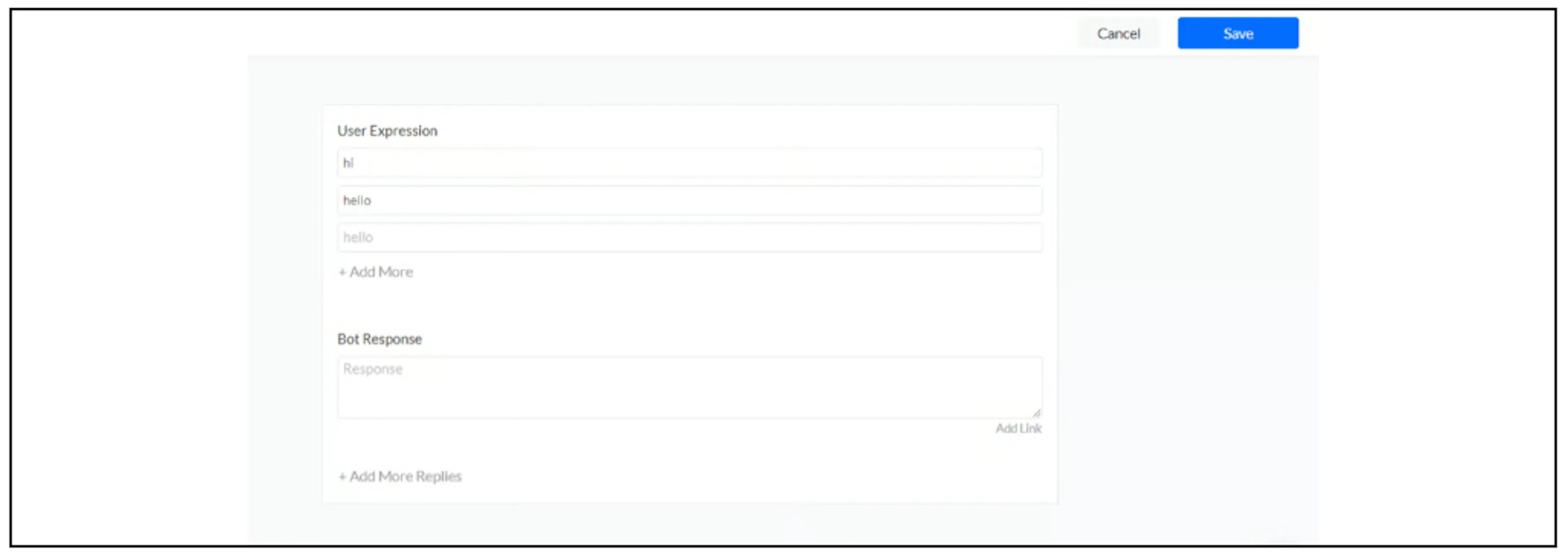
A short keyword is intended to match a phrase within a message. For example, a thank you expression can match thank you Bual Pro as well as thank you alone. Test the phrases your customers use, including messages with extra words.
Aim for one or two words in a short keyword. Use an FAQ for a longer business question.
Add a business FAQ
Open Automated Responses > Add, then select Business Frequently Asked Questions. Enter the question in User Message, configure the Bot Response using Add Replies, and save it.
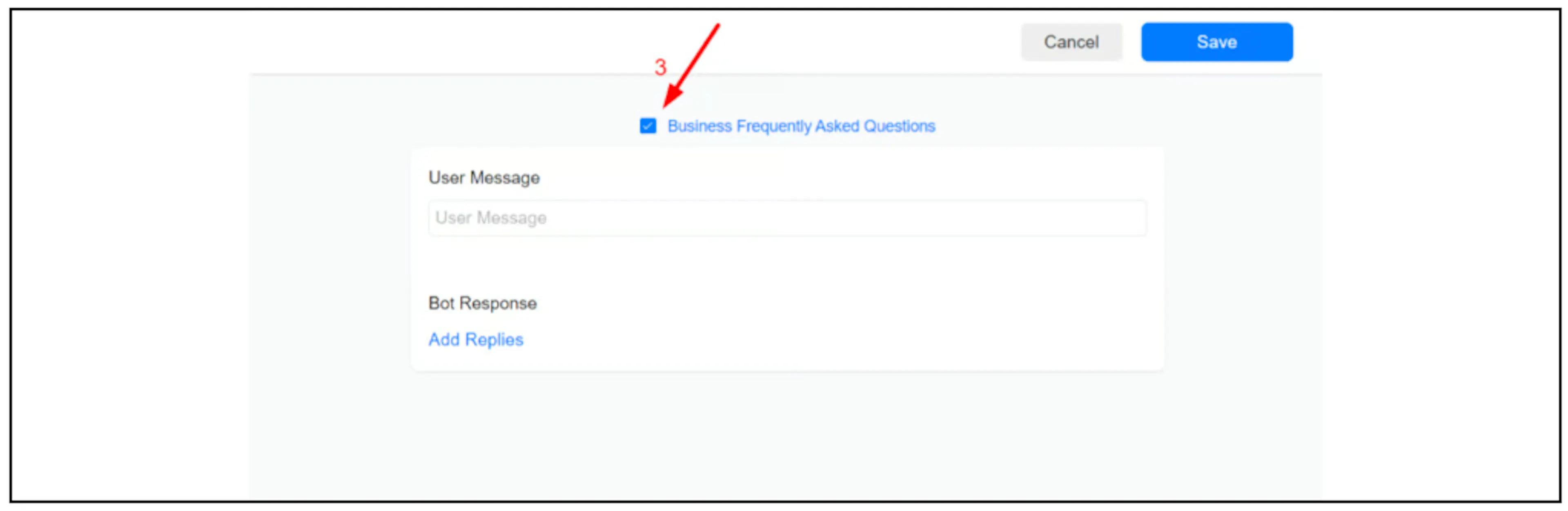
FAQ matching can return an answer or help the contact find related questions through business keywords. Test both the full question and shorter messages containing its keywords; do not assume every paraphrase or spelling error will match.
Include at least one business keyword in each FAQ so the question can be found through that topic. For example:
| FAQ | Business keywords |
|---|---|
| What are your opening hours? | hours |
| How much does this product cost? | product, cost |
| How do I use the Google Sheets integration? | sheets, integration |
These are example questions. Set the answer to match your own business or integration instructions.
Add business keywords and variations
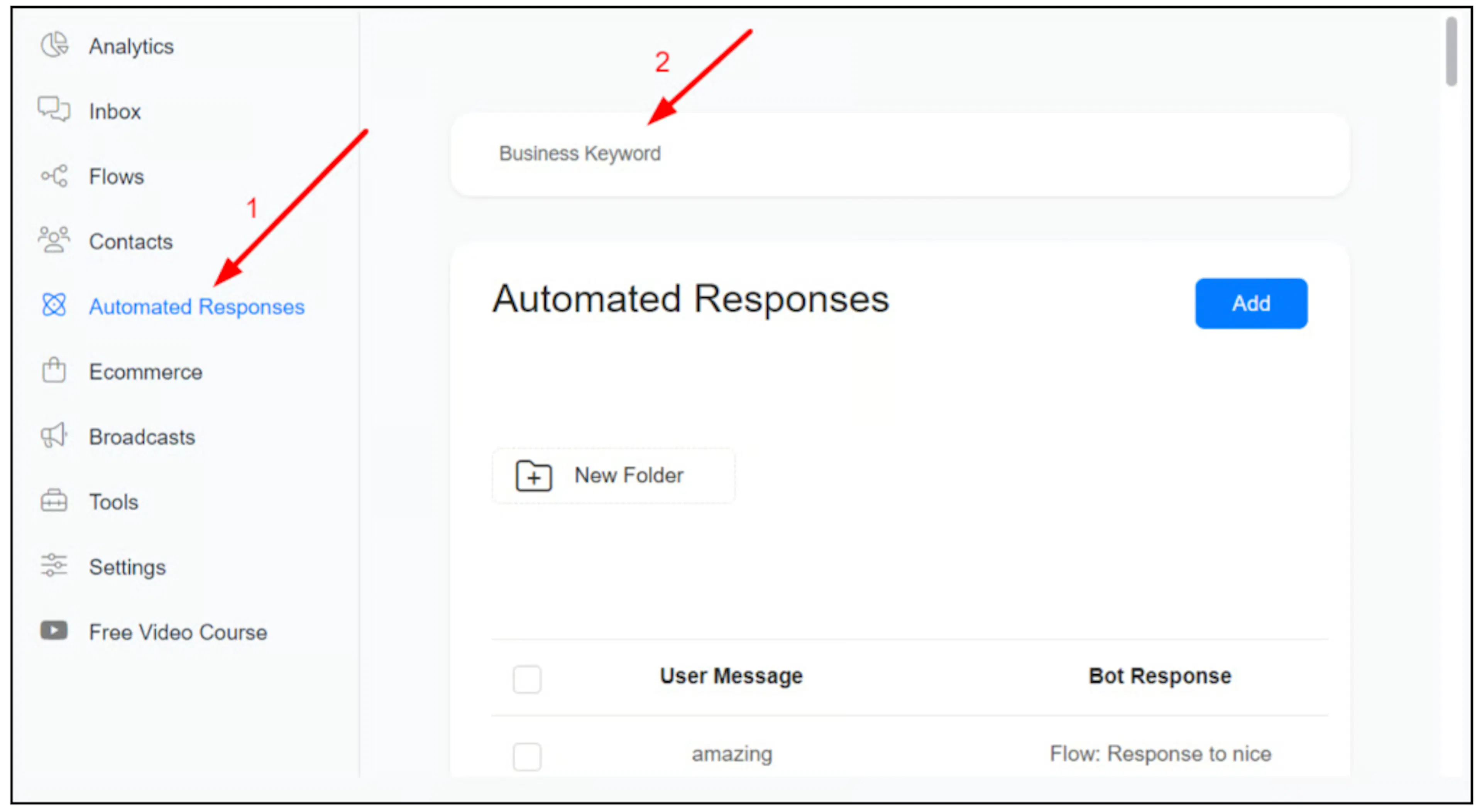
Open Automated Responses > Business Keyword to manage words associated with your business questions.
Use the keyword editor to enter the main Keyword and its variations. More Variations adds further entries. Variations can include a common misspelling, abbreviation or synonym that should lead to the same topic.
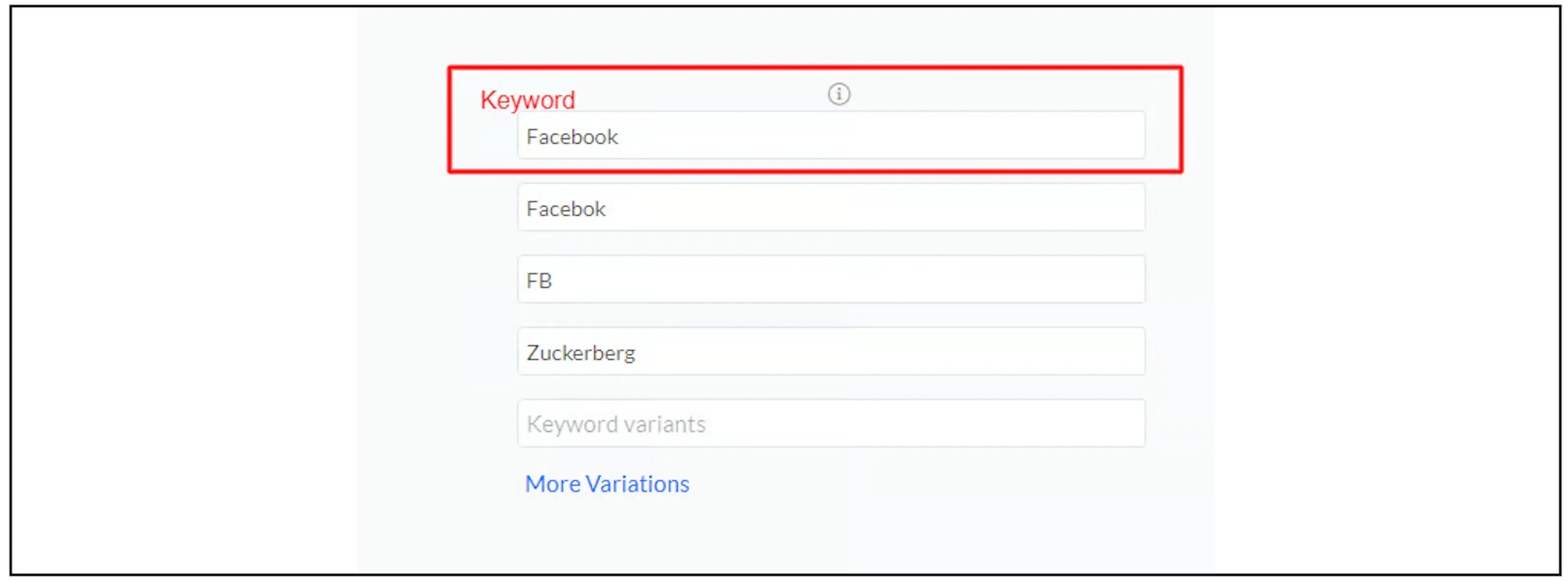
Choose variations carefully. A broad related word may point to several questions. Check that the list offered to the contact is useful and that selecting a question returns the intended answer.
Test the replies
Try the full FAQ, a shorter message containing a business keyword, and each variation you added. Include uppercase and lowercase forms, common misspellings, and messages that should not match. Check whether the bot answers directly, offers a question list or falls through to another reply.
If OpenAI, Dialogflow or another automation is also enabled, check which reply takes priority in your account. Confirm the human-agent handover when the bot cannot answer.
Using keywords for product discovery
Business keywords may also be used for product discovery. Confirm the current catalogue and search behaviour for your account before relying on keyword variations to show products. See WhatsApp Commerce for the catalogue workflow.
The screenshots show an earlier interface. Contact Bual Pro support if the FAQ or keyword controls differ in your account.