Copy flows using Templates
Package selected flows and related content in a template and retrieve its installation link.
Use Templates to package selected bot content for another account. Review what the template contains and check the destination setup before using the installed flows.
Create a template
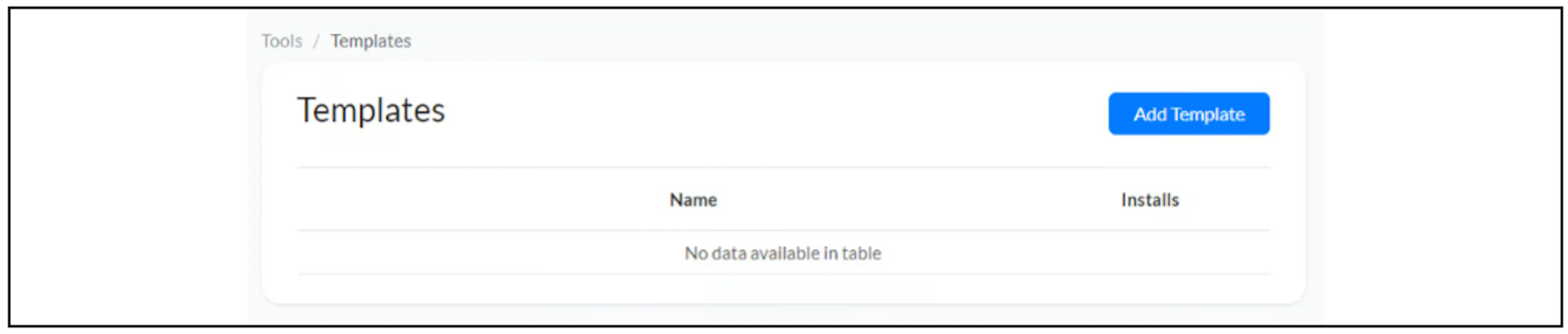
Open Tools > Templates and select Add Template.
Complete the details shown by the current editor:
| Field | What to enter |
|---|---|
| Template Name | A name that identifies the template. |
| Publisher name | Your name or business name. |
| Image URL | The image used for the template listing. The earlier guide recommends 200 by 200 pixels; check the current requirement. |
| Description | The purpose and intended use of the included flows. |
| Youtube Video Id, when used | The screenshot requests a video ID, while the earlier prose calls it a YouTube URL. Follow the field in your current editor. |
| Test URL, when used | A demo link that recipients can use to review the template. |
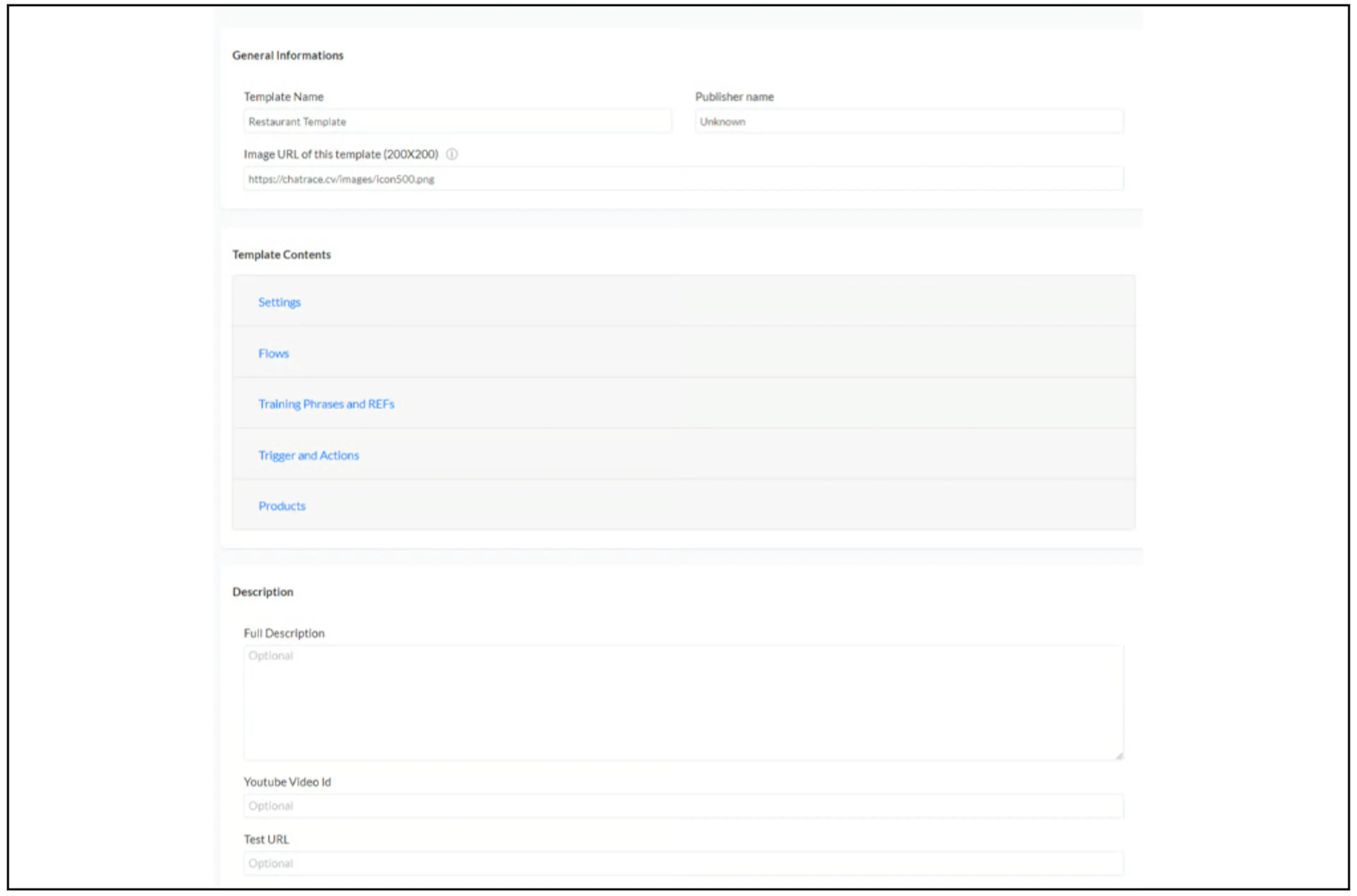
Under Template Contents, select the content you intend to include. The source editor groups it into Settings, Flows, Training Phrases and REFs, Trigger and Actions, and Products. Availability and labels may differ in your account.
Check the selected flows and their dependencies. Review references to custom fields, integrations, products and account-specific values before saving. Do not include credentials or private customer data in shared content.
Save and retrieve the link
Save the template. In the template list, open its menu and select Get Link.
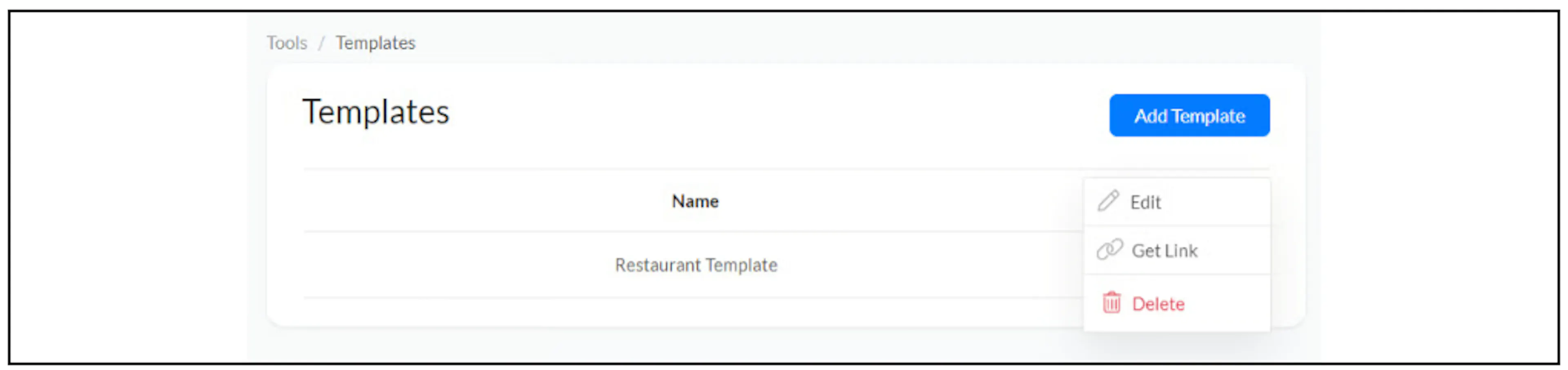
Share the link only with the intended recipients. The earlier article's claim of complete protection is not a documented access-control guarantee. Confirm who can use the installation link and whether the current product offers any restrictions you need.
Review the destination installation
Before installing, check the destination account and what the installation will add or change. If overwrite, duplicate or dependency behavior is unclear, ask Bual Pro support before continuing.
After installation, inspect the copied flows and check their field mappings, integration connections and product references. Verify the intended channel behavior before enabling customer use. The source does not establish that external connections or account-specific configuration transfer automatically.
For a direct copy between connected Facebook Pages, use the separate copy command when it is available in your account. The template workflow packages selected content for installation.
Marketplace availability
The earlier guide asks publishers to contact the team about marketplace listings. Contact support for current availability and terms before promising a public listing or paid distribution.