Send a WhatsApp broadcast
Prepare a flow, choose the right WhatsApp audience, and review a broadcast before sending.
Use a broadcast to send a published flow to a group of contacts. Before sending, make sure recipients gave you their number and opted in to receive messages from your business. Exclude anyone who has opted out. See the WhatsApp Business Messaging Policy.
Choose the right broadcast type
| Audience | Broadcast type |
|---|---|
| Contacts whose 24-hour customer service window is open | Active contacts within 24 hours can send a non-template flow. |
| Contacts outside that window, or a campaign using an approved template | Template Message sends a flow that starts with an approved WhatsApp template. |
The service window opens or resets when the customer messages your business. A message from your business does not extend it. For scheduled messages, check that the chosen type is appropriate for the time the message will be sent.
Prepare and publish the flow
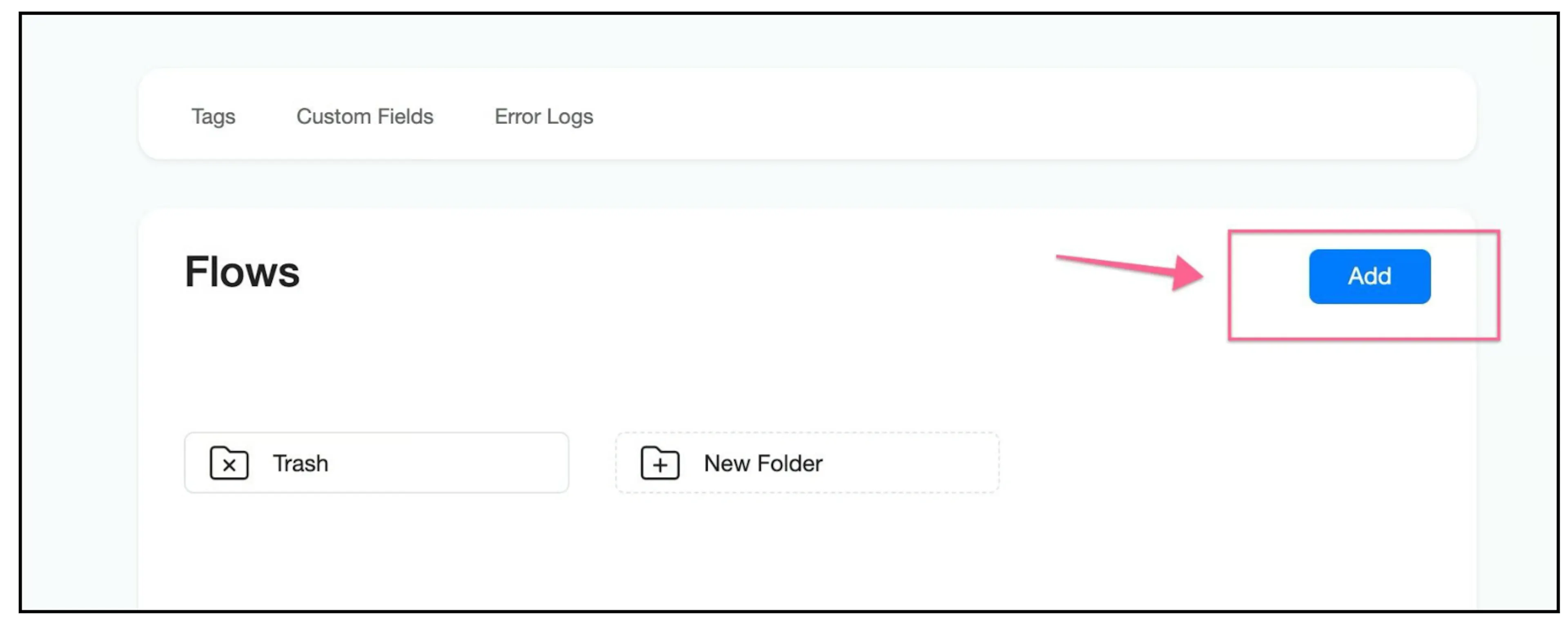
Open Flows and click Add. If you need help building a flow, see Create your first flow.
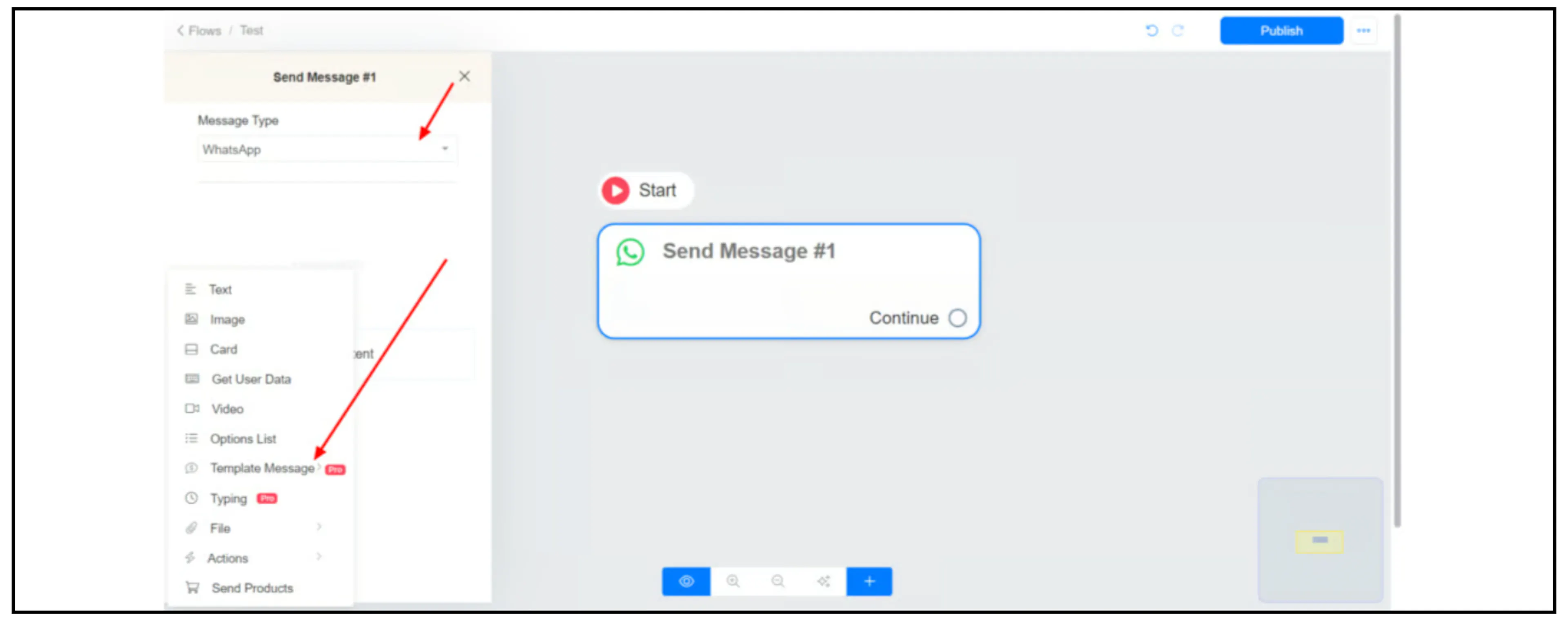
For a template broadcast, set the message type to WhatsApp and add Template Message to the starting message. Choose a template approved by Meta for its intended purpose, then review its content and variable values.
Publish the flow when it is ready. If an approved template is missing from Bual Pro, follow the template-sync steps.
Open Broadcast
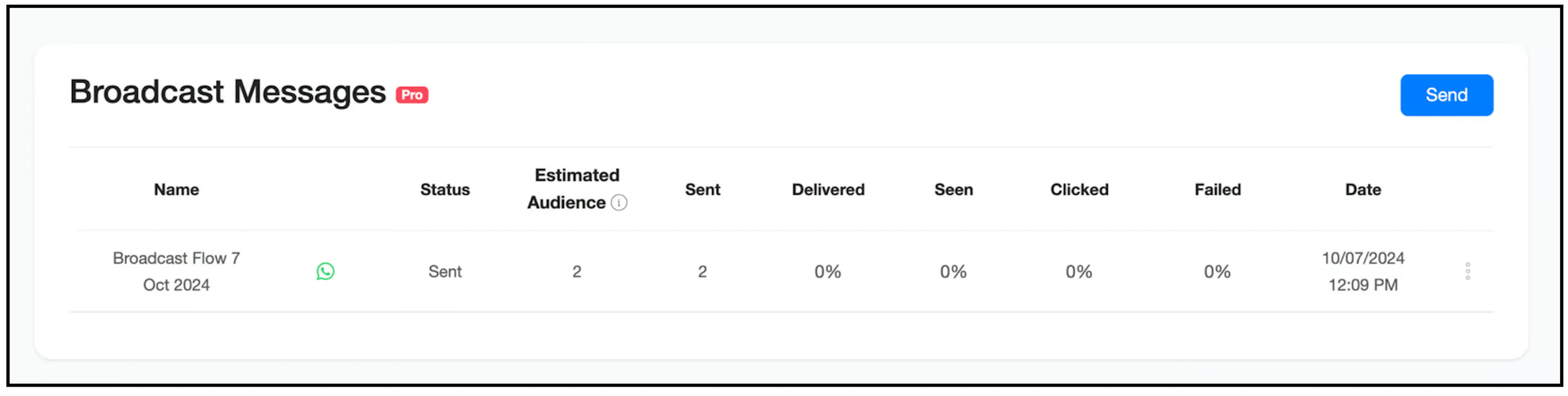
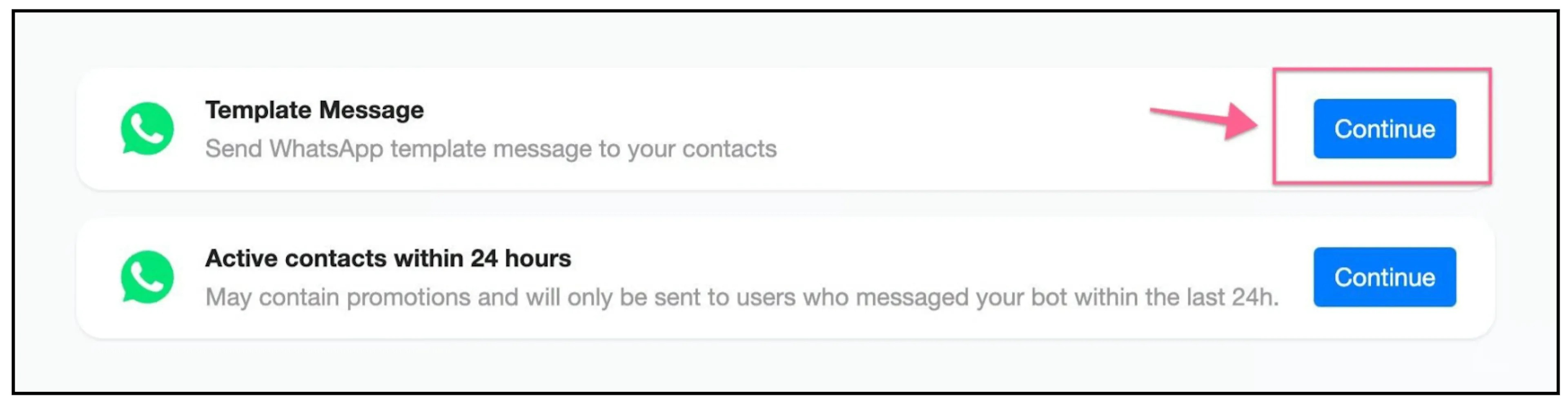
Open Broadcast from the side menu, then click Send. If a channel selector appears, choose WhatsApp and click Continue.
Send a template broadcast
Choose Template Message and click Continue.
Choose the published template flow under Flow to send. Set When to send this message? to the timing you need. To narrow the audience, add conditions under Targeting (optional).
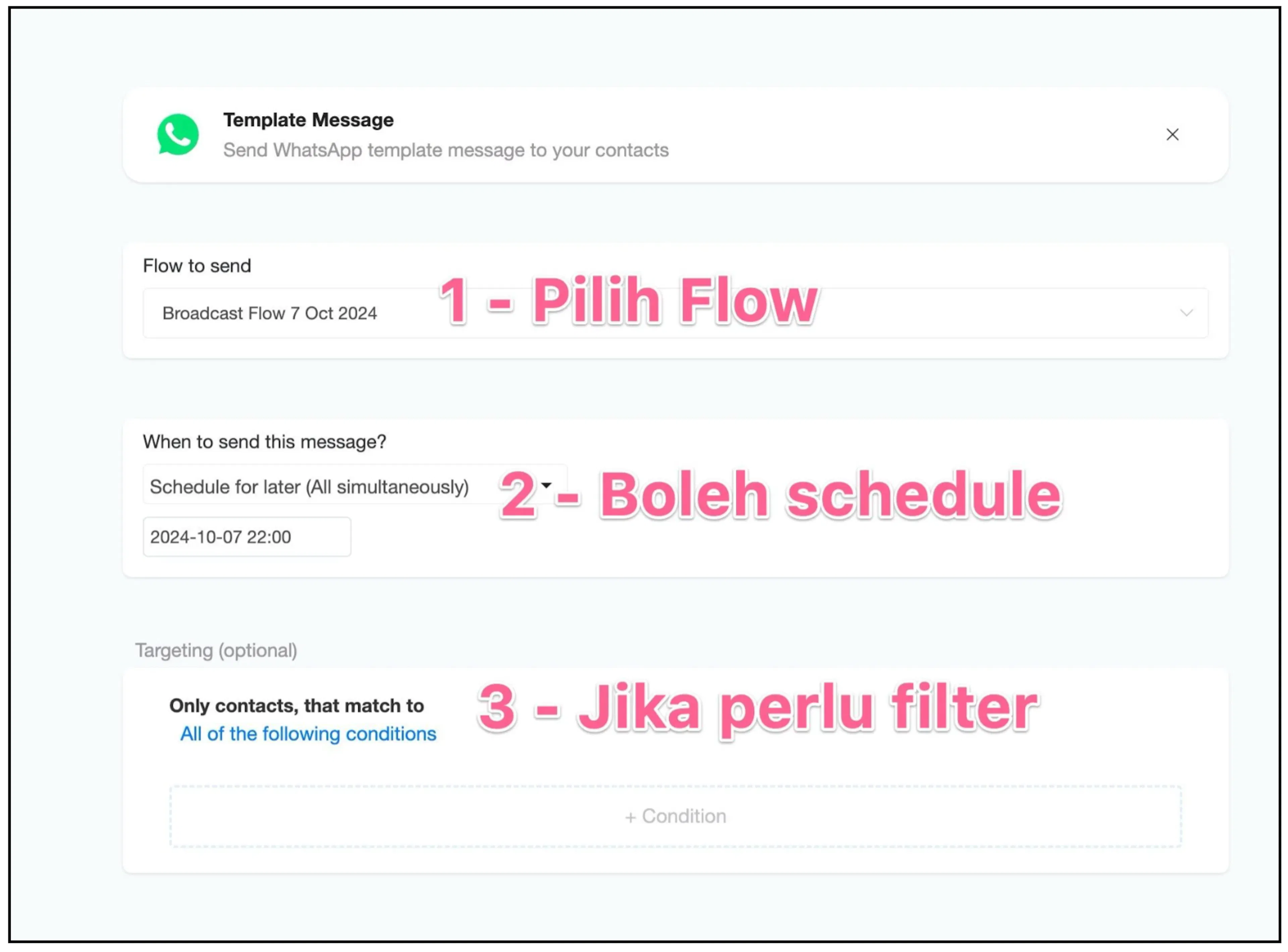
The screenshot shows an example schedule from 2024. Choose your own send time and confirm it before sending.
Send to contacts within the service window
Choose Active contacts within 24 hours and click Continue.
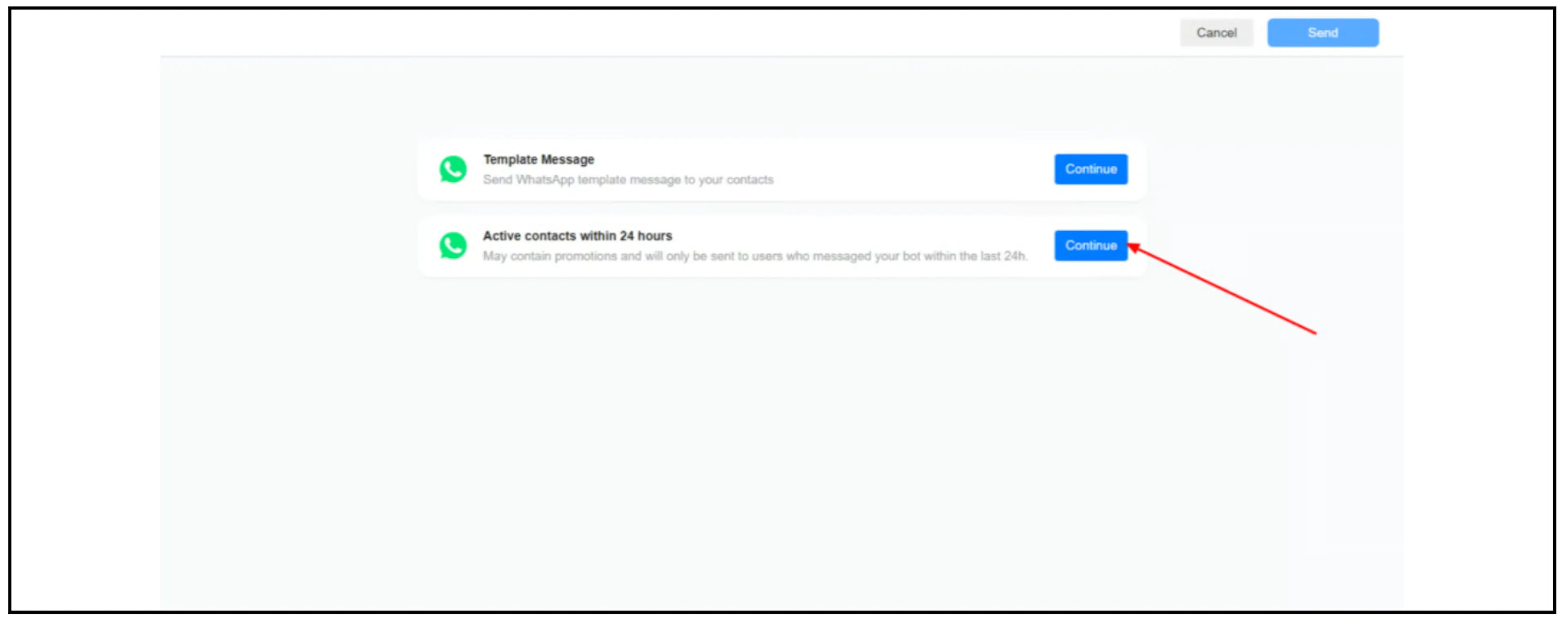
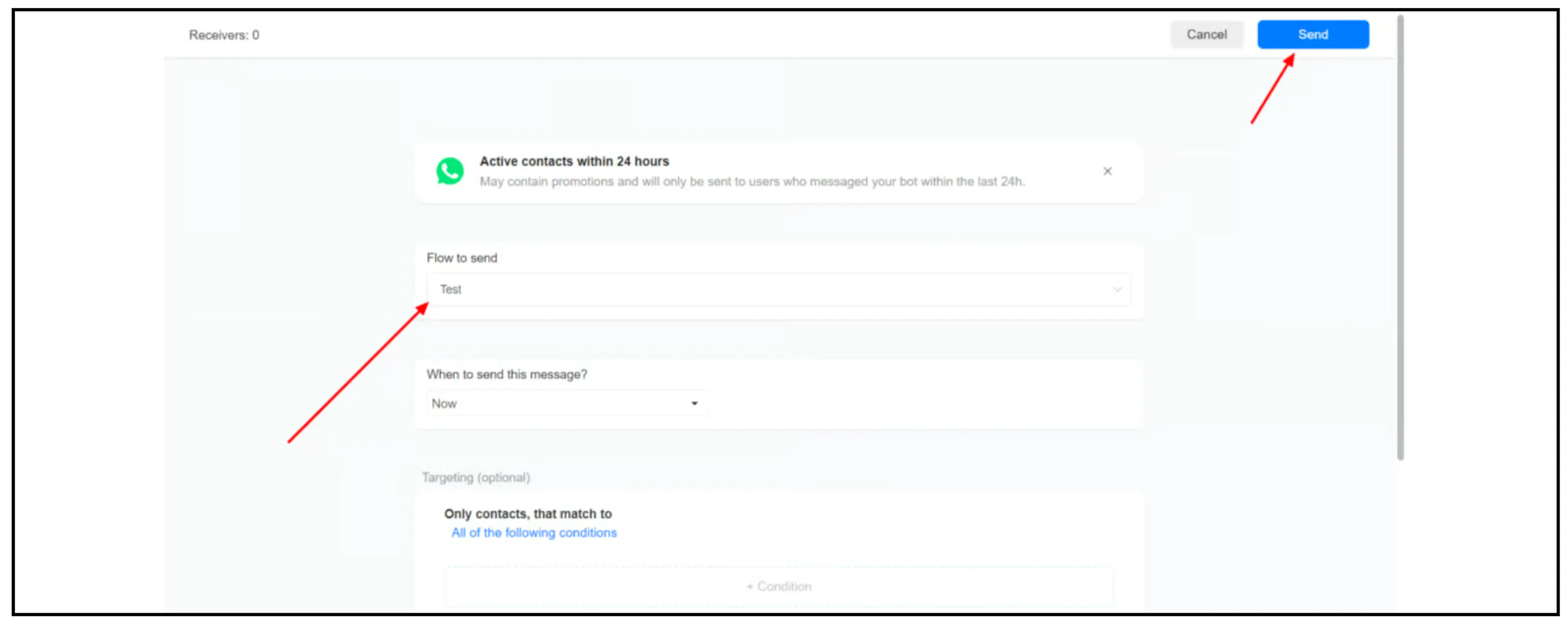
Select your published flow, review the timing, and set any targeting conditions. This option is intended for contacts who messaged your bot within the last 24 hours. Use an approved template when the service window has closed.
Review and send
Review the selected flow, audience conditions, timing, and receiver count before confirming the send. When Bual Pro shows a receiver confirmation, check the count and click Continue only when it matches your intended audience.
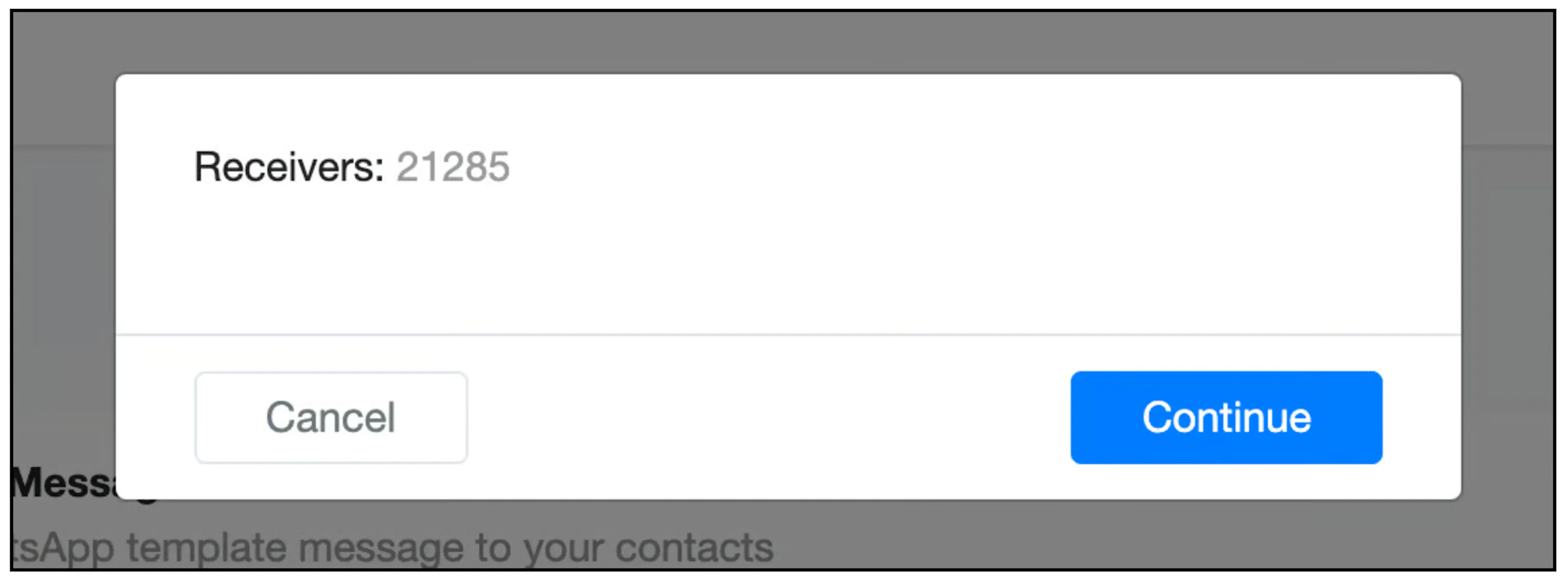
Complete the send using the Send control shown in your account. Counts in the screenshots are examples, not your account's allowance. The receiver count describes the selected audience; it does not guarantee delivery. Meta's messaging limits and other delivery controls still apply.
For a single conversation, see Send a WhatsApp template from the Inbox.