Set up a referral system
Share a personal entry link, count eligible referral events and check a reward condition.
The earlier Bual Pro referral system gives a contact a link to share, then uses a referral event to increase that contact's points and start a reward-checking flow.
This walkthrough uses the source's Messenger example. The screenshots show an earlier interface. Confirm current referral support, event behavior and rule controls in your account and channel before offering a reward to customers.
Prepare the entry point and points field
Create an entry-point link for the intended flow. The source names its entry point campaign1. Use a numeric custom field to store referral points; the screenshots call it total_user_referred.
Decide whether new contacts, existing contacts or both should earn points, how many points each event should add and which condition qualifies for a reward. These choices must agree with the message sent to the contact.
Send a personal referral link
The source appends -c{{user_id}} to the entry-point name:
https://m.me/FB_PAGE_ID?ref=campaign1-c{{user_id}}
Use the connected Facebook Page's ID in place of FB_PAGE_ID and your actual entry-point name in place of campaign1. Insert {{user_id}} through the field picker in the flow message. The source instructs the bot to send the link to the contact so that the contact's identifier can be inserted before they share it.
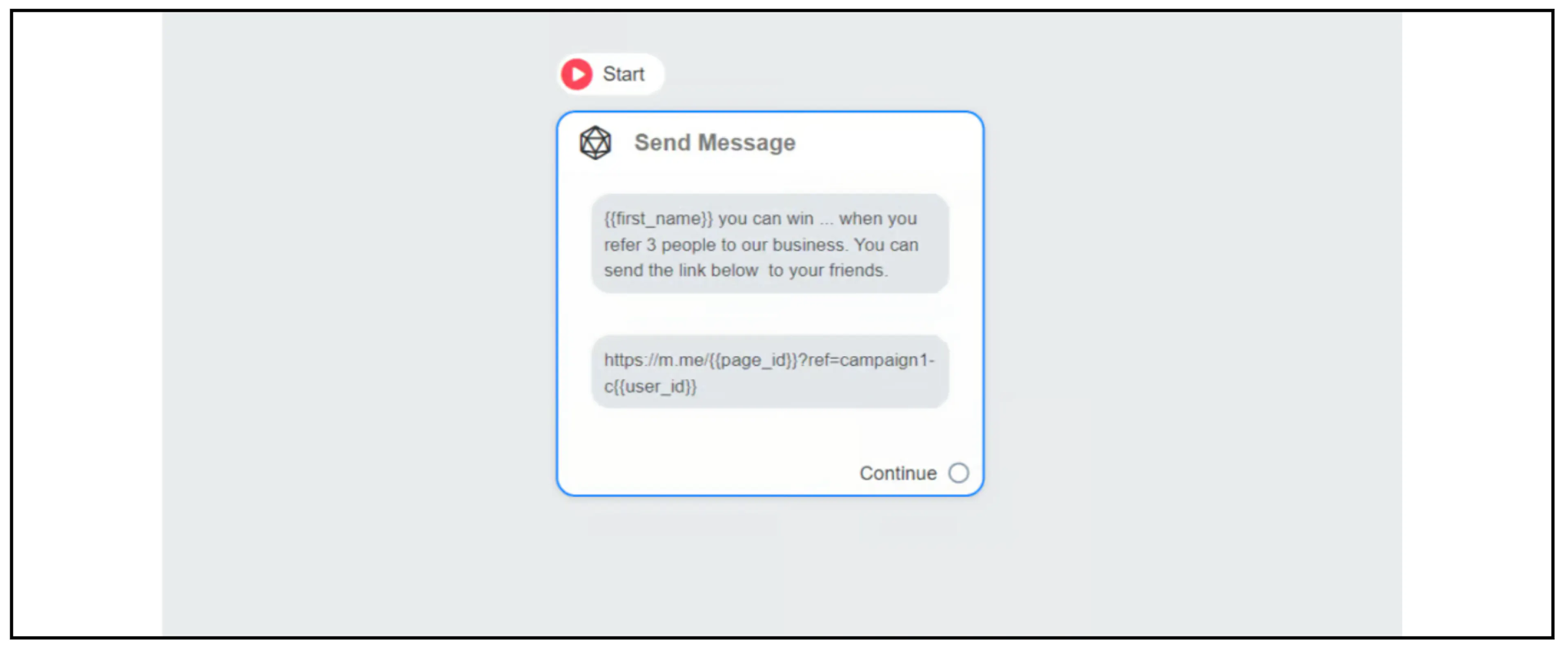
The referral suffix -c is the format documented by this guide. The separate custom-field payload examples use --; do not substitute that delimiter into the referral example without confirming the current parser.
Check the rendered link with a test contact. It should contain that contact's identifier, rather than the unresolved field token. A person may need to complete the channel's entry interaction before Bual Pro receives a referral; opening a link alone does not prove that points were recorded. For another channel, use its generated entry link and confirm the referral format with Bual Pro support.
Configure the referral rule
Open Tools > Triggers and Actions and create a rule. See Triggers and Actions for the rule editor and repeat controls.
The source prose calls the events User referred a new contact and User referred existing contact. Its screenshot labels them User referred a new user and User referred existing user. Choose the corresponding event available in your current interface.
Set REF Param Tracker to the intended entry-point name, shown as campaign1 in the screenshot. Check the meaning of this filter in your current editor before enabling the rule.
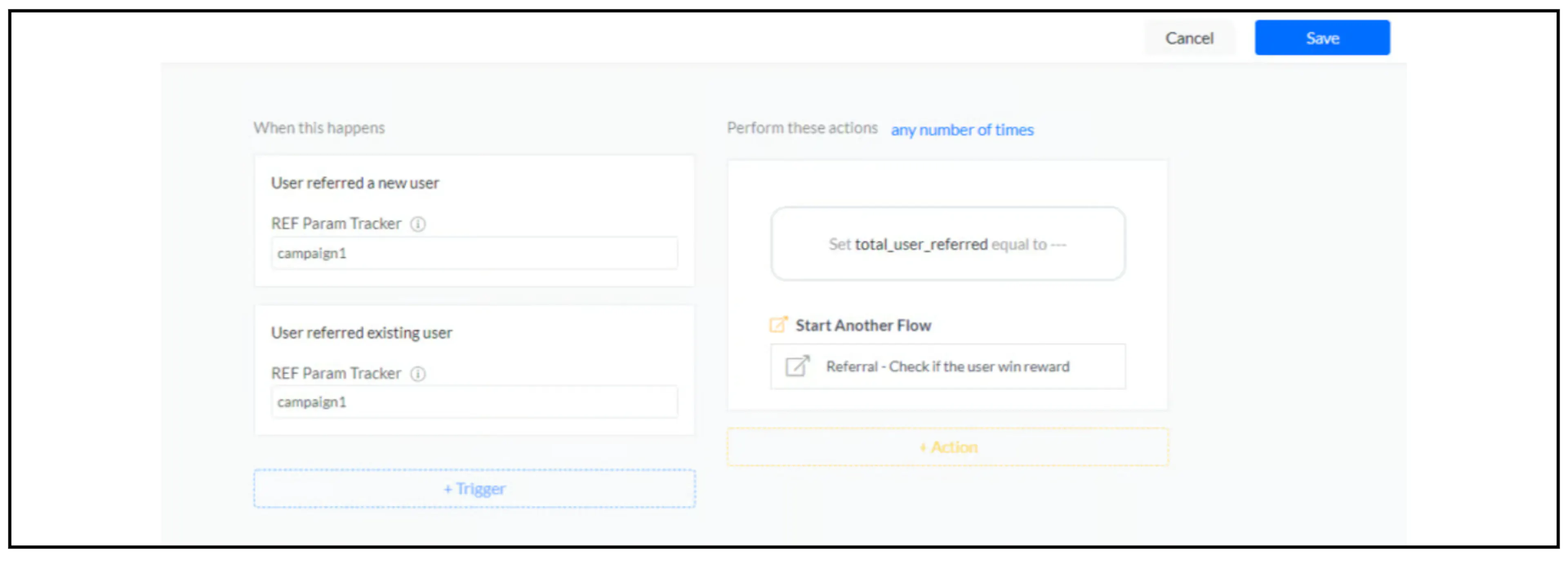
You can configure separate rules if new and existing contacts should earn different points. Confirm how each event is classified and which contact receives its actions; this guide does not establish current attribution or repeated-referral behavior.
Increase the points field
Under + Action, choose Set Custom Field, select the points field and use Increase the number by. The source adds 1 to total_user_referred.
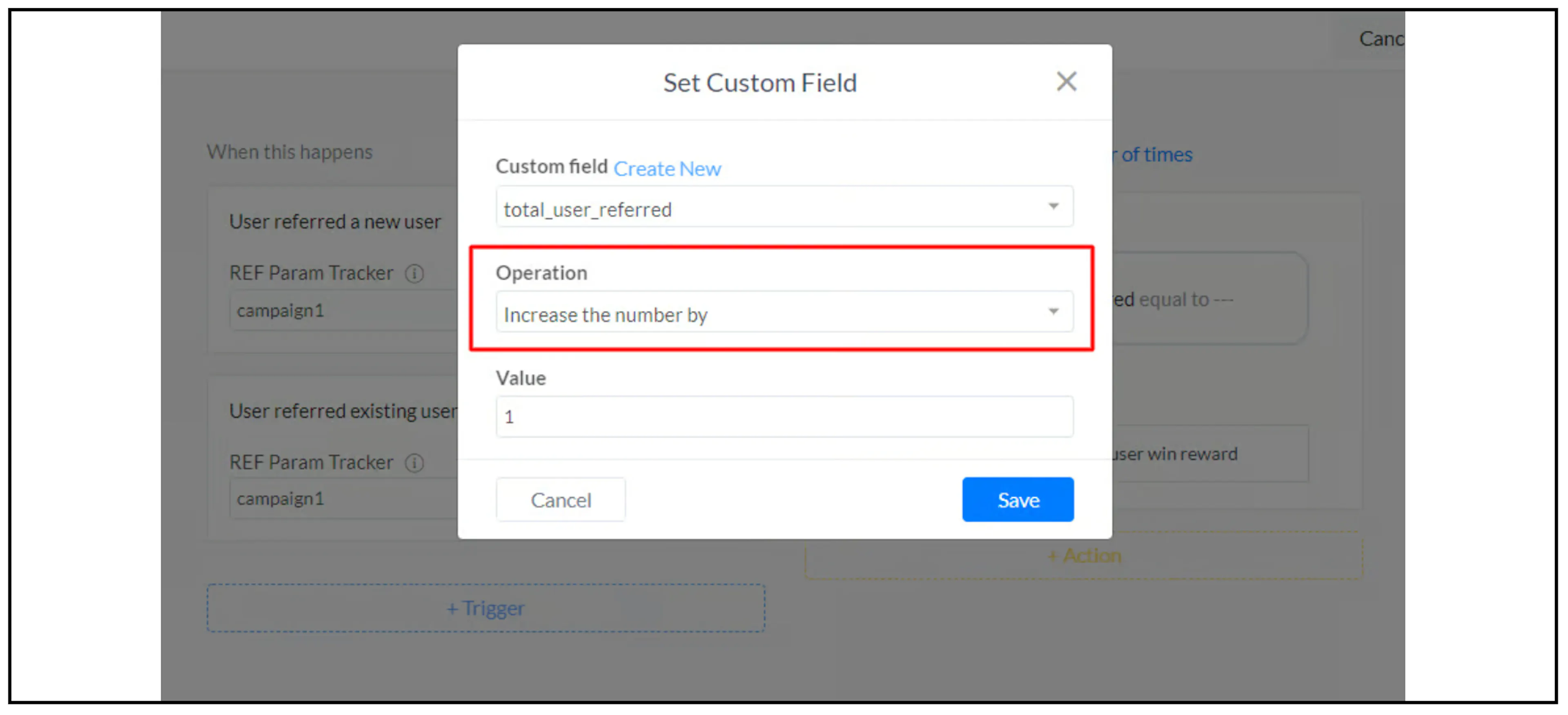
Use the increment operation shown in the example to add to the existing total. Check the initial value and handling of an empty field before enabling the rule. A screenshot's summary may say “Set”; review the operation inside the action itself.
Add Start Another Flow for the flow that checks whether the referrer qualifies for a reward. Confirm that the point update is visible to that flow before relying on the result; the source does not establish action ordering or concurrent-event handling.
Check the reward condition
In the follow-up flow, check the numeric points field with a condition. The source diagram checks whether total_user_referred is 3, then follows a reward message and Notify Admins step.
Use a threshold and message that match your campaign. Check whether the selected condition still works when points increase past the threshold. Record and check reward eligibility or prior fulfillment in a way supported by your current workflow before arranging any reward; a points total alone does not establish that a reward has not already been issued.
The source's reward diagram contains inconsistent promotional numbers. Treat it as a structural example and write your own approved reward terms. A message saying a reward was won does not establish that a payment, voucher or delivery has been fulfilled.
Verify before sharing with customers
Use controlled test contacts to check the personal link, entry interaction, referral event, filter, points increase and reward condition. Test a new contact and an existing contact if both are eligible. Review executed actions when an event or field update is missing.
The earlier article says contacts cannot refer themselves. Confirm current self-referral checks, duplicate handling, attribution and repeat-rule scope before relying on that claim. Link parameters can be changed by anyone who has the link; they do not prove identity or entitlement to a reward.
Confirm channel delivery requirements and any messaging costs before enabling follow-ups. This walkthrough has not executed a referral or issued a reward in a live account.