Analyse images with OpenAI Vision
Collect an uploaded image, ask OpenAI a question about it and save the answer.
Collect an image in your flow, pass it to the OpenAI Analyze image action and save the answer in a separate custom field.
Before you start
Connect OpenAI and check that Analyze image is available in your account. Image analysis requires a model that accepts image inputs. The models and input settings available through Bual Pro may differ from OpenAI's API options.
The screenshots show an earlier Flow Builder. If an action or field is missing, contact Bual Pro support.
Collect an image
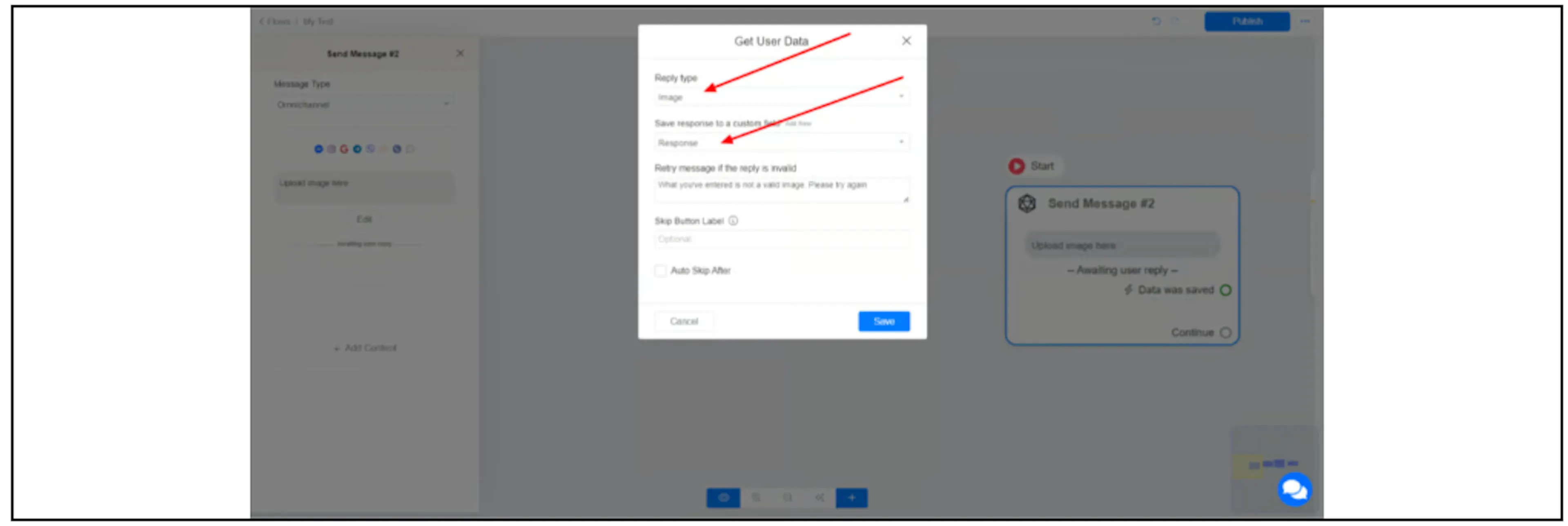
Add Get User Data to your flow. Set Reply type to Image, then choose the custom field where the upload will be saved. The illustrated flow uses Response.
Ask OpenAI about the image
- Connect Data was saved to an action block and add OpenAI.
- Select Analyze image.
- In Image, select the field that holds the uploaded image.
- Enter a Prompt describing what you want to know about the image.
- Under Save response to a custom field, select a separate field for the answer. The screenshot uses openai_response.
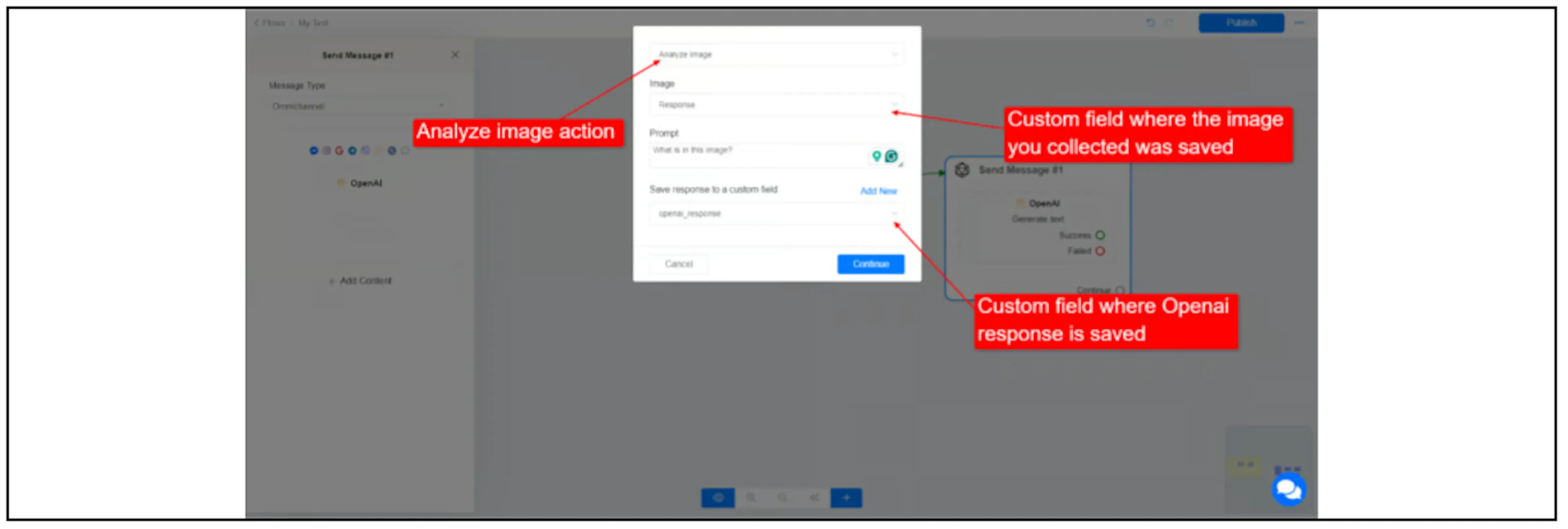
Keep the image input and text answer in different fields.
Use the answer
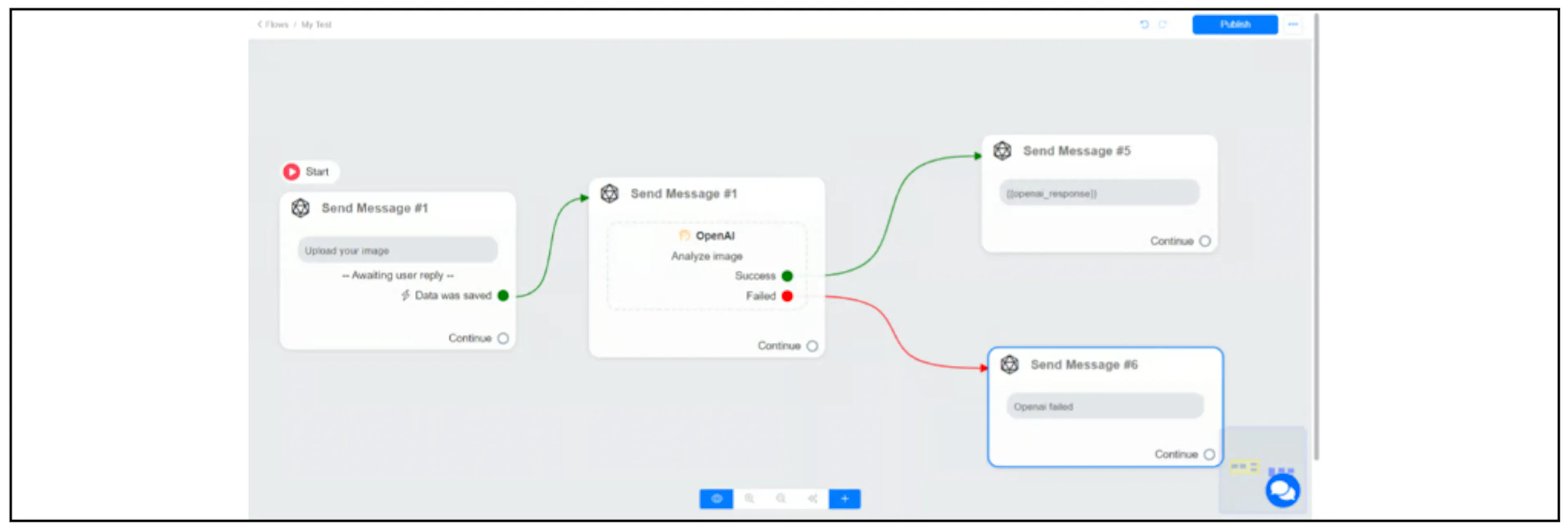
From Success, continue to the message or action that uses the answer. The example sends a text message containing {{openai_response}}. Connect Failed to a separate recovery path.
Check OpenAI's vision limitations when deciding how to use the result. Descriptions can be incorrect; small or rotated text and object counts may be unreliable. Review results that affect a customer's next action.
Images sent outside this flow
To analyse images sent outside a Get User Data step, ask Bual Pro support to confirm the current input mapping and setup for your default reply flow or OpenAI replies. The steps above cover images collected within the flow.
If analysis fails
Check that the input field contains the image, that the action uses that field, and that your OpenAI account can use the selected model. Use a clear, non-sensitive sample image to test the prompt, saved answer and failure path before enabling customer use.