Math calculations
Calculate a value using a custom formula and save the result in a numeric field.
Use Set Custom Field with Use custom formula to calculate a value and save the result in a numeric field. The earlier guide includes arithmetic operators, functions and constants.
The screenshots show an earlier interface. Confirm the available formula operation and accepted syntax in your current account before using a calculation in a customer flow.
Configure a calculation
- Open the intended flow and add an Action block.
- Choose Actions > Set Custom Field.
- Select the numeric custom field that will receive the result.
- Under Operation, select Use custom formula.
- Enter the formula in Value, inserting input fields through the current field picker, then save.
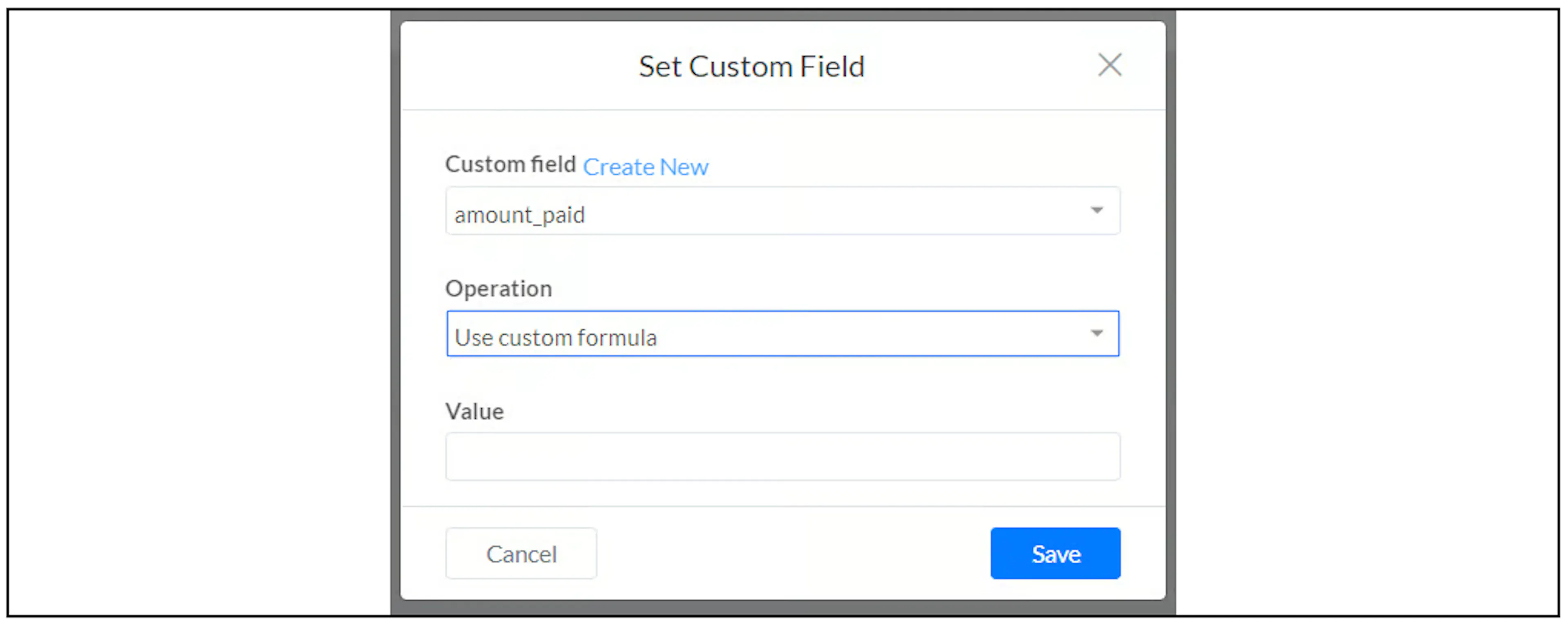
Example: calculate a result from two inputs
The earlier walkthrough collects A and B as numeric user inputs, then saves the result of (A + B) * (A - B) in another numeric field.
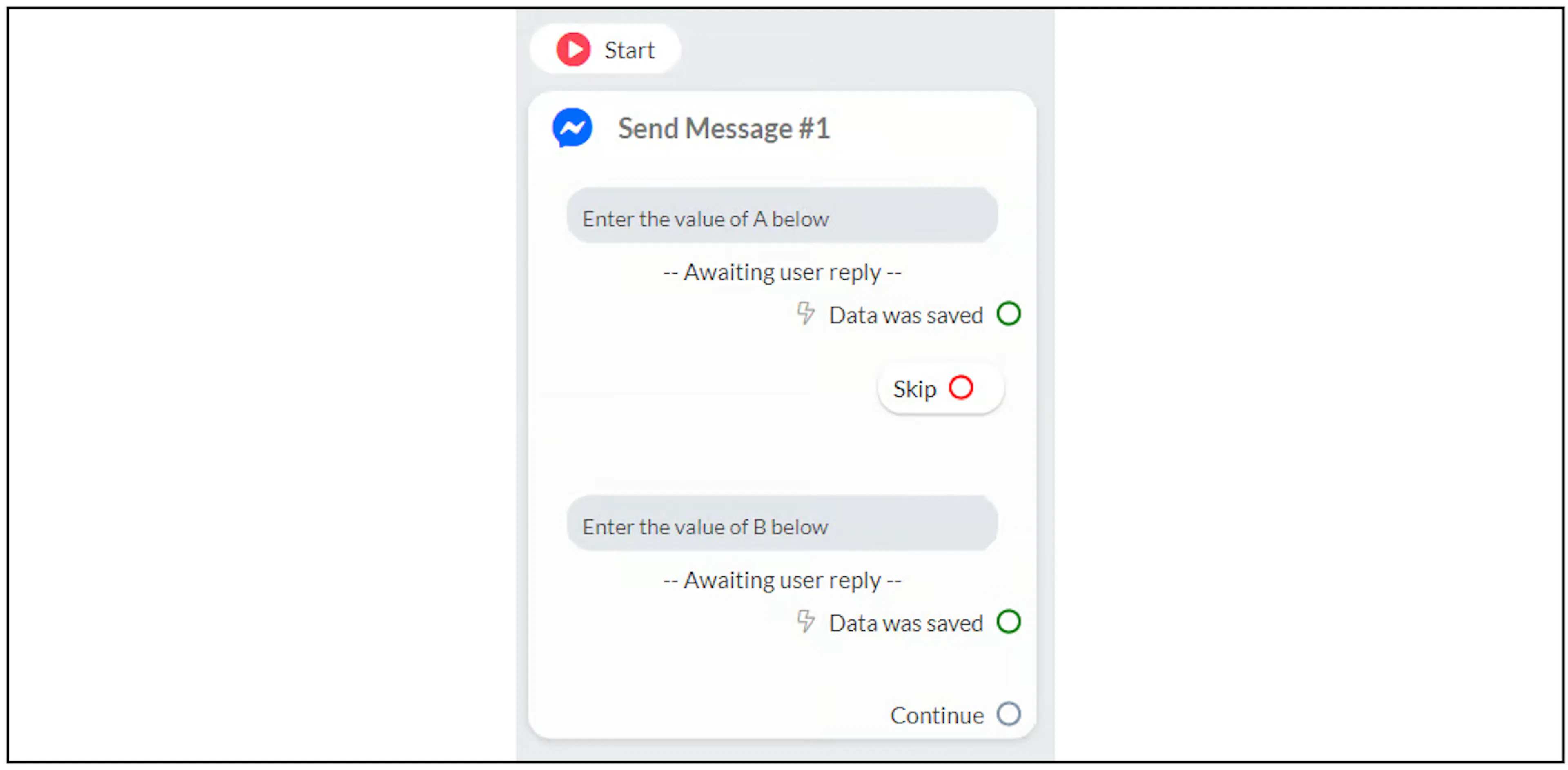
Build the expression using the field picker for each occurrence of A and B. Keep parentheses around each addition or subtraction group. The copied formula in the old article has mismatched braces, so use the tokens inserted by your current editor instead of copying that expression.
For the source example, A is 4 and B is 2:
(4 + 2) * (4 - 2) = 12
The expected mathematical result is 12. Verify the saved result and the displayed message in a controlled test; this example is not a record of a current Bual Pro runtime test.
Operators and sample expressions
The earlier guide lists + for addition, - for subtraction, * for multiplication and / for division. Parentheses group expressions; commas separate function arguments and a dot appears in decimal values.
The source examples below use plain ASCII arithmetic characters. Enter each expression separately:
1+2*3-4
pi * 2
PI * 2
abs(1) + min(1,2) * max(1,2,3)
min(1+2, abs(-1))
1 + ((2 - 3) * (5 - 7))
2 * (-3)
The source shows both pi and PI; this does not establish that all names are case-insensitive. It also shows 1, (1+((2))), 00001 and .1 as accepted forms. Check the parser in your current account before relying on those forms.
Function names in the earlier guide
The following spellings are preserved as a reference. The source does not define their argument rules or error behavior. Confirm a function before relying on it, especially the unexplained entry en.
abs, aCos, aCosH, aSin, aSinH, aTan, aTanH, aTanTwo,
ceil, cos, cosH, degToRad, en, exp, expMOne, floor,
fMod, hypot, log, logOneP, logTen, max, min, pow,
radToDeg, round, sin, sinH, sqrt, tan, tanH
Constant names in the earlier guide
e, euler, lnPi, lnTen, lnTwo, logTenE, logTwoE, onePi,
pi, piFour, piTwo, sqrtOneTwo, sqrtPi, sqrtThree,
sqrtTwo, twoPi, twoSqrtPi
These are source-listed names, not verified definitions of their values or aliases. Confirm current support and capitalization where a formula depends on one.
Check the inputs and result
Confirm both input fields contain numeric values before the calculation runs. Check missing values, zero divisors, decimal precision and rounding in a controlled test before using results for prices, balances or other business decisions. The earlier guide does not establish how those cases are handled.
Use custom fields to store values, flow guidance to collect them and executed actions to inspect a flow run. For date-related work, see Format date and time.