Copy a flow to another Page
Use Flow Builder's Copy to Another Page command and review the destination copy.
The earlier walkthrough copies a flow between Facebook Pages connected to Bual Pro. Check access to the source and destination before copying.
Select the source flow
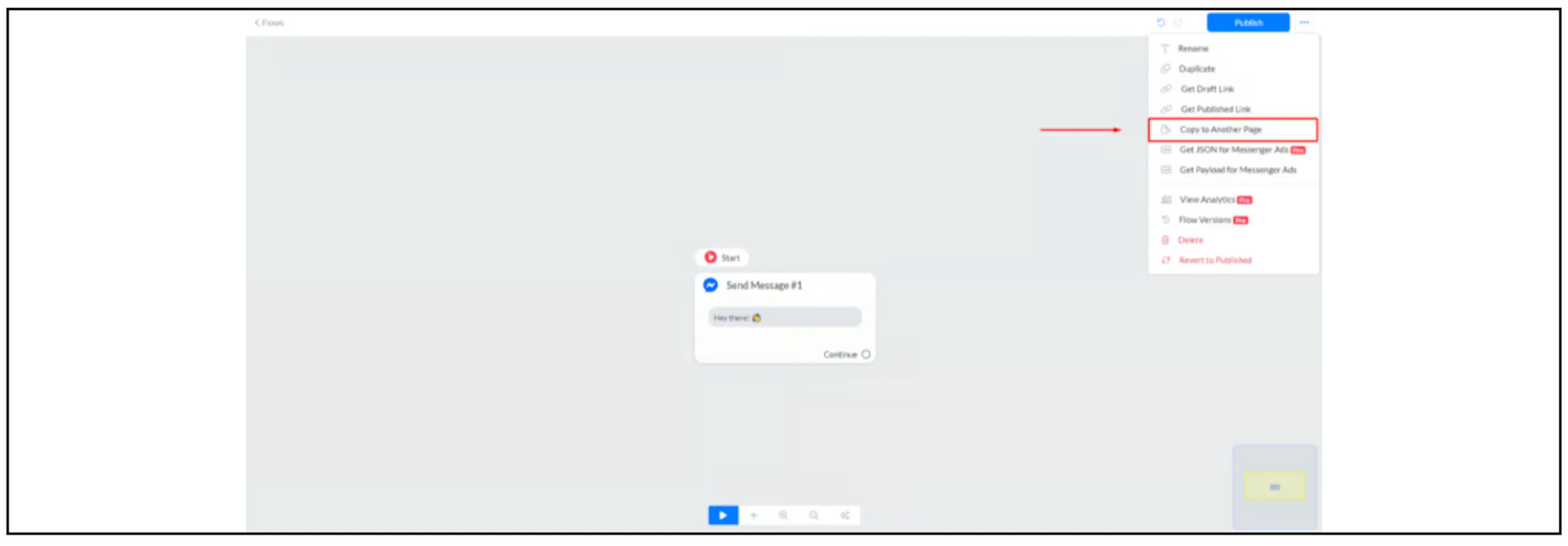
Open the flow you want to copy. In Flow Builder, open the top-right menu and select Copy to Another Page.
Choose the destination
In the Copy Flow dialog, select the intended destination Page and choose Copy.

If the Page is missing, confirm that you selected the correct Bual Pro account and have the access required to use that Page. Contact support if the destination still does not appear.
Review the copied flow
Open the destination account/Page and locate the copy. Check the flow blocks and any references to custom fields, tags, products, other flows or external connections before using it with customers.
Confirm whether the copy is a draft or published and how entry points and rules attach to it. The earlier guide does not establish the copy's publication state, whether dependencies are created, or how conflicts with existing destination content are handled.
Check the destination's channel requirements and test the intended flow behavior before enabling customer entry. Copying the flow does not by itself verify that account-specific integrations work in the destination.
For selected content packaged for installation in another account, see Copy flows using Templates.