PayPal integration
Find the PayPal connection, select the correct app credentials and check the payment setup.
The PayPal connection uses a Client ID and Secret from a PayPal REST app. Confirm that PayPal is available for the checkout and channel you intend to use in Bual Pro before connecting it.
Before you connect
You need access to the intended PayPal business account and its app credentials. Check the receiving account, currency and country requirements for your business. If you plan to charge in MYR, confirm that your PayPal account and Bual Pro checkout support that setup.
Confirm whether the Bual Pro connector supports PayPal sandbox testing and how it selects the environment before entering credentials. Sandbox credentials belong to a test setup; live credentials belong to real payments. Keep the Client ID and Secret from the same app and environment.
Find your PayPal app credentials
Follow PayPal's current setup guide to find the credentials:
- Sign in to the PayPal Developer Dashboard.
- Open Apps & Credentials and select the environment you intend to use.
- Select the intended REST app, or use Create App if you need a new app. Check the account associated with it.
- Find its client ID and client secret.
The earlier guide calls this area My Apps & Credentials. Follow the current dashboard labels. Keep the secret private and enter it only in the intended connection; do not put it in messages, screenshots or a public repository.
Connect in Bual Pro
Open Settings > Integrations, find PayPal and select Connect. In the dialog, enter the app's client ID in Client ID and its client secret in Secret, then select Continue.
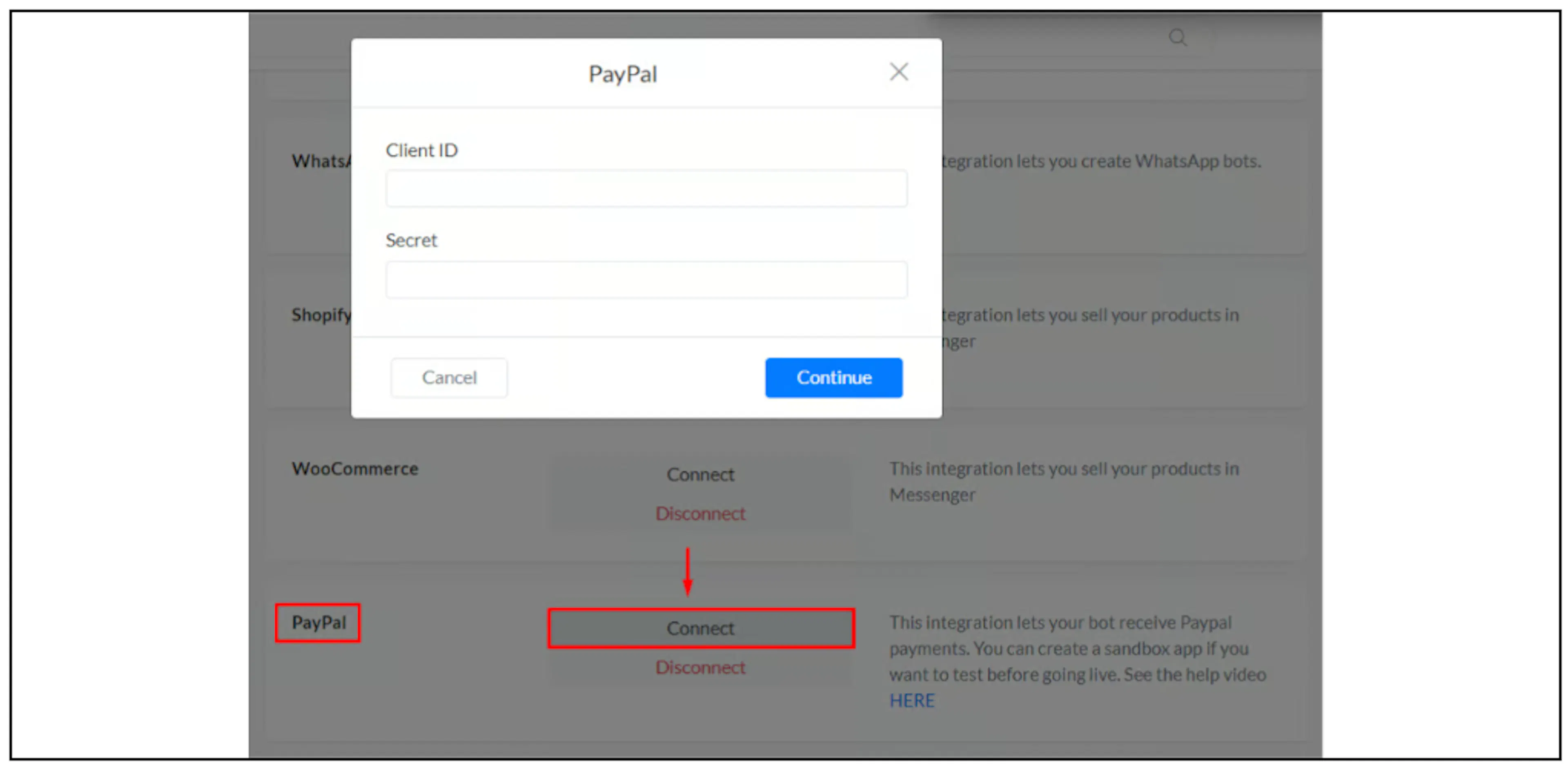
The screenshot shows an earlier interface. Check the connection status after saving. If the controls differ or the environment is unclear, contact Bual Pro support before proceeding.
Check checkout and payment status
A saved connection does not confirm that checkout, payment capture or Bual Pro order updates work. If Bual Pro supports a sandbox setup for your workflow, follow PayPal's sandbox guidance and use test accounts for a controlled check.
Check the intended amount, currency and receiving account. Review the recorded result in PayPal and the corresponding order status in Bual Pro. Include a cancelled or failed checkout so you can see what the customer and your team will receive. Confirm the conditions that trigger any fulfilment or follow-up flow.
If the provider result and Bual Pro order disagree, investigate before asking the customer to pay again. Share a non-sensitive description of the issue with support; never send the client secret.
Before accepting real payments
Confirm that the receiving account is ready for live payments and that Bual Pro uses the intended live environment. Follow PayPal's current requirements for your account, supported currencies and payment availability.
Ask Bual Pro support how this connector handles payment completion, refunds and order-status updates if those behaviors affect your workflow. The connection walkthrough does not establish webhook settings or a return URL; use only the settings confirmed for the current connector.