Connect OpenAI for customer replies
Add your OpenAI API key, prepare business information and check automatic replies.
Connect OpenAI through Bual Pro's integration settings to use AI replies and OpenAI actions in your flows.
Before you connect
Get an API key from the OpenAI API keys page. Your OpenAI account must have access to the API features you want to use. API usage is billed separately from ChatGPT.
Keep the API key private. Enter it only in the integration's API Key field; do not put it in a prompt, custom field or customer message.
Connect the integration
- Open Settings > Integrations in Bual Pro.
- Find OpenAI or OpenAI ChatGPT and select Connect.
- Enter your API key and complete the connection dialog.
- Review Business Information before enabling customer replies.
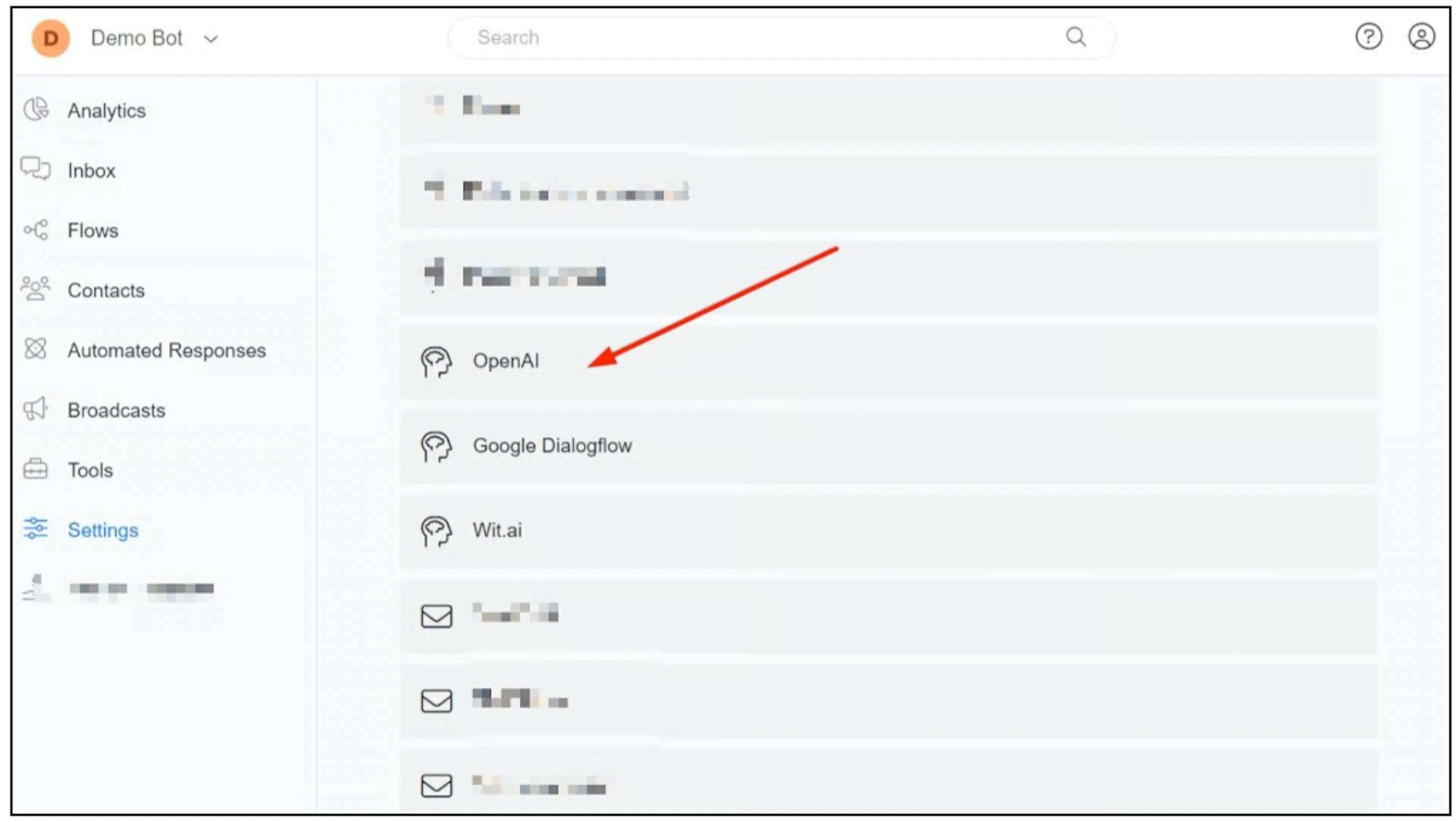
The screenshots show an earlier interface. If the integration or its settings differ in your account, contact Bual Pro support.
Prepare business information
Use Business Information to explain what your business offers and how the bot should answer customers. Keep the instructions clear and check the facts the bot will use. Include when it should ask for more information or transfer a conversation to your team.
Providing business information guides the replies; it does not guarantee that every answer will be correct. Test the questions customers commonly ask before enabling automatic replies.
Choose how replies run
Check the automatic-reply toggle in the OpenAI integration. Depending on the interface, it may appear as Automate Responses, Automated Responses or Default Reply.
If you want OpenAI to run only through actions in your flows, turn off its automatic-reply setting. Connecting an API key is not a substitute for checking this setting and the other automations on the account.
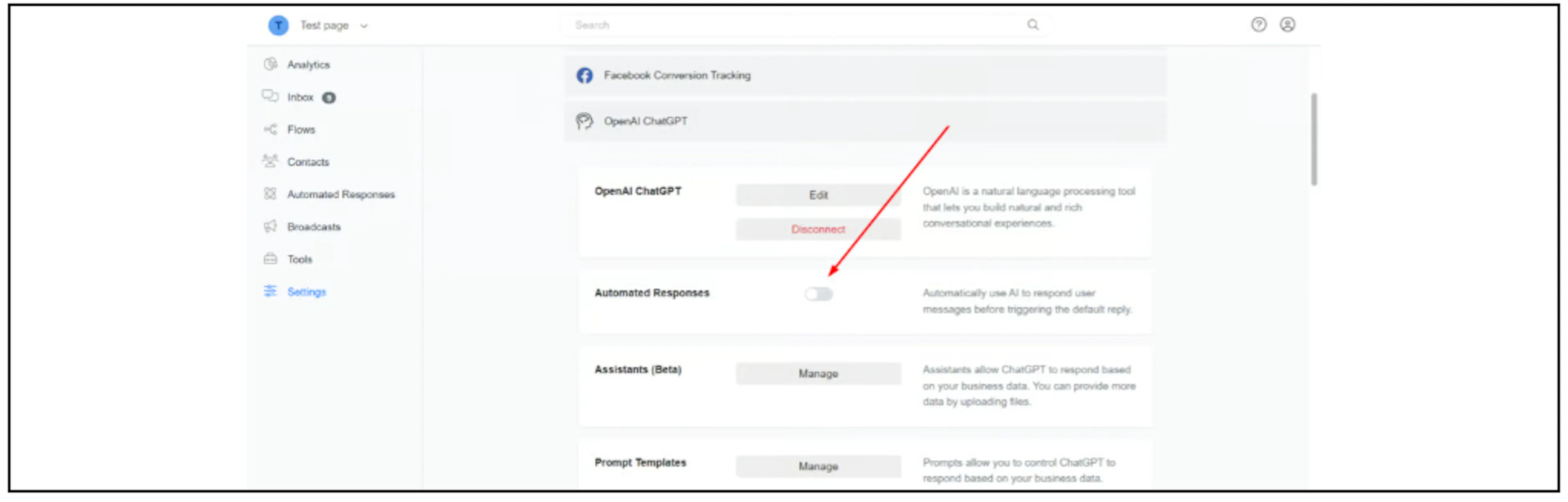
If you also use Automated Responses, Dialogflow or Google Gemini, test which response handles an incoming message. Do not assume that every message will reach OpenAI.
Trigger a flow or hand over to a person
Use ChatGPT Triggers to collect information and start a flow from the AI conversation.
If your account includes the built-in human-handover trigger, check that it is selected in the relevant OpenAI settings or action. Test a request to speak to your team and confirm that automation stops and the conversation reaches the human-agent workflow. Do not promise an immediate agent reply unless your team can provide one.
Check the connection
Use non-sensitive sample messages to check the business answers, automatic-reply behaviour and human handover. If an action fails, check that your API key is valid and that your OpenAI account has access and available usage for the selected model. If the required model or action is unavailable, contact support before changing the customer flow.