Google Speech-to-Text
Review the Google Cloud connection used to process incoming voice messages in Bual Pro.
The Google Speech to Text integration is intended to turn incoming voice messages into text for your bot to process. Confirm that this integration is available for your account and intended channel before setting it up.
Check the connection requirements
You need a Google Cloud project with the Speech-to-Text API enabled and the credentials required by the current Bual Pro connector. Check any billing requirements and review Google's current pricing before enabling use.
The earlier Bual Pro dialog asks for an API Key. Google's current authentication guide describes authentication methods for different environments; it does not establish which method the Bual Pro connector currently supports. Confirm the required credential type with Bual Pro support if the setup is unclear. Keep credentials private.
Prepare Google Cloud
- Open Google Cloud projects and create or select the intended project.
- Open the Speech-to-Text API page for that project and enable the API if needed.
- Check the project's billing, quotas and credential requirements. Use the authentication method supported by the Bual Pro connection.
Avoid choosing credentials from an unrelated project. If the connector requests an API key, confirm the supported restrictions before creating or changing it.
Connect in Bual Pro
Open Settings > Integrations > Google Speech to Text. If your account shows the API-key dialog below, enter the credential required by that connector and select Continue.
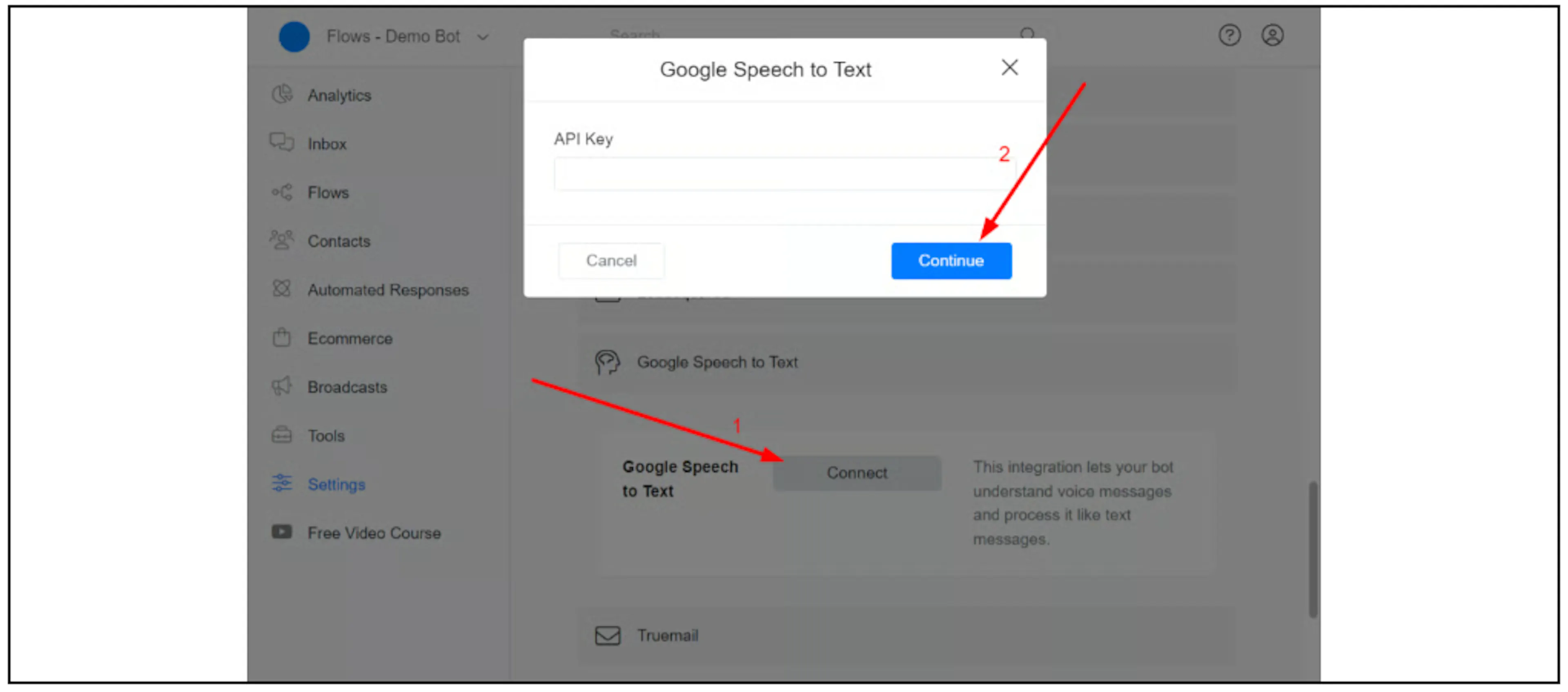
The screenshot shows an earlier interface. If your dialog differs, follow the current connection requirements or ask support.
Check transcription and replies separately
Use a non-sensitive sample voice message in a controlled test conversation. Check that Bual Pro receives the audio and converts it into text, then verify that the intended reply rule handles that text.
An enabled connection alone does not confirm that a customer will receive an automatic reply. Check the active automation, any human handover state and the connected channel's messaging rules. Review a Malay or mixed-language sample if that is how your customers communicate, and check names and numbers against the audio.
If the test fails, check the Google Cloud project, API status, credentials, quota and billing, then confirm the audio and language support exposed by Bual Pro. Ask support which API version and recognition settings the connector uses if those details affect your setup.
Usage charges
Google's rates depend on the API version and recognition configuration. Use the current pricing page and your project's billing report to estimate cost; confirm which configuration Bual Pro uses before applying a rate or free allowance.
For a flow that explicitly saves an uploaded file and its transcript in separate fields, see Convert speech to text with OpenAI.