Send your business location
Add a business name, address, and coordinates to a location message.
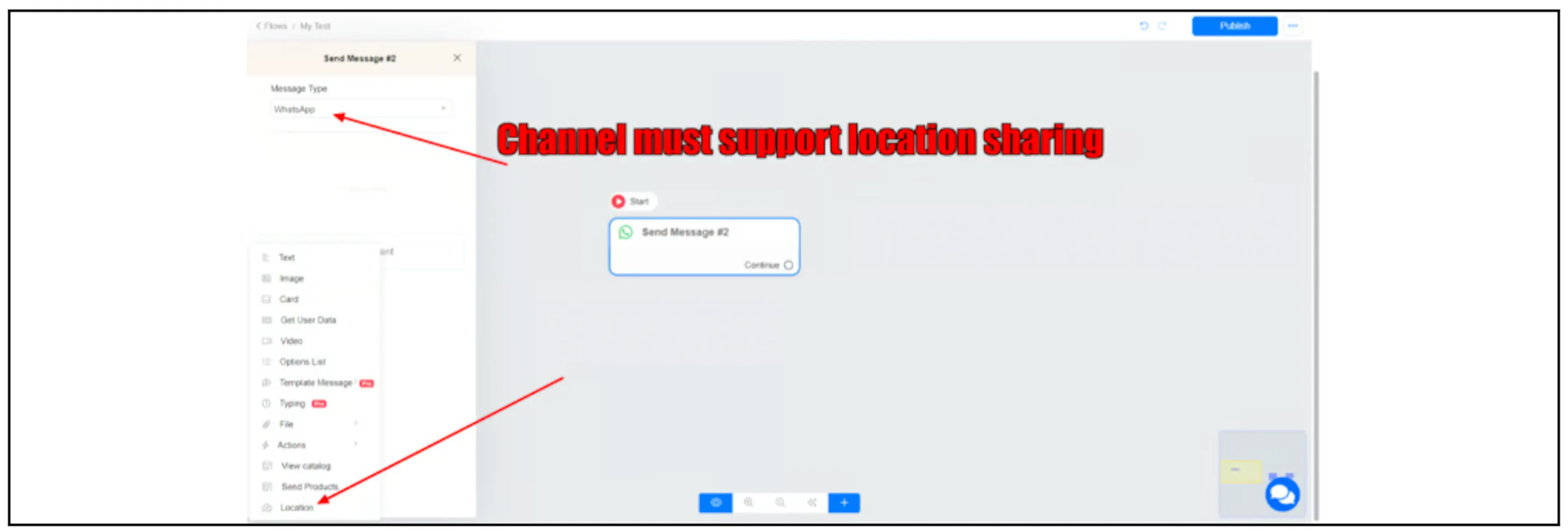
Use a Location message to share your business's position with a customer. Choose a channel that supports location messages. Bual Pro's existing guide shows WhatsApp and names Telegram as another supported channel; check the controls available in your account before building the flow.
Get the coordinates
On a computer, open Google Maps and right-click the business's position. The coordinates appear at the top of the menu in decimal format. Click them to copy them.
Google Maps lists latitude first, longitude second. Enter each value into its matching field and preserve any minus sign. Check the pin against the business address before using it. See Google's coordinate instructions.
Add the location message
- Open the flow and select its Send Message block.
- Set Message Type to the supported channel, such as WhatsApp.
- Open Add Content and select Location.
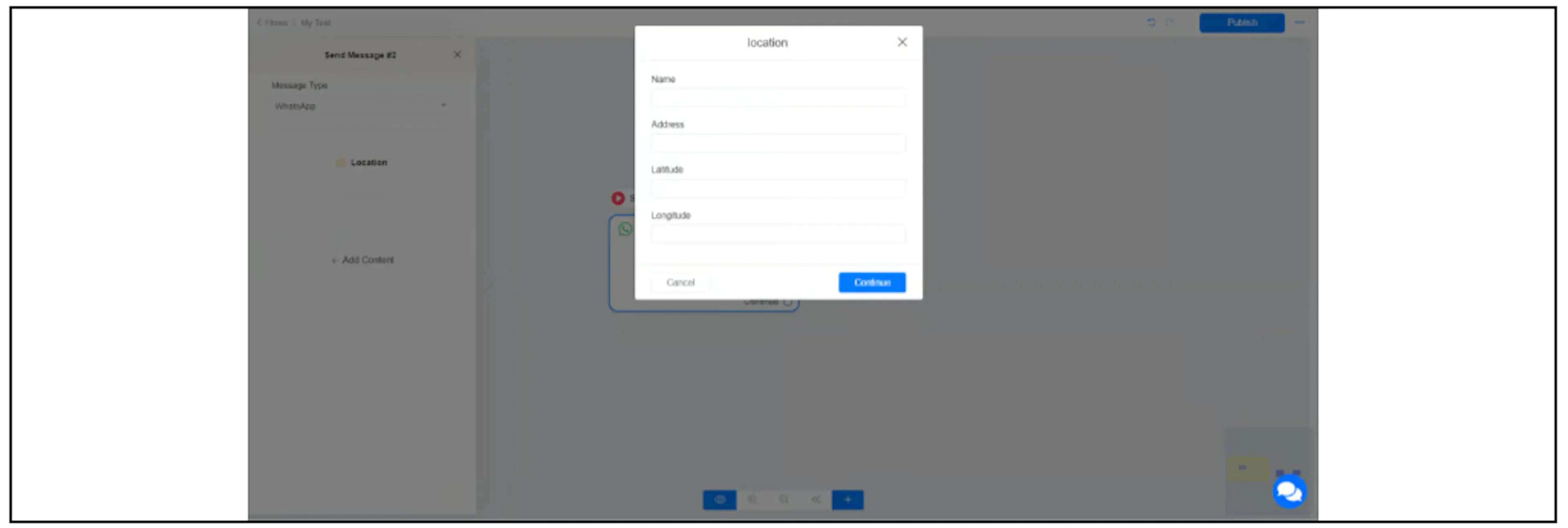
- Enter Name, Address, Latitude, and Longitude.
- Select Continue and review the location content in the flow.
Review before sending
Check that the coordinates and address refer to the same business location. Preview the flow and confirm that the location opens at the intended pin in the recipient's map app before making it available to customers.
For collecting a customer's position instead, see Request a customer's location. Follow the WhatsApp messaging rules when sending through WhatsApp.