Collect data with custom fields
Create custom fields, save replies, and use contact data in a flow.
Custom fields store contact information such as an email address, phone number, or preference. Field types include Text, Number, Date, Date & Time, and True/False.
Create a custom field
- Open Flows, then Custom Fields.
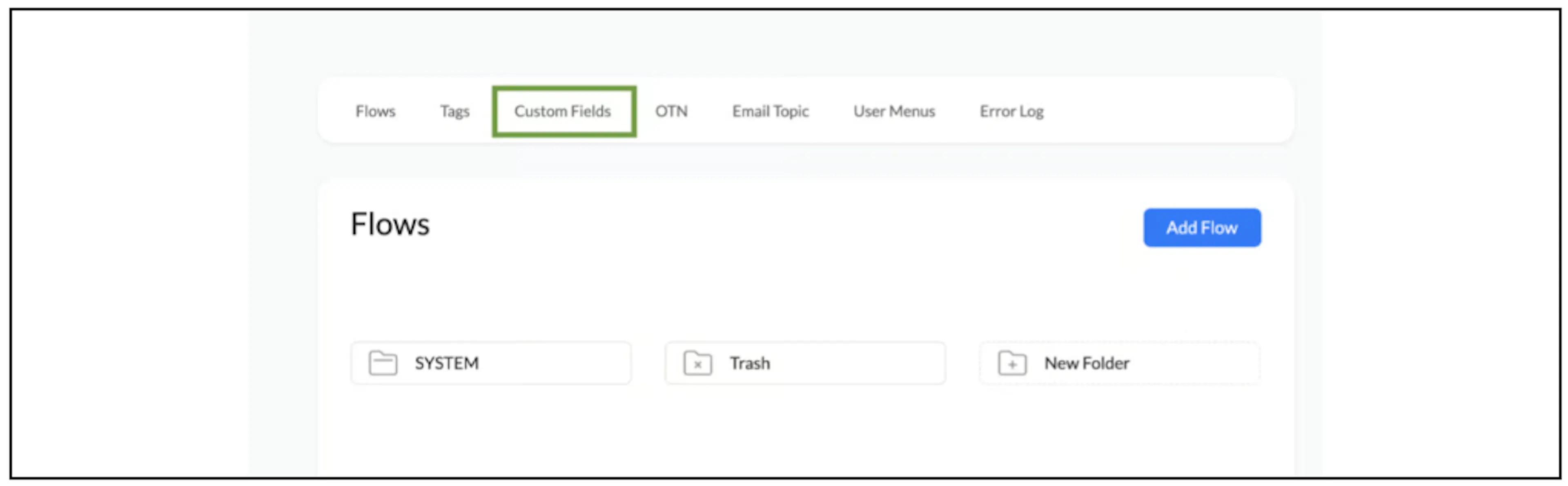
- Click Add User Field.
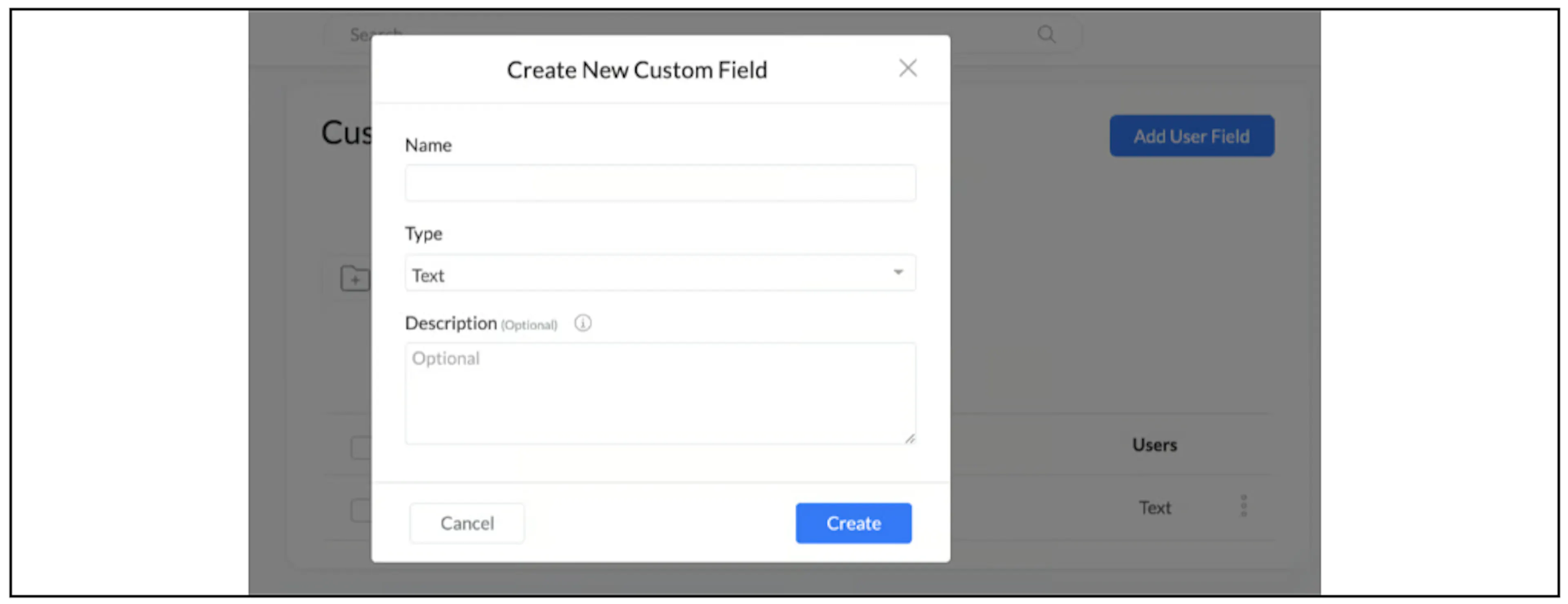
- Enter a Name and choose a Type. You can add a Description to explain what the field stores.
- Click Create.
Save a reply to a field
- Open the flow and select a message block.
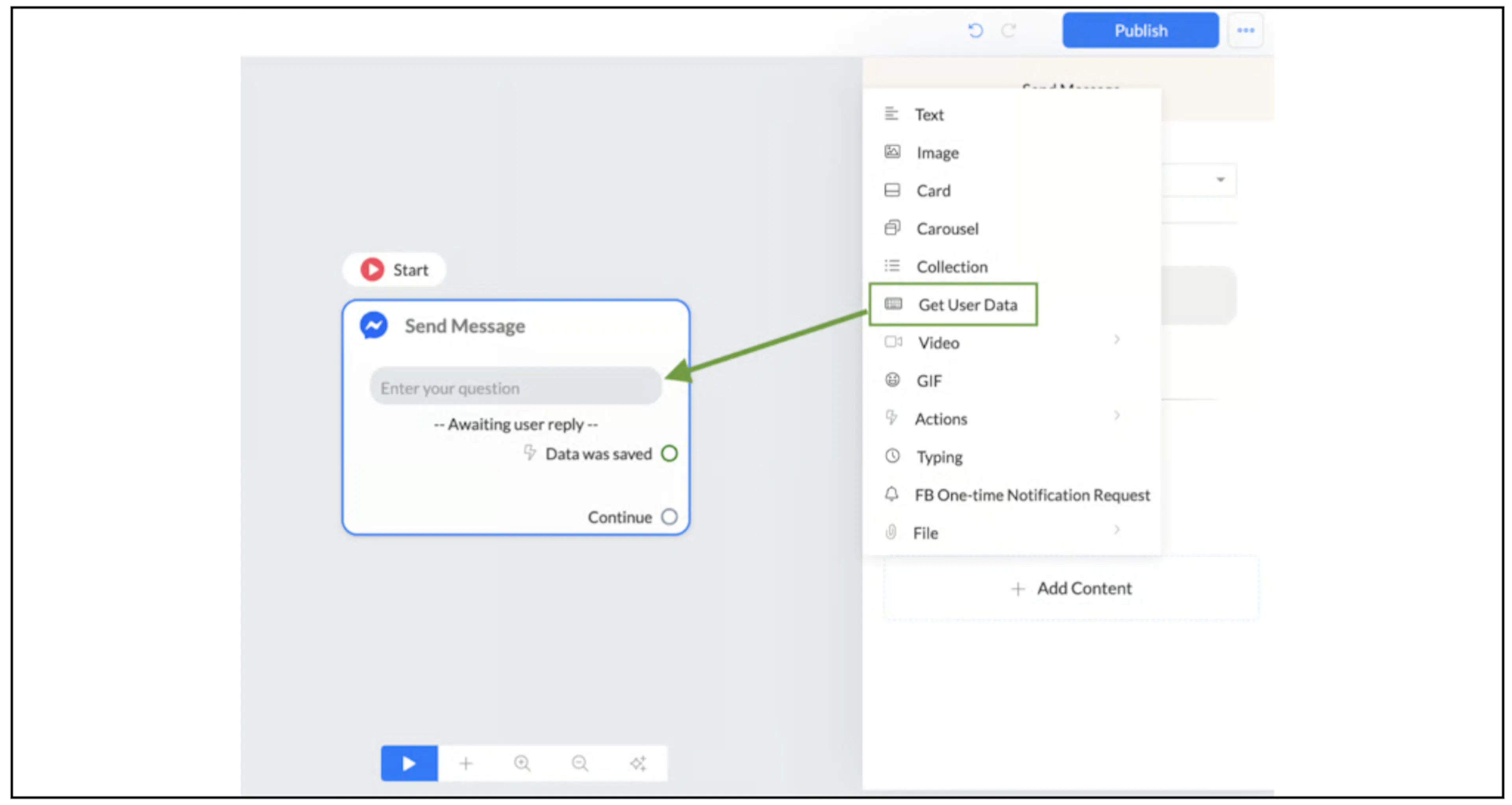
- Under Add Content, select Get User Data and enter your question.
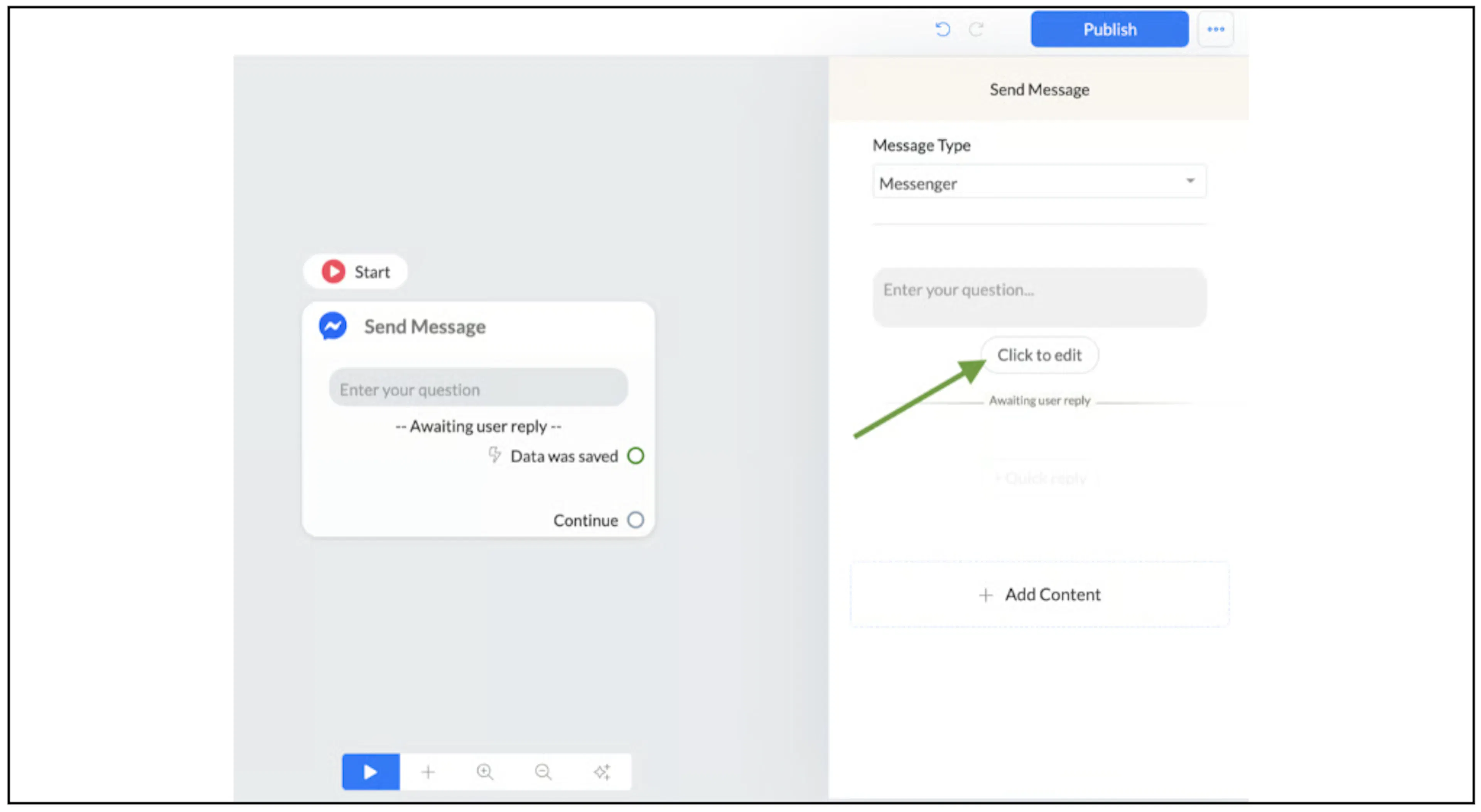
- Click Click to edit below the question to open the input settings.
- Choose a Reply type.
- Under Save response to a custom field, select the destination field. Use Create New if you need to create one here.
- Click Save.
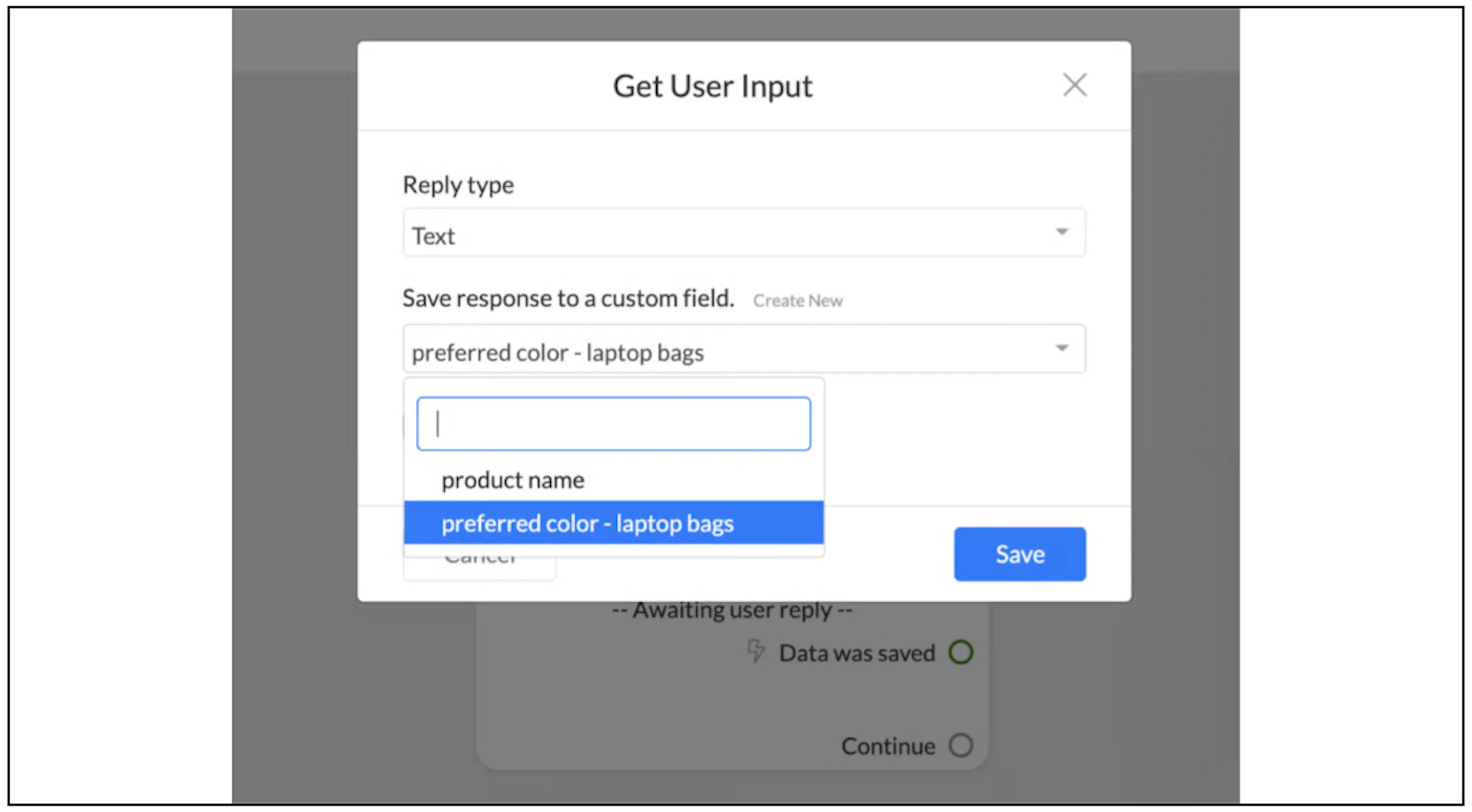
The example uses a field named preferred color - laptop bags to save the contact's answer.
Use the saved value
Insert the custom-field token into a later message. The example asks What is your color? and uses {{preferred color - laptop bags}} in the reply.
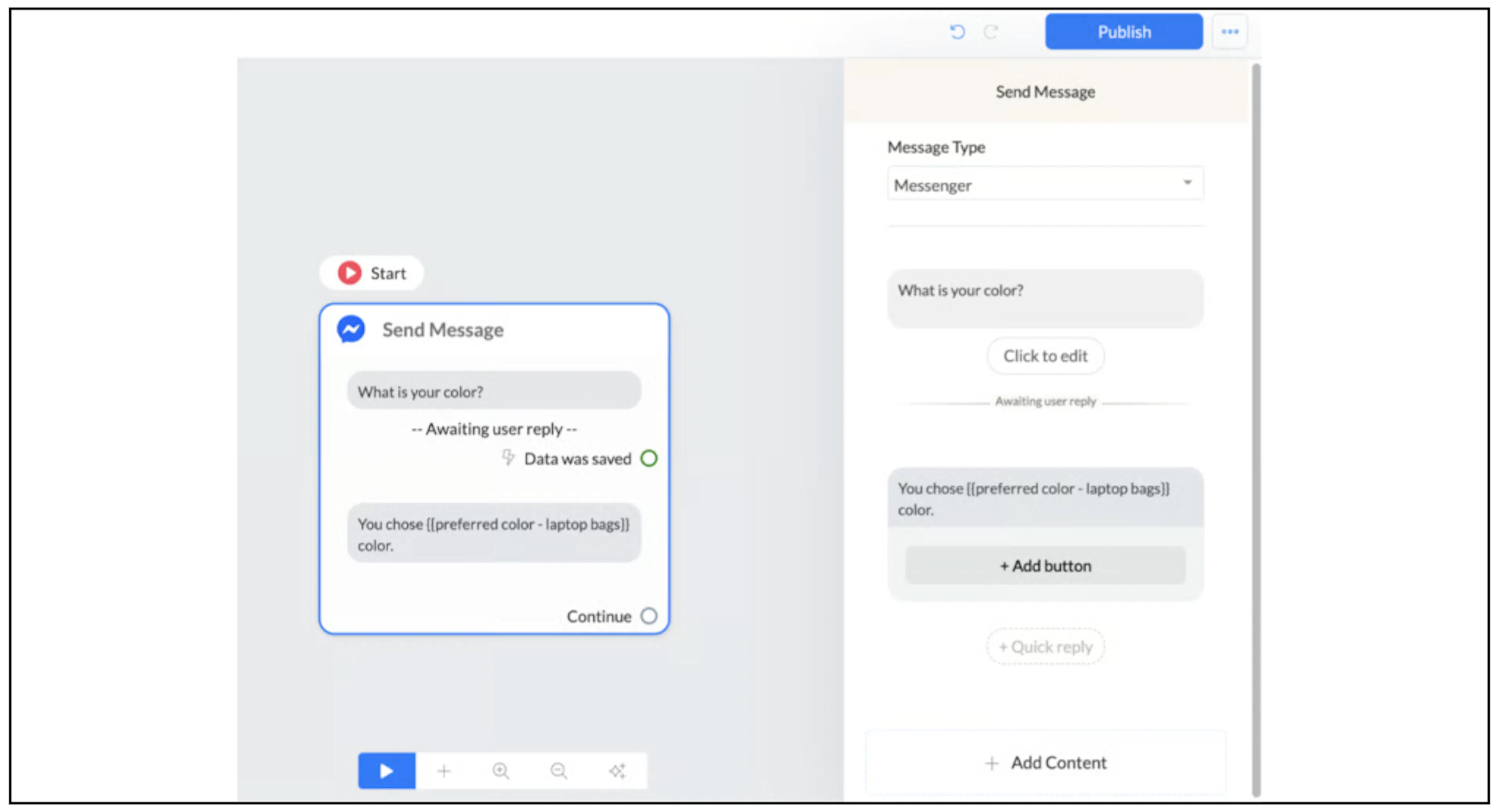
When the contact replies Green, the example message reads You chose Green color.

Check the contact record
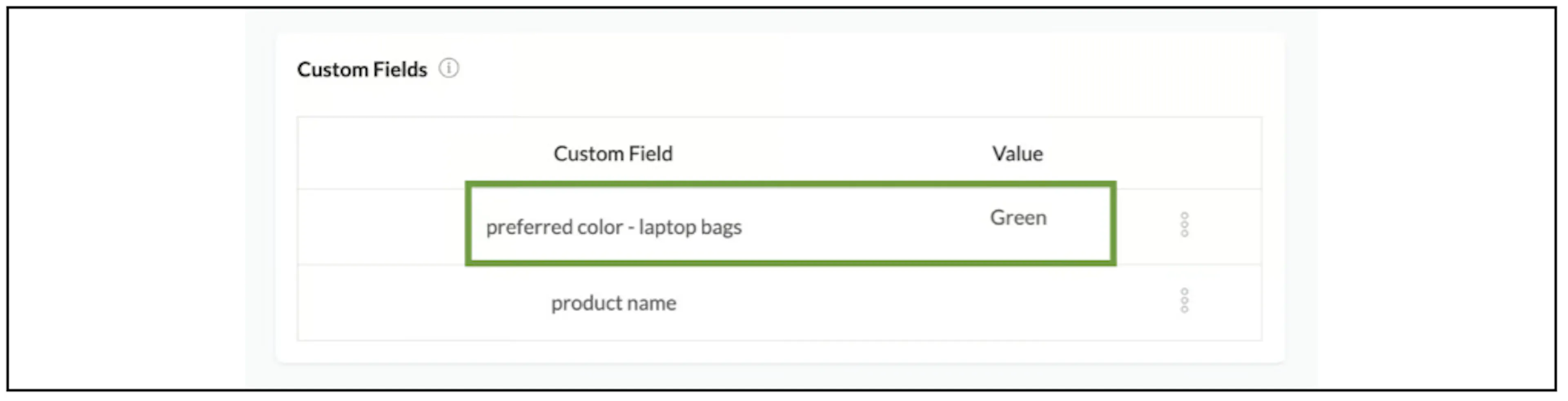
Open the contact's details and look under Custom Fields. The example shows Green beside preferred color - laptop bags.
For values Bual Pro already saves, see System fields.
Was this page helpful?