Bot Simulator
Create a demo link to preview a bot alongside a website.
Use Bot Simulator to show how a bot looks alongside a website without adding bot code to the destination site. Some websites do not work with the simulator, so check the generated link before presenting a demo.
Create a demo link
- Open Tools > Bot Simulator.
- Select an available mode. For a webchat demo, choose Webchat.
- Enter the website address in Website Link.
- Select Get Link and open the result to check the preview.
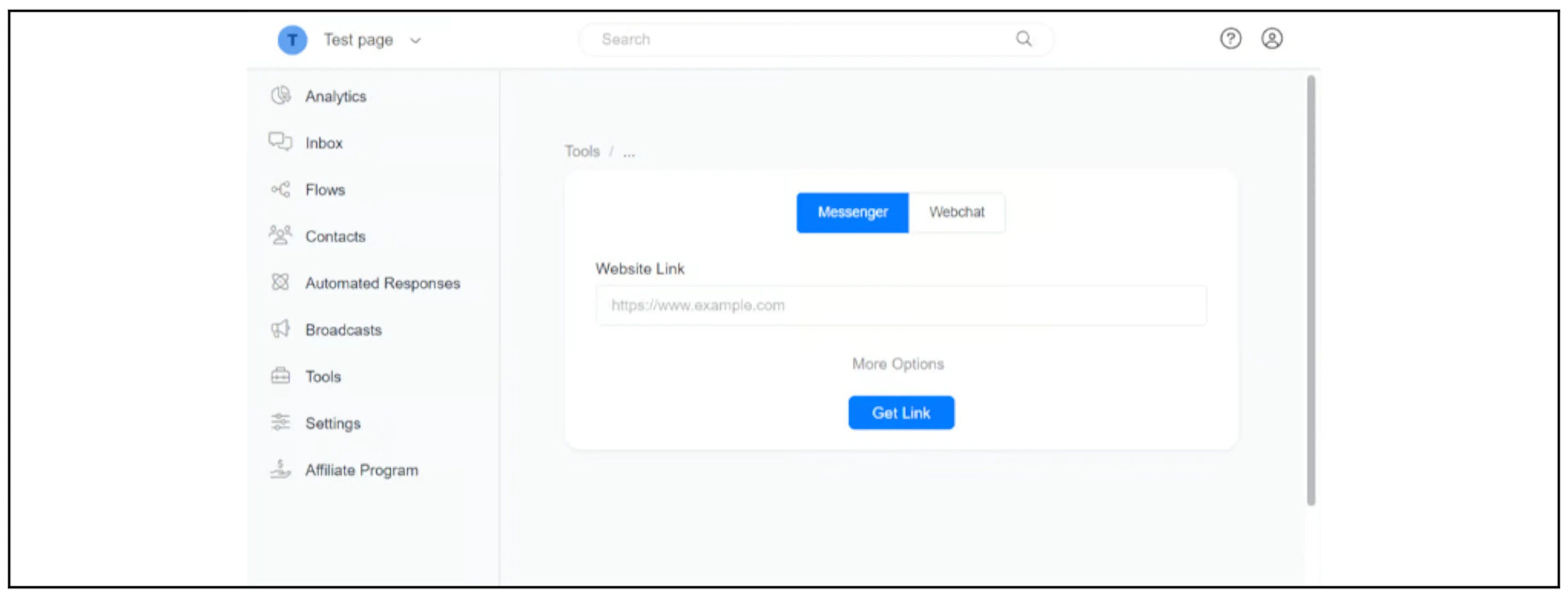
The screenshot also shows an older Messenger option. Confirm current Messenger simulator support in your account before sharing a Messenger demo link.
Choose the welcome flow and colour
Open More Options to select a Welcome Message flow and Brand Color.
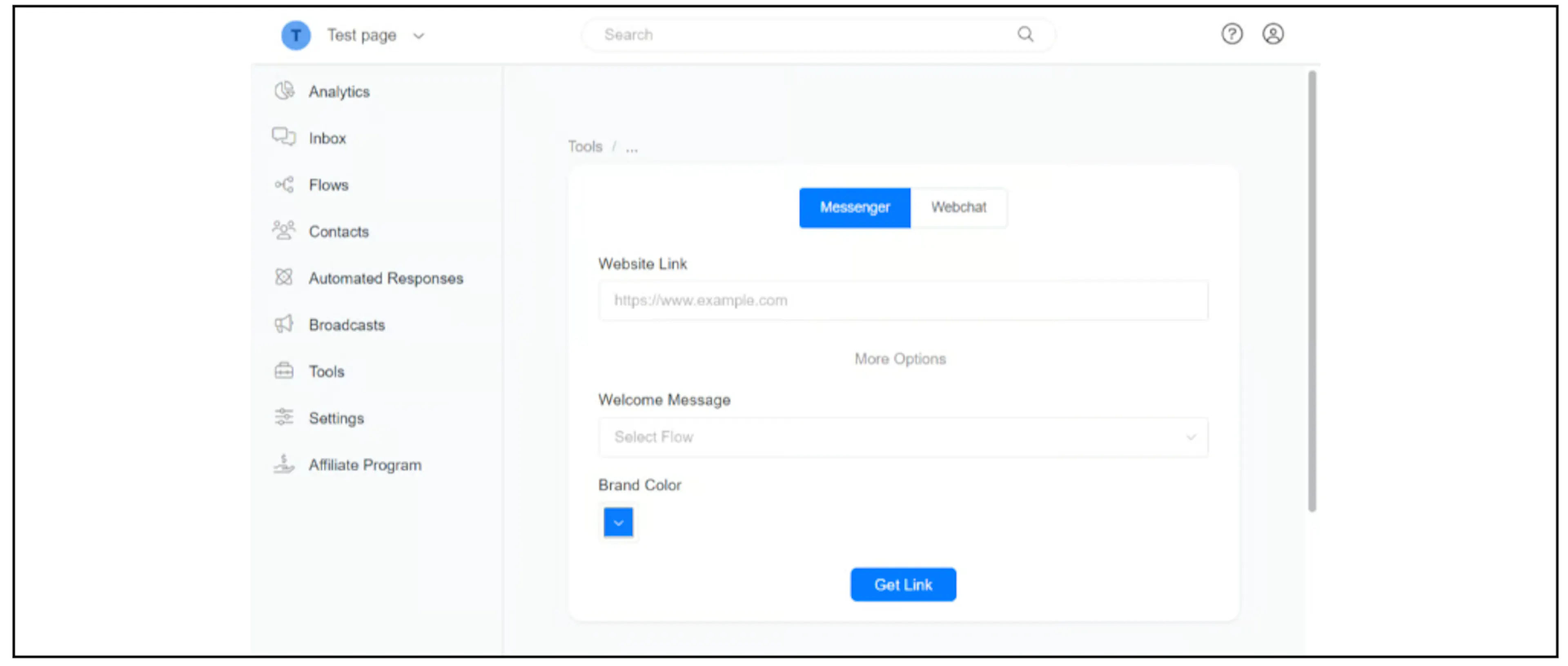
Use a demo flow with sample content. Review any connected actions before interacting with it; a preview is not proof that customer messages or integrations are isolated.
Build a webchat link manually
The webchat simulator link has this format:
https://app.bualpro.com/bots/ACCOUNT_ID/sw/?url=LINK
Replace ACCOUNT_ID with the bot account ID and LINK with the URL-encoded website address. Check the resulting link with the intended account and website before sharing it.
The following format adds the hideHeader option:
https://app.bualpro.com/bots/ACCOUNT_ID/sw/?url=LINK&hideHeader=true
Confirm the current webchat options supported by your account before appending other parameters. The simulator creates a preview link; it does not install webchat on the destination website.
If the website does not load
Check the website address and try another suitable demo website. If the problem is specific to a site or mode, contact Bual Pro support. Do not promise that every website will work.