Convert speech to text with OpenAI
Collect an audio file, transcribe it with an OpenAI action and save the text.
Save an audio file from a contact, pass it to Convert speech to text, then use the transcript in a text message or later flow action.
Before you start
Connect OpenAI and check that Convert speech to text is available in your account. You need one custom field for the audio input and another for the transcript.
Check the destination channel's file requirements and OpenAI's transcription requirements. Bual Pro may impose its own upload limits or expose a different selection of models and settings. If the action or required format is unavailable, contact support.
Collect the audio file
- Add Get User Data to your flow.
- Ask the contact to upload the audio file.
- Set Reply type to File and choose the custom field where the file will be saved.
- Save the step.
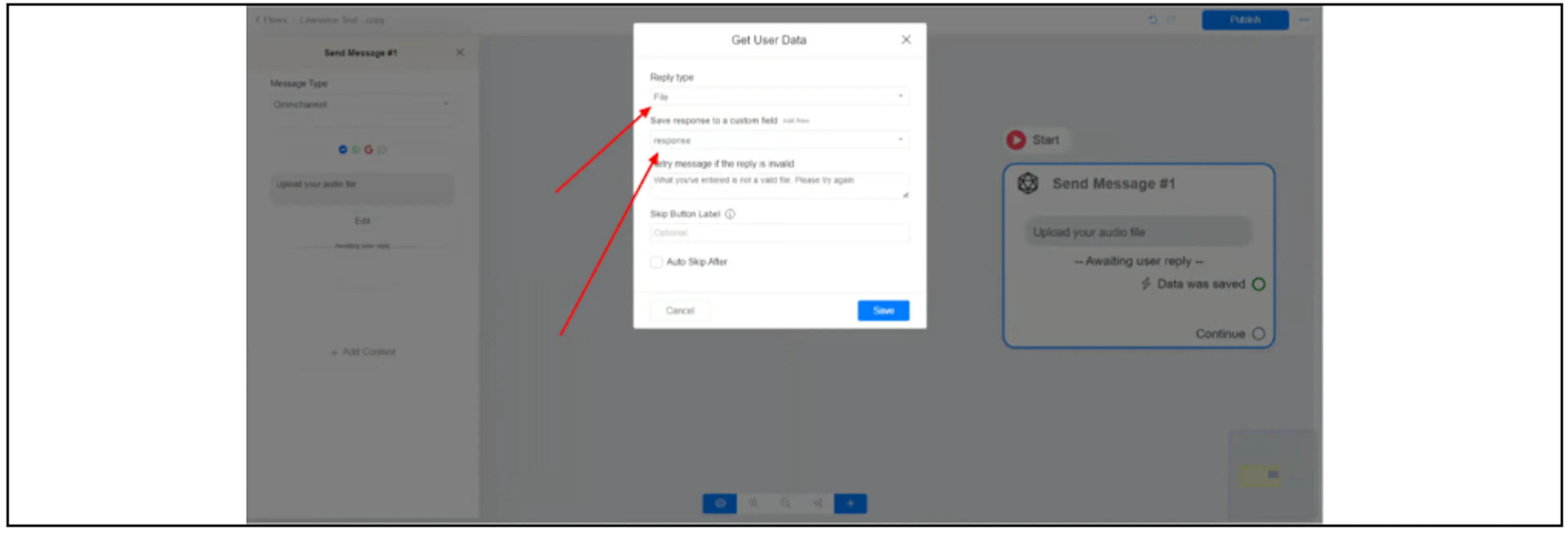
The screenshot uses File, rather than a separate Audio reply type. Labels may differ in your account.
Configure transcription
Connect Data was saved to an action block, add OpenAI, then:
- Select Convert speech to text.
- In Audio, select the custom field holding the uploaded file.
- Under Save response to a custom field, choose a separate field for the transcript. The example uses openai_response.
- Continue from the dialog.
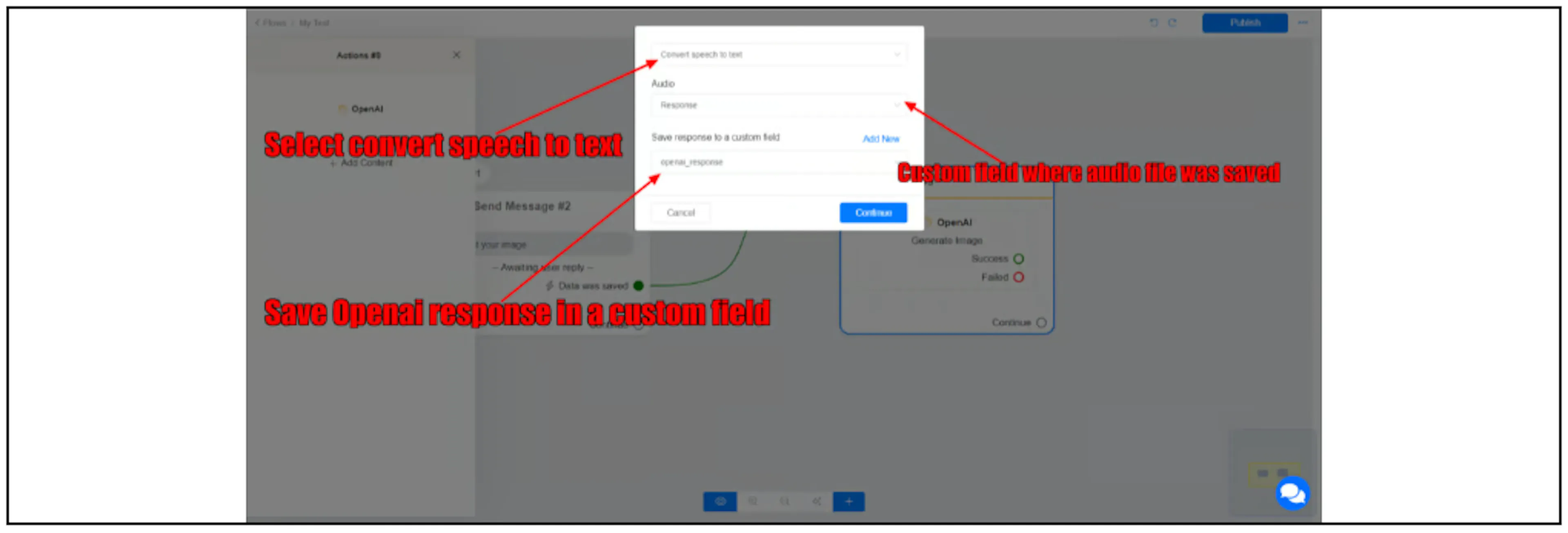
Keep the audio input and transcript in different fields so the text does not replace the file reference.
Use the transcript
From Success, add a text message and insert the transcript field. The example uses {{openai_response}}; use the token for the field selected in your own flow.
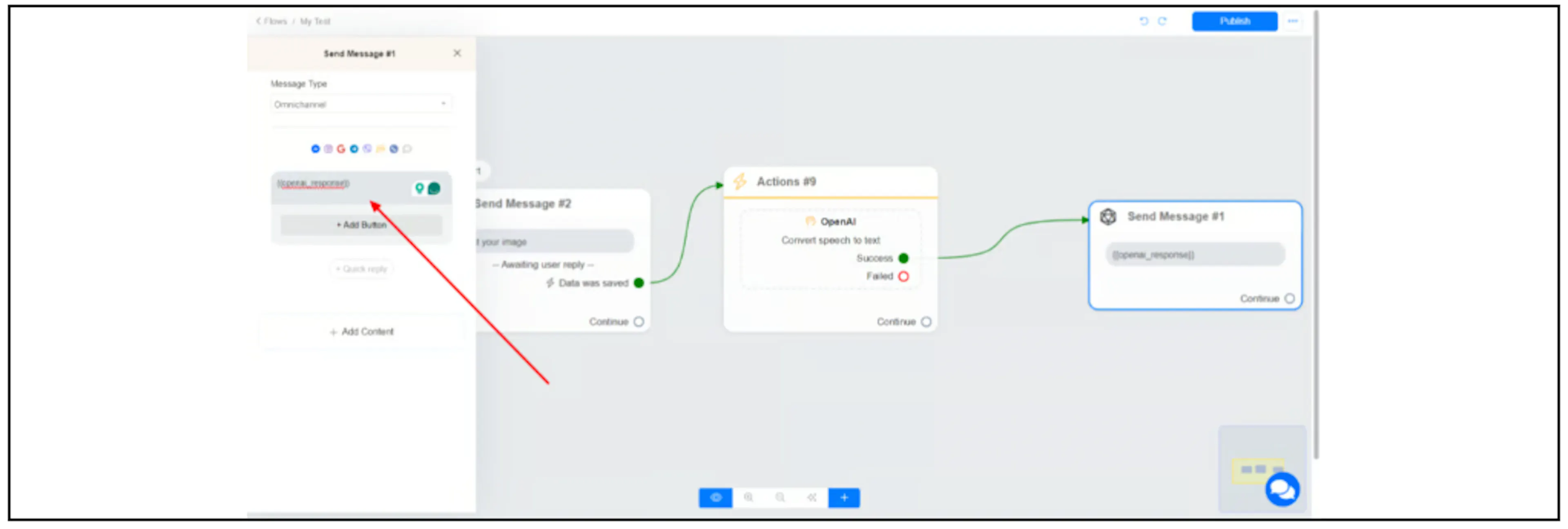
Connect Failed to a separate message or recovery path. Use a non-sensitive audio sample to check that the file reaches the action, the transcript is saved and the text message uses the output field.
If transcription fails
Check that Audio points to the file field, not the transcript field. Then check the OpenAI connection, account usage and supported input format. If the file is too large or the format is unsupported, follow the limits confirmed for your Bual Pro integration and channel.
Listen to the sample while checking the transcript, especially names, numbers and mixed-language phrases. Confirm the languages and models available through your account before relying on them in a customer flow.