Create your first flow
Find the Flows dashboard, add content, and preview or publish a flow.
Open the Flows dashboard
Select Flows from the main menu.
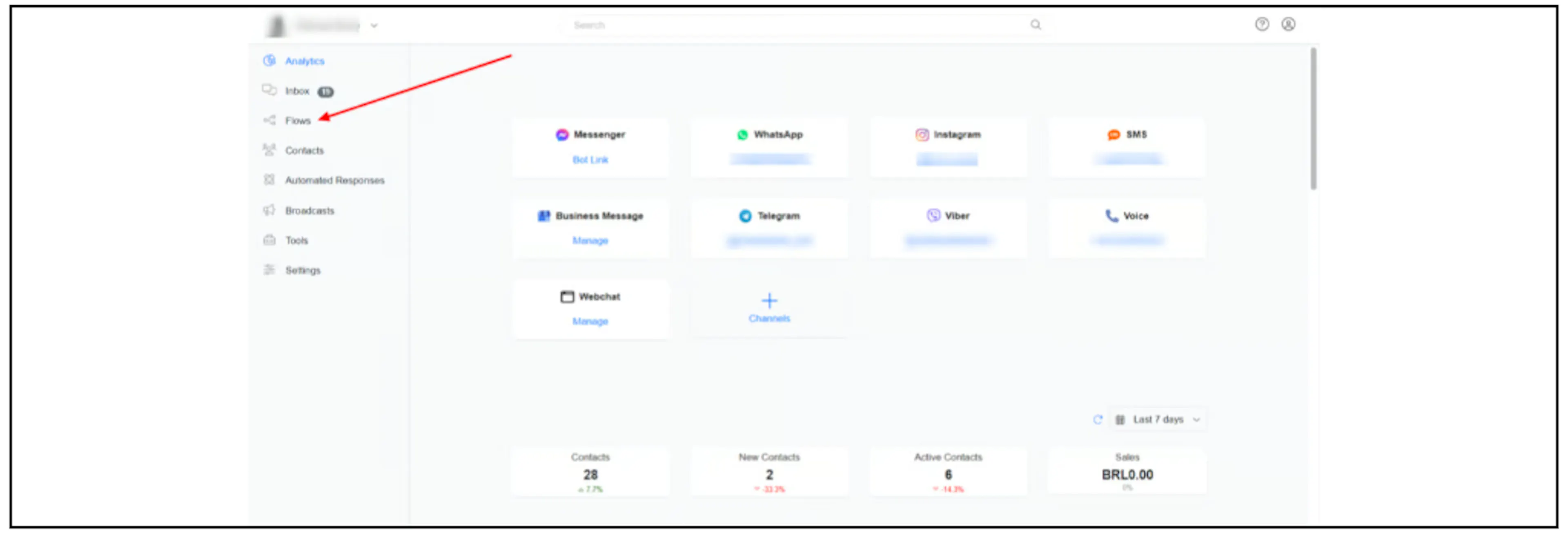
The screenshots show an older interface, so channel choices may differ from your account. Google ended Business Profile chat on 31 July 2024; its old channel tile is not a current setup option. See Google's notice.
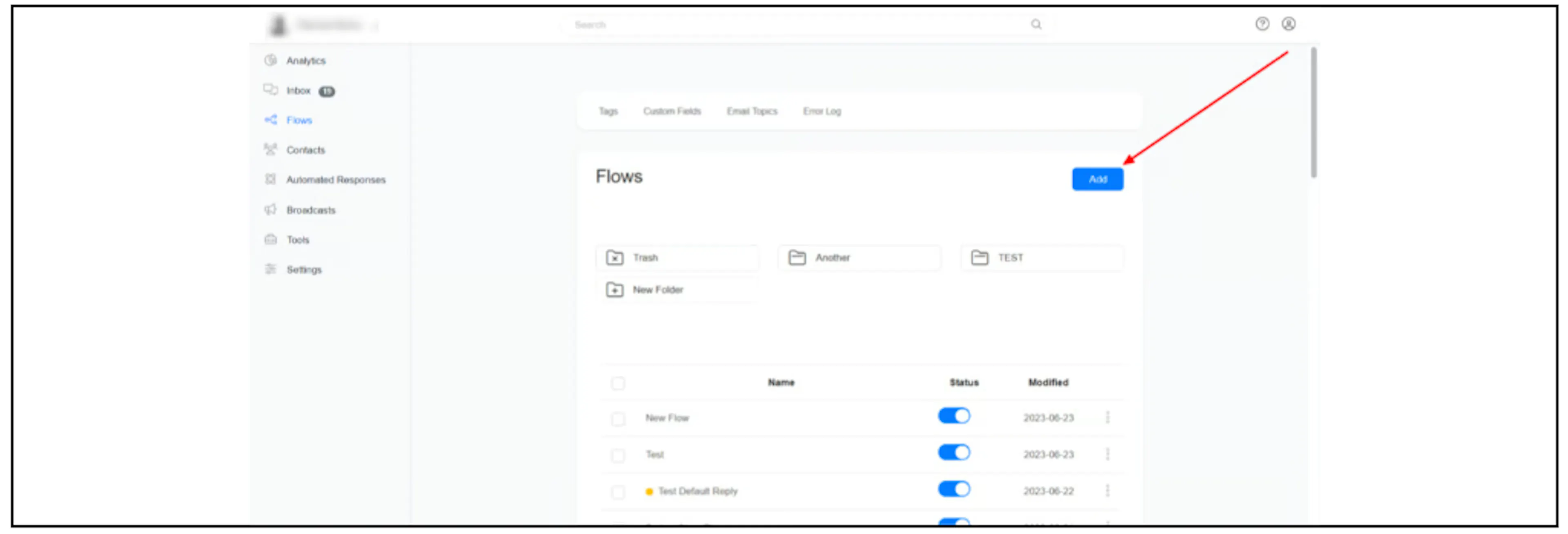
Add a flow
Click Add on the Flows dashboard to begin creating a flow.
Add message content
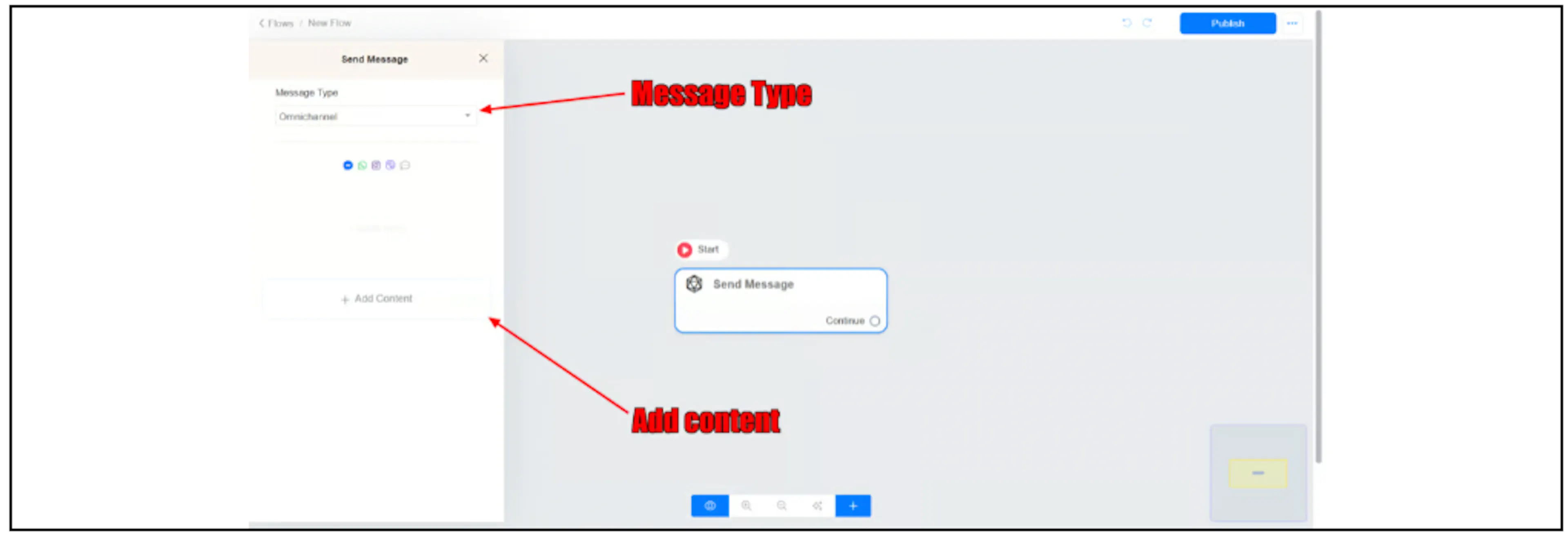
Select the Send Message block. Choose a Message Type, then use Add Content to add the content you need.
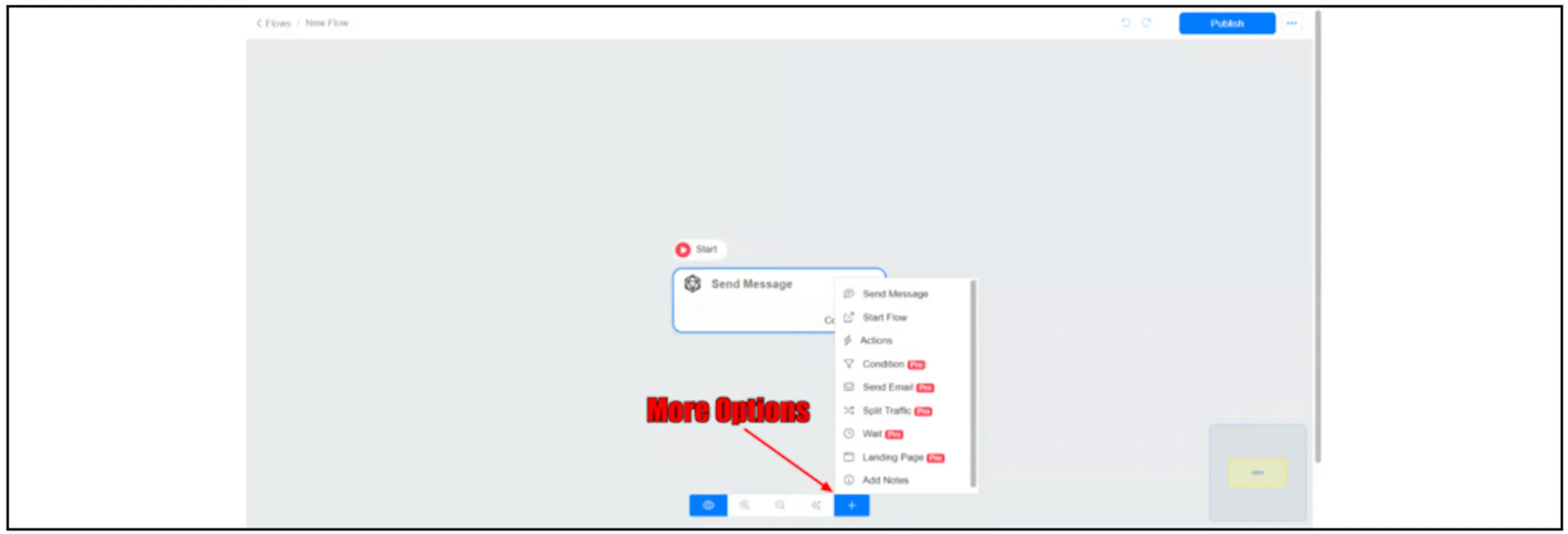
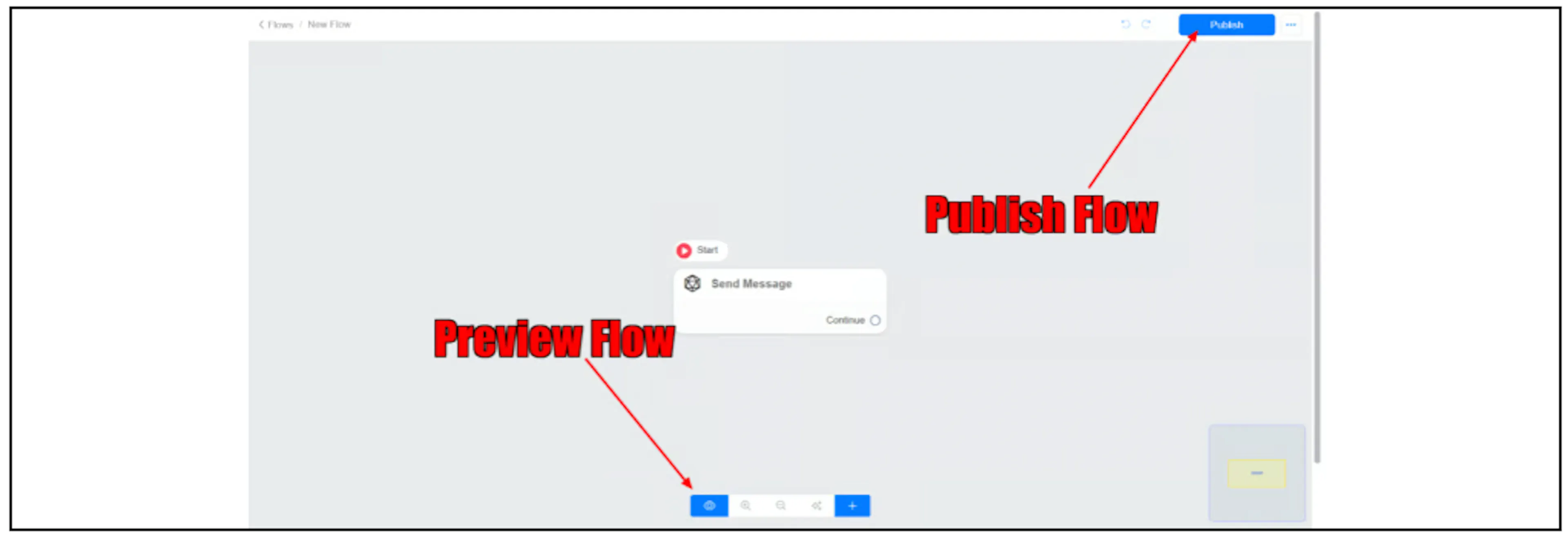
The + control at the bottom of the canvas opens more block options, including messages and actions.
Preview and publish
Use the preview control at the bottom left to inspect the flow. When it is ready, click Publish at the top right.
Continue building
- Collect data with custom fields.
- Apply tags as contacts move through the flow.
- Notify an admin or team from an action.
- Send a flow from the Inbox.
- Explore more Flows guides, including personalisation, dynamic choices, locations, and attachments.
Was this page helpful?