Rename your account and change its profile image
Find Rename Account and Change Account Logo in the General settings.
Open Settings > General in the Bual Pro account you want to update, then scroll towards the bottom of the page.
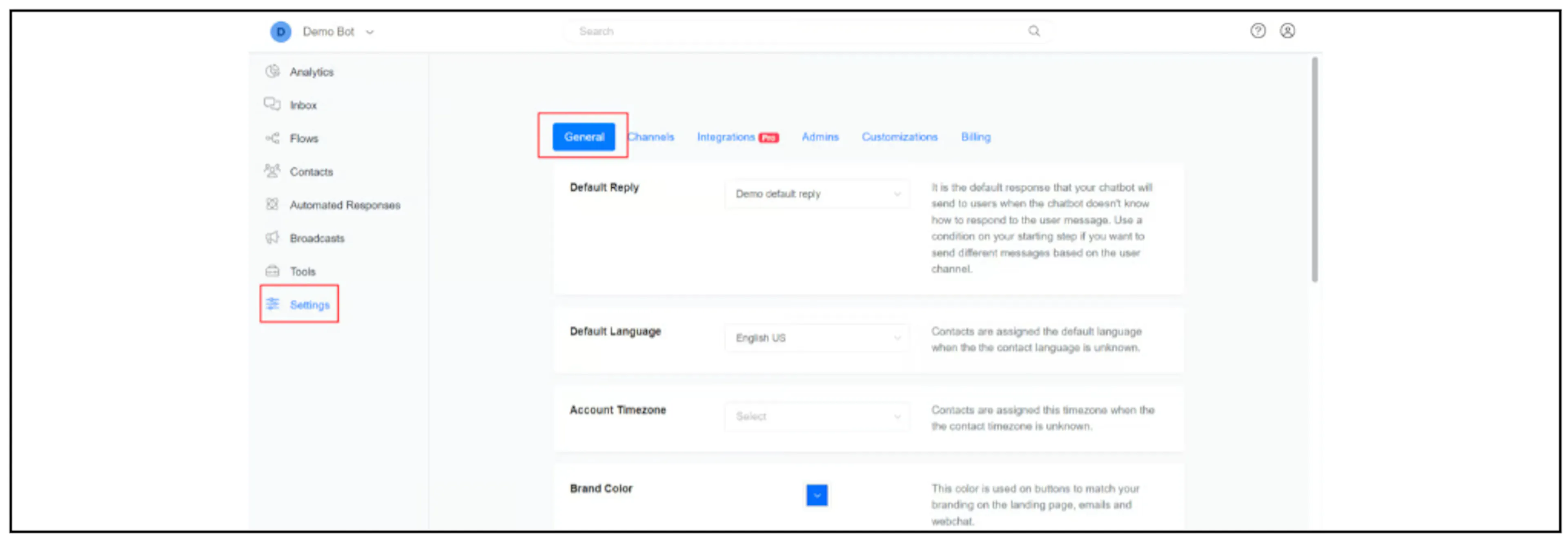
The screenshots show an earlier interface. Near the bottom, look for Rename Account and Change Account Logo.
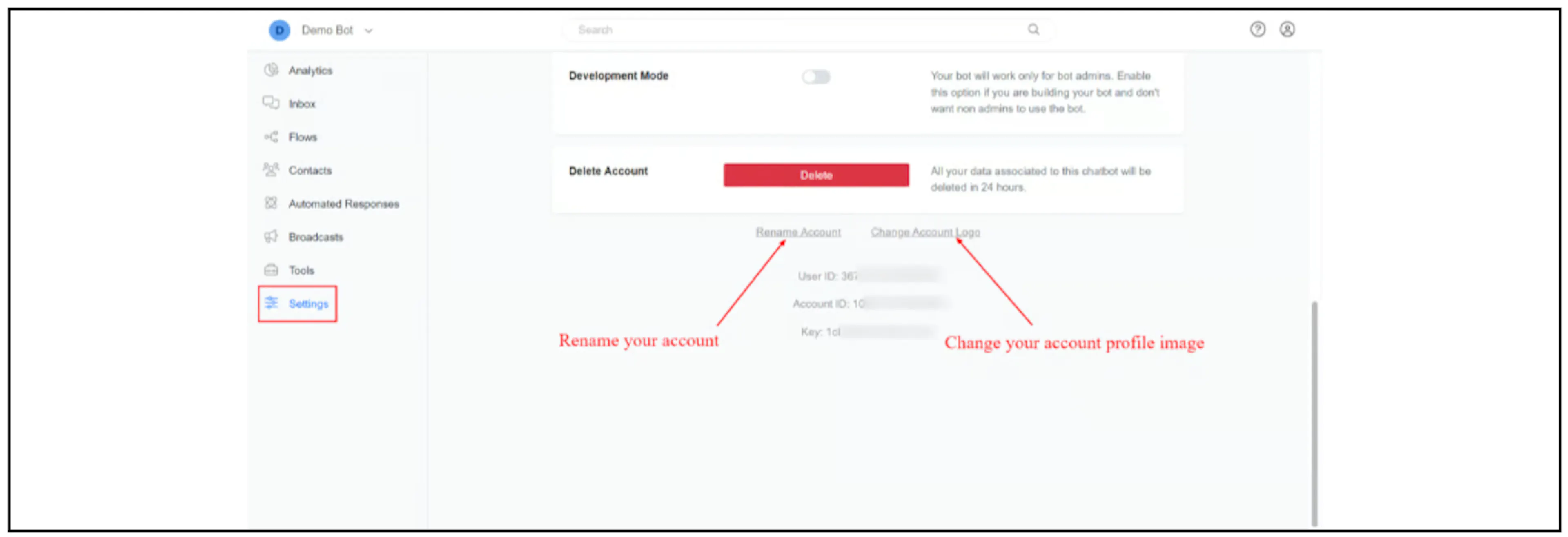
Rename the account
Select Rename Account, enter the intended name and complete the confirmation shown in your current interface. Check the name displayed in Bual Pro after saving.
If the control is missing or the change does not appear, check the selected account and your access before contacting support.
Change the account image
Select Change Account Logo and follow the current image-selection and save prompts. Check the displayed result after saving.
Use the file requirements shown by the current dialog. The earlier guide does not specify accepted image types, dimensions or size limits. Ask support if the dialog rejects a file without explaining the requirement.
Check where the change appears
These controls belong to the Bual Pro account settings. Confirm where the name and image appear in Bual Pro and any customer-facing views you use.
Do not assume that this also updates the WhatsApp business profile, an approved WhatsApp display name, a Facebook Page or another connected channel's profile. Check the relevant channel settings separately if that is the change you need.