Import contacts
Import WhatsApp or SMS contacts from a file, or use a supported Messenger source.
Importing a contact does not give you permission to message them. For WhatsApp, the recipient must have provided their number and opted in to receive messages from your business. Respect requests to stop receiving messages. See the WhatsApp Business Messaging Policy.
Open the importer
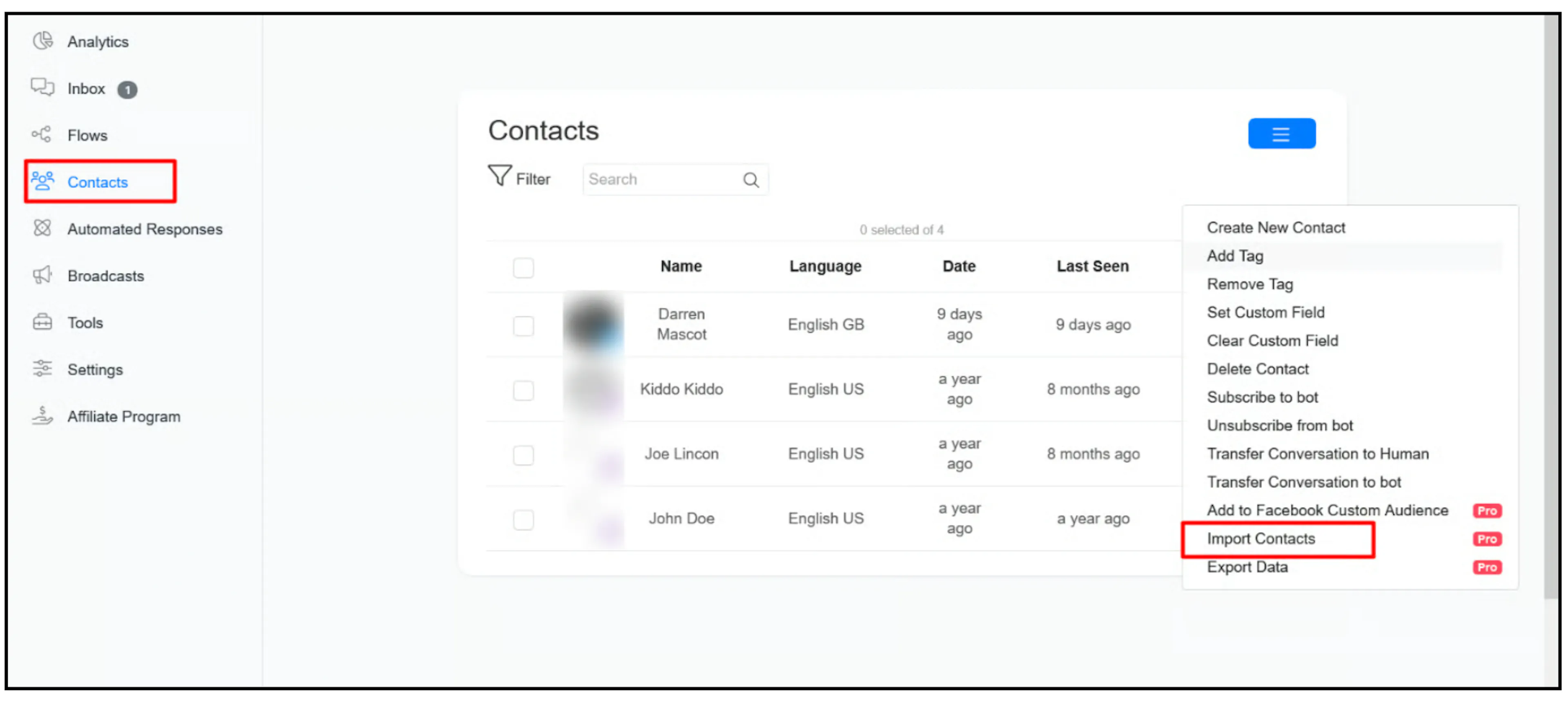
Open Contacts, open the actions menu, and select Import Contacts.
Import WhatsApp or SMS numbers
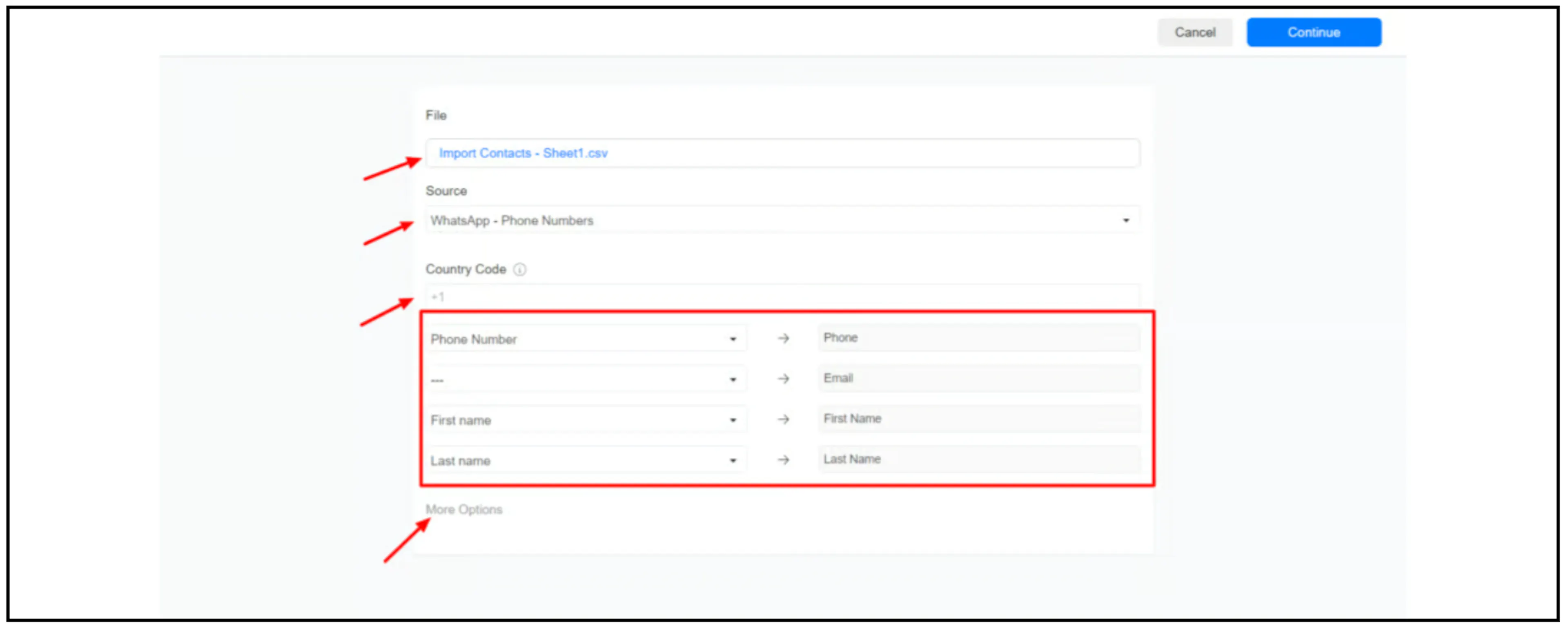
- Upload a
.csvor.xlsxfile. - Choose the source for WhatsApp contacts or SMS phone numbers. The screenshot labels the WhatsApp source WhatsApp - Phone Numbers.
- Set the Country Code.
- Map your file's columns to the contact fields. The example maps Phone Number, Email, First name, and Last name.
- Use More Options if you want to set a custom field or add a tag.
- Review the source, country code, and mappings, then click Continue.
Import from Manychat
Choose Manychat as the source and enter your Manychat API Token in the importer.
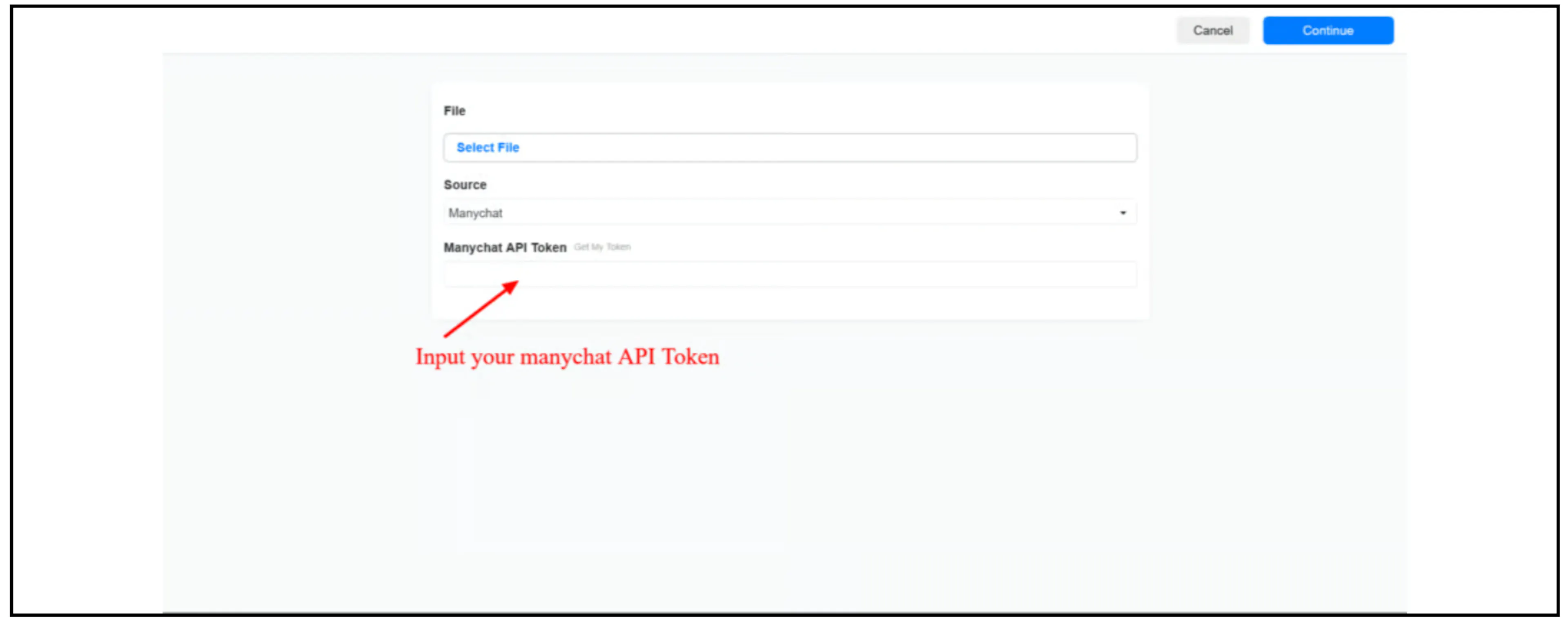
Keep the token private. Enter it only in the importer's token field.
Import from another Messenger bot platform
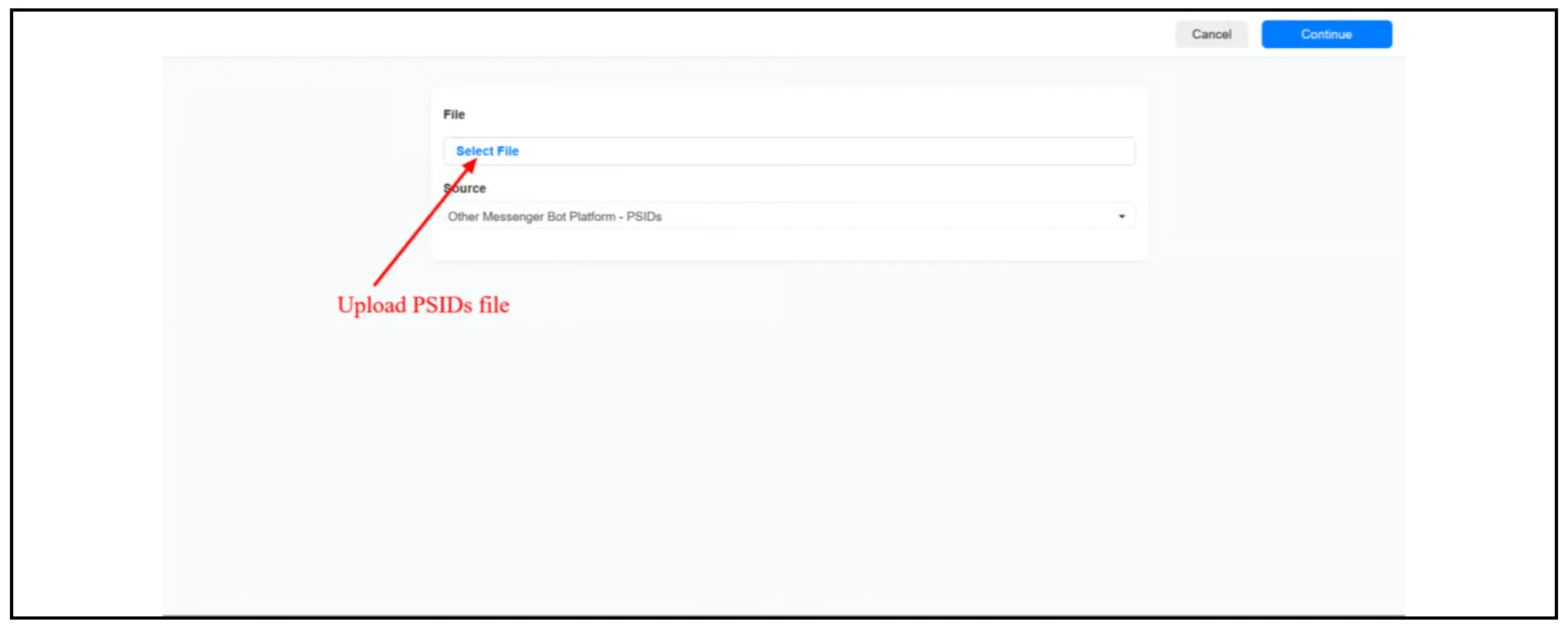
Choose Other Messenger Bot Platform - PSIDs as the source and upload the PSIDs file.
For organizing imported contacts, see Tags and Custom fields.
Was this page helpful?