Facebook conversion tracking
Connect a Meta data source and send a conversion event from a Bual Pro flow.
Use Facebook Conversion Tracking to send a business event from a flow to Meta. Configure the integration first, then place the conversion action where the corresponding business outcome is confirmed.
Before you connect
You need access to the intended Meta business and Pixel/data source, its ID and a Conversions API access token. Review Meta's current Conversions API setup requirements.
For contact-based events, check the matching information available to the integration, such as an email address, phone number or Facebook Lead Ads origin. Confirm current event and channel support for your account. Having a contact field alone does not guarantee Meta can match or attribute the event.
Get the ID and access token
- Open Meta Events Manager and select the intended data source or Pixel.
- Copy its ID.
- Open Settings, find Conversions API, then use Generate access token under the manual setup option if available to your role.
If the control is missing, check the access required in Meta's setup guide. Keep the token private and enter it only in the intended integration settings.
Connect Bual Pro
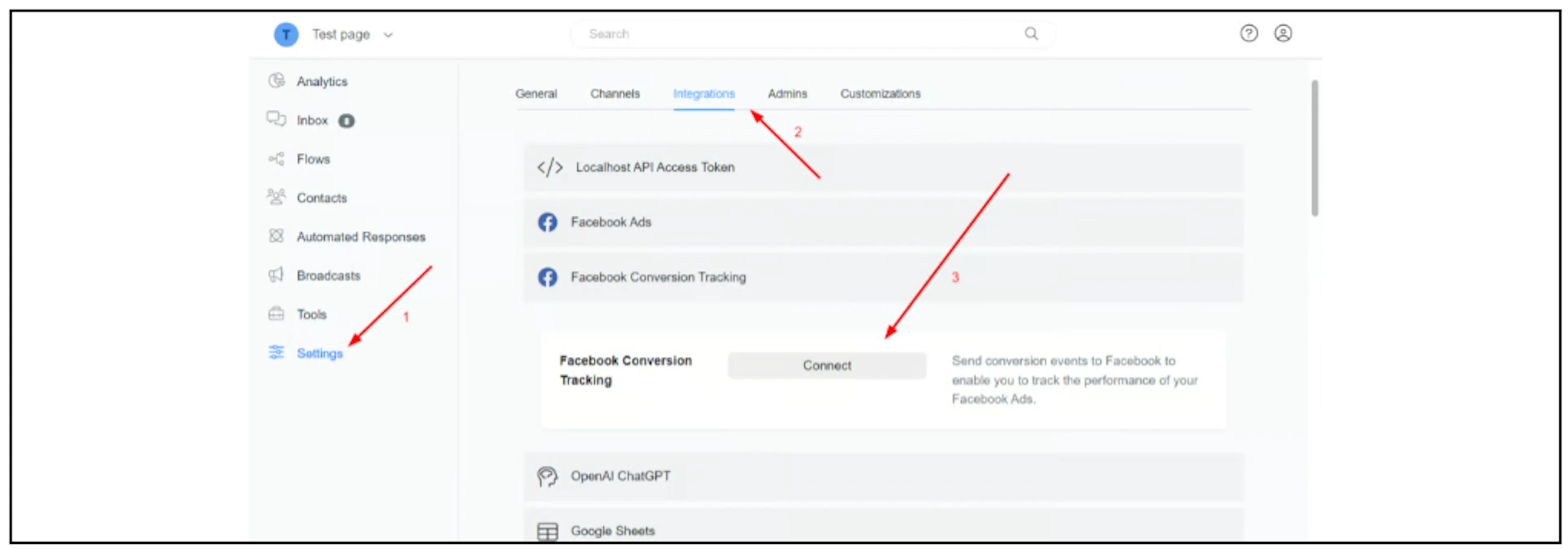
Open Settings > Integrations > Facebook Conversion Tracking and select Connect.
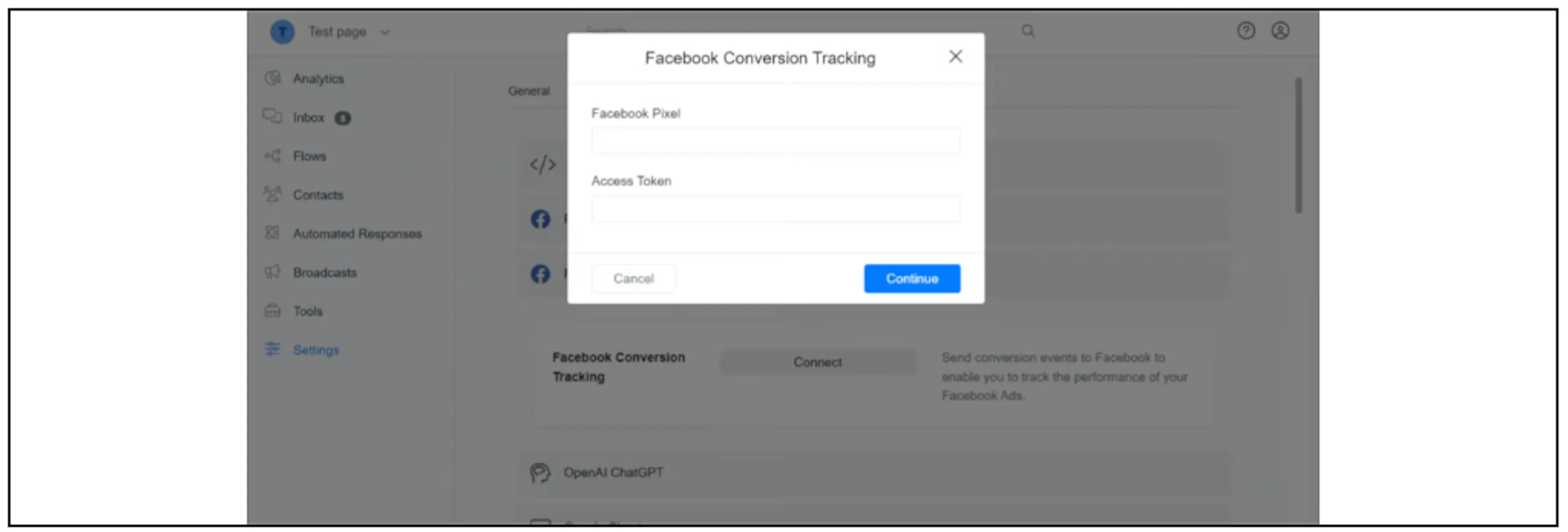
Enter the intended ID in Facebook Pixel and its token in Access Token, then complete the dialog. The Bual Pro field uses the older Pixel label; confirm the matching ID in your Meta account.
Add the conversion action
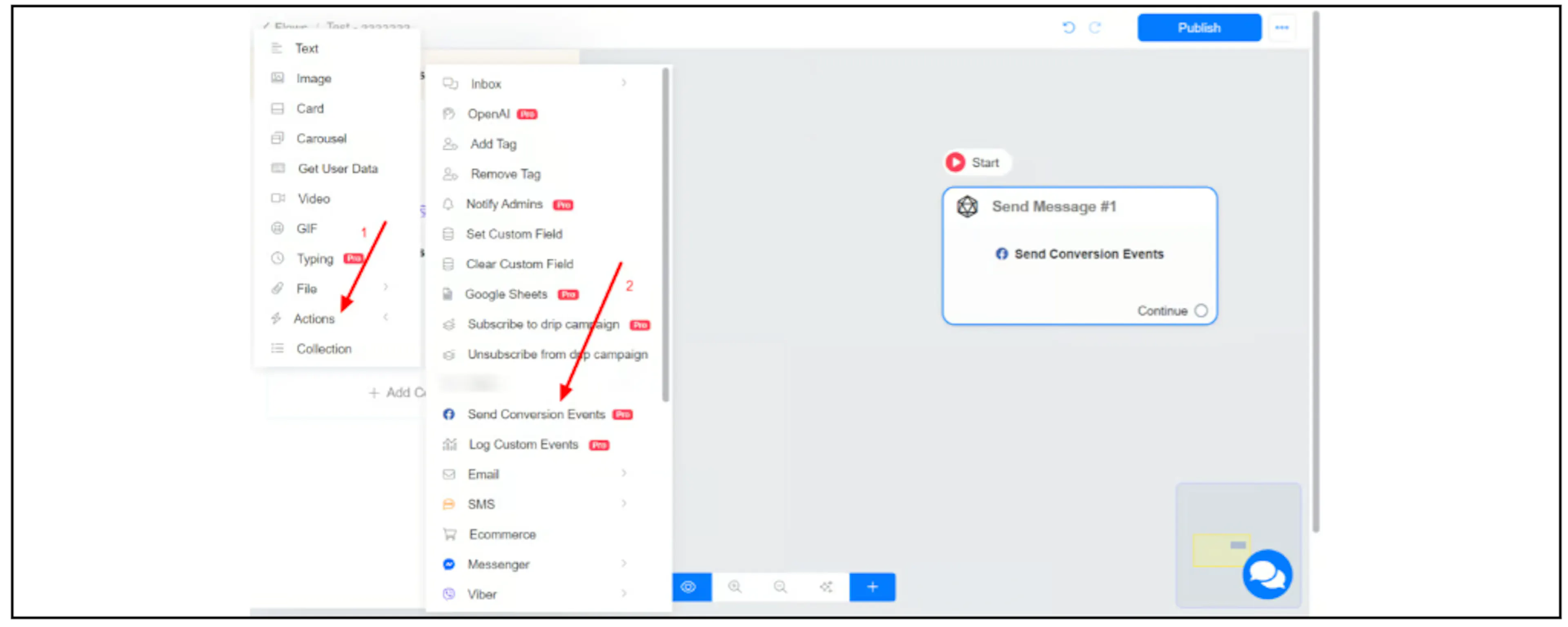
In Flow Builder, add an Actions block and select Send Conversion Event.
Choose an Event that describes the actual business action. Prefer an appropriate standard event when one fits. If using Custom Event, confirm the configuration and reporting requirements in Meta's Conversions API guidance.
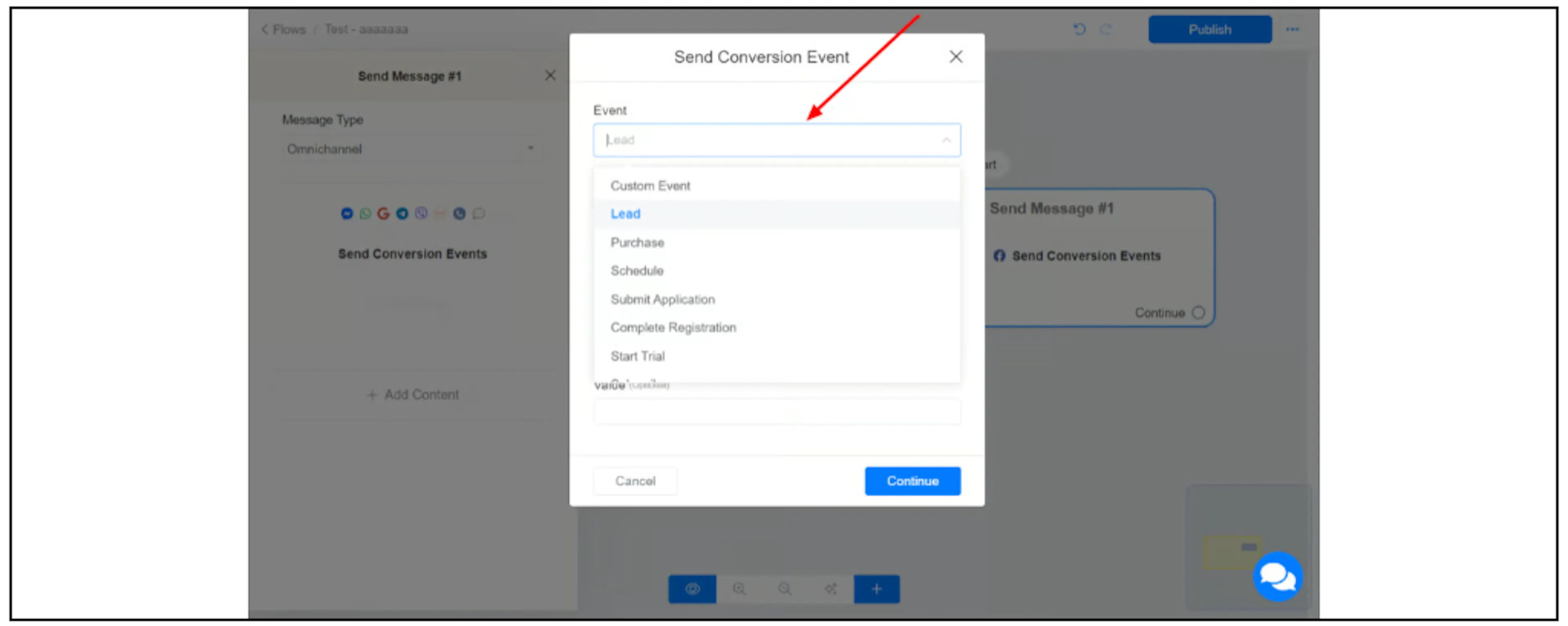
Complete any additional fields the selected event requires in your interface. Check the event and its position in the flow before enabling customer use. The list of available events and fields may differ from the screenshot.
Verify receipt and reporting
Follow Meta's setup verification guide to check event receipt, matching and deduplication. Review Events Manager diagnostics and the intended data source.
Check whether Bual Pro exposes the testing or deduplication controls your setup needs before relying on them. If another integration also sends the same outcome, confirm how duplicate events are handled.
Allow for processing and check the actual event status instead of relying on a fixed display-time promise. Event receipt, Ads Manager attribution and availability for optimization need separate checks; a received event does not guarantee an attributed advertising conversion.
If the event is missing, check the integration ID/token, the executed flow action, available contact matching data and Meta diagnostics. Contact Bual Pro support if the current action fields or supported payload are unclear. Do not resend events repeatedly until you understand whether they were received.