Segment contacts with tags
Create tags and apply them to contacts manually or through a flow.
Tags group contacts by campaign, product, service, or another category you choose. You can use tags in flow conditions and to filter an audience for a broadcast.
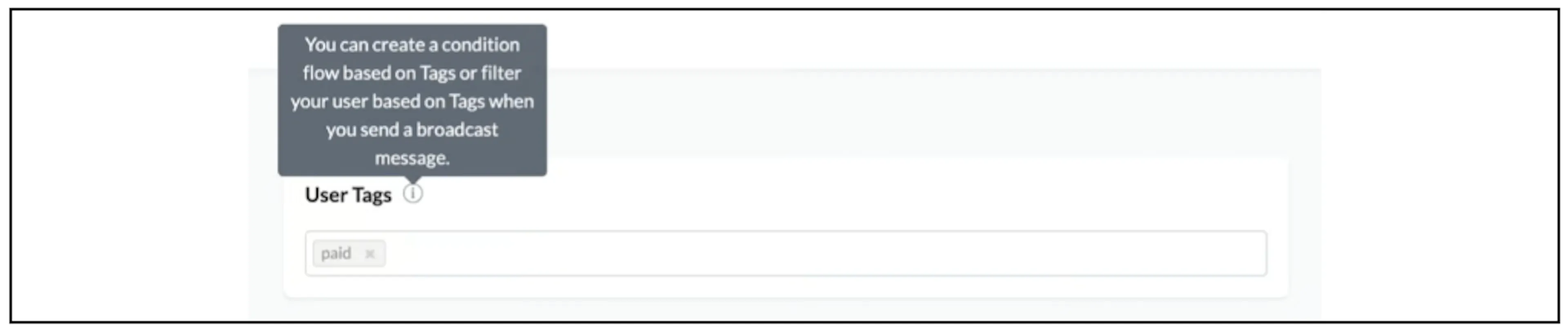
These screenshots show an older interface that labels the contact list Users.
Create a tag
- Open Flows, then Tags.
- Click Add Tag and enter a name.
- Click Continue.
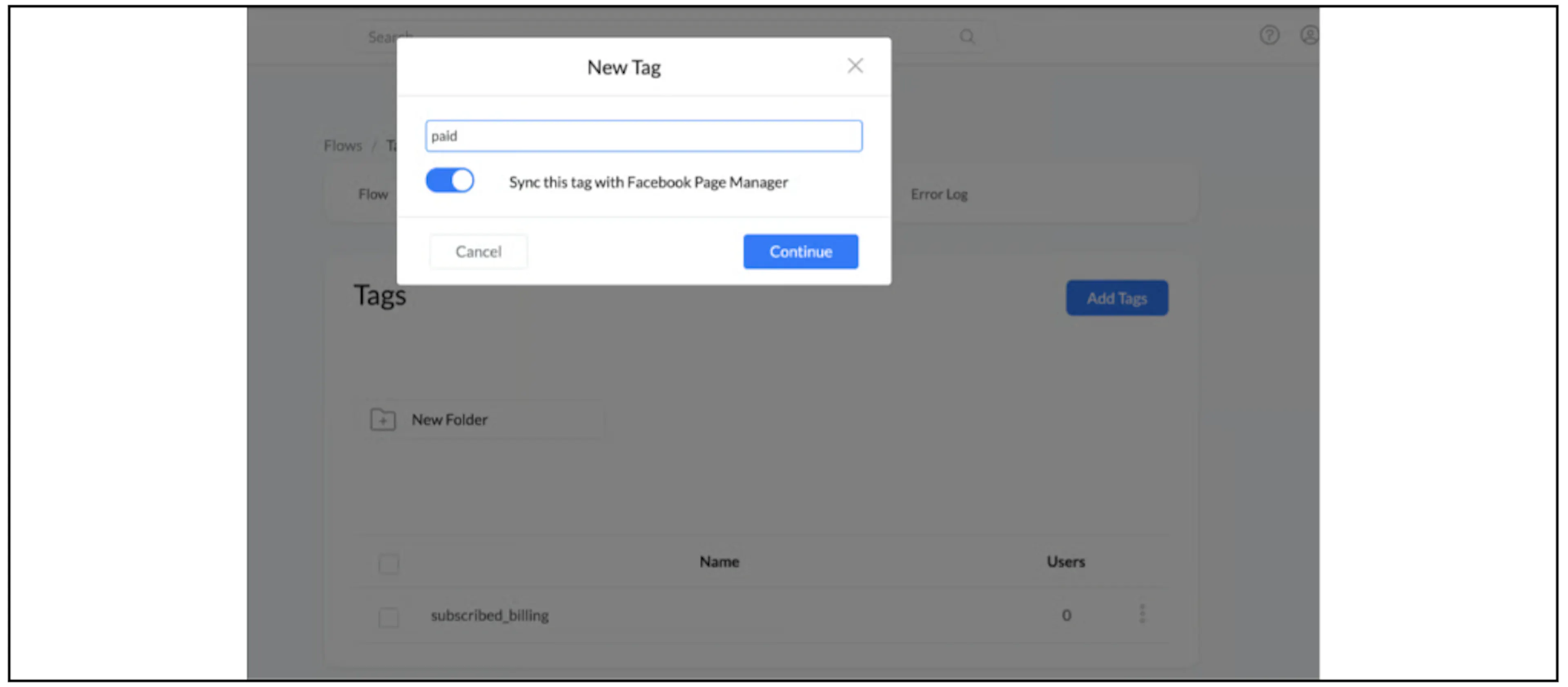
Facebook Page Manager sync
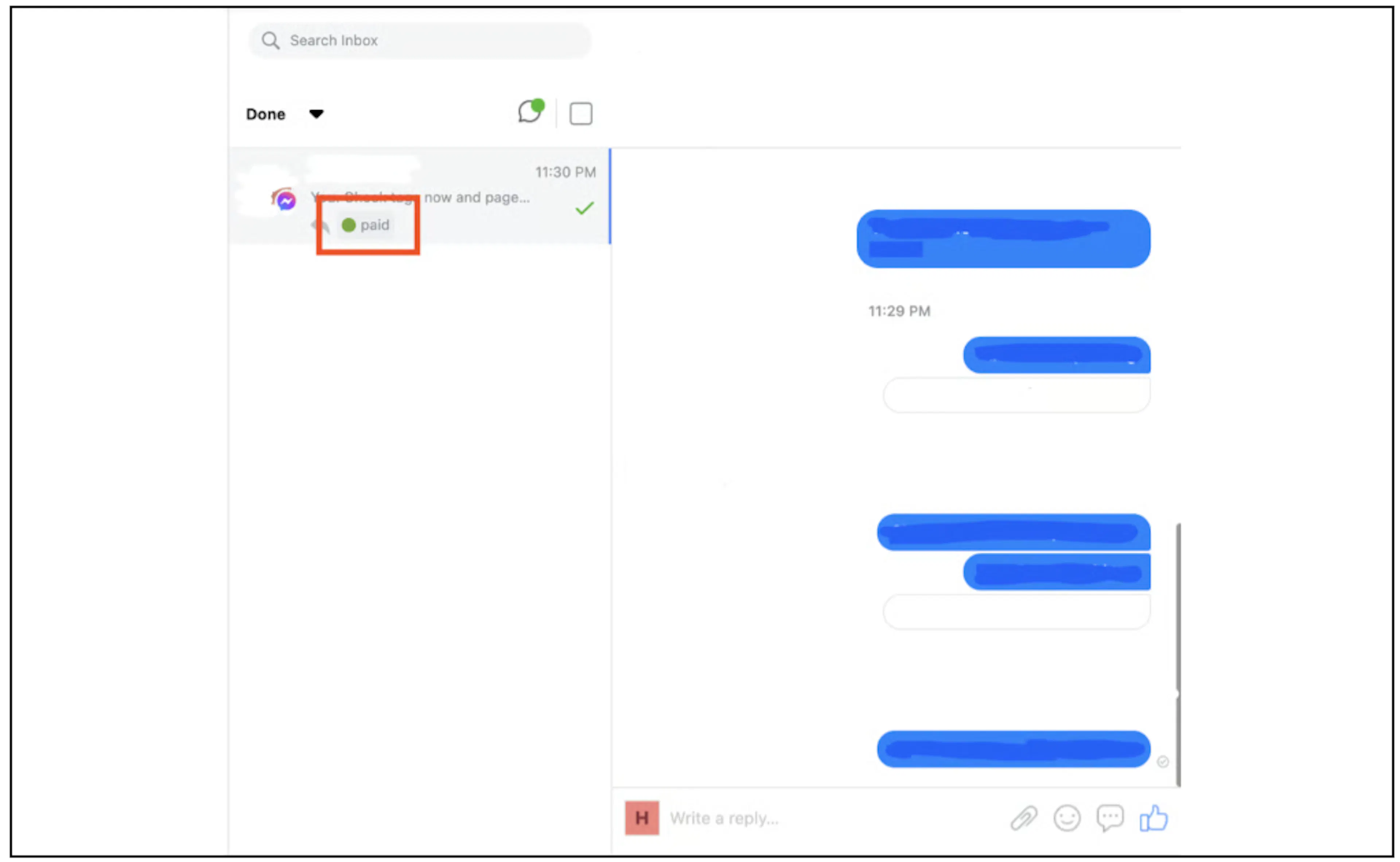
If your New Tag dialog includes Sync this tag with Facebook Page Manager, you can enable it for the tag. The example below shows the paid tag in the Facebook inbox.
Add a tag manually
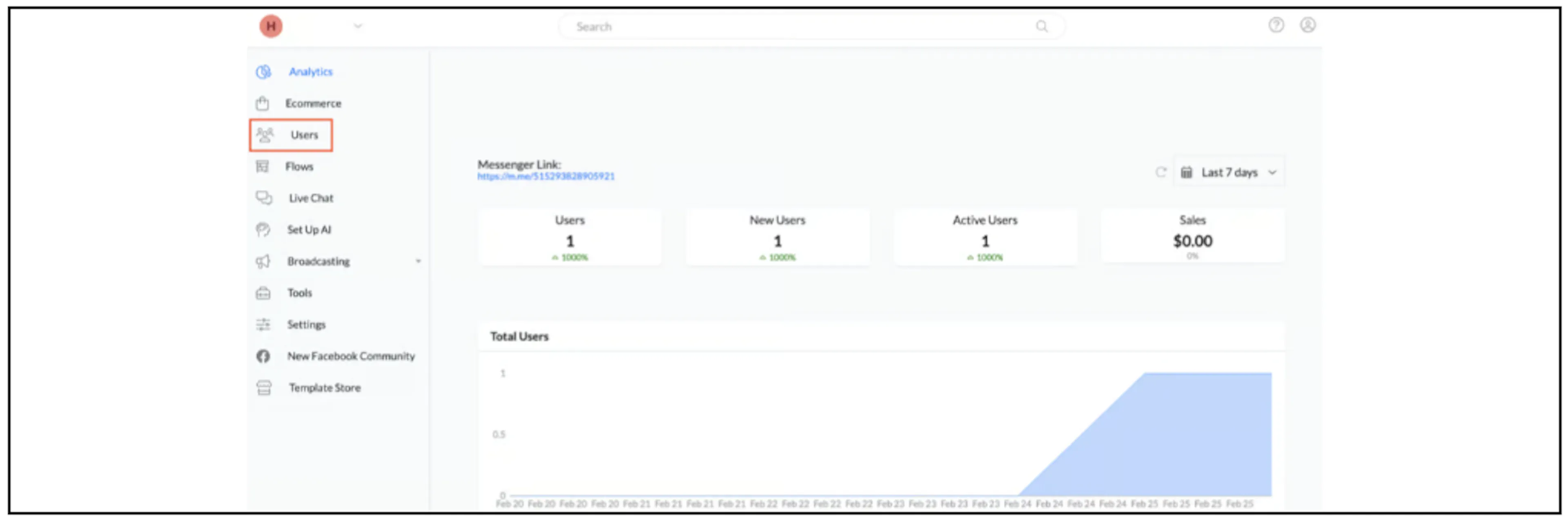
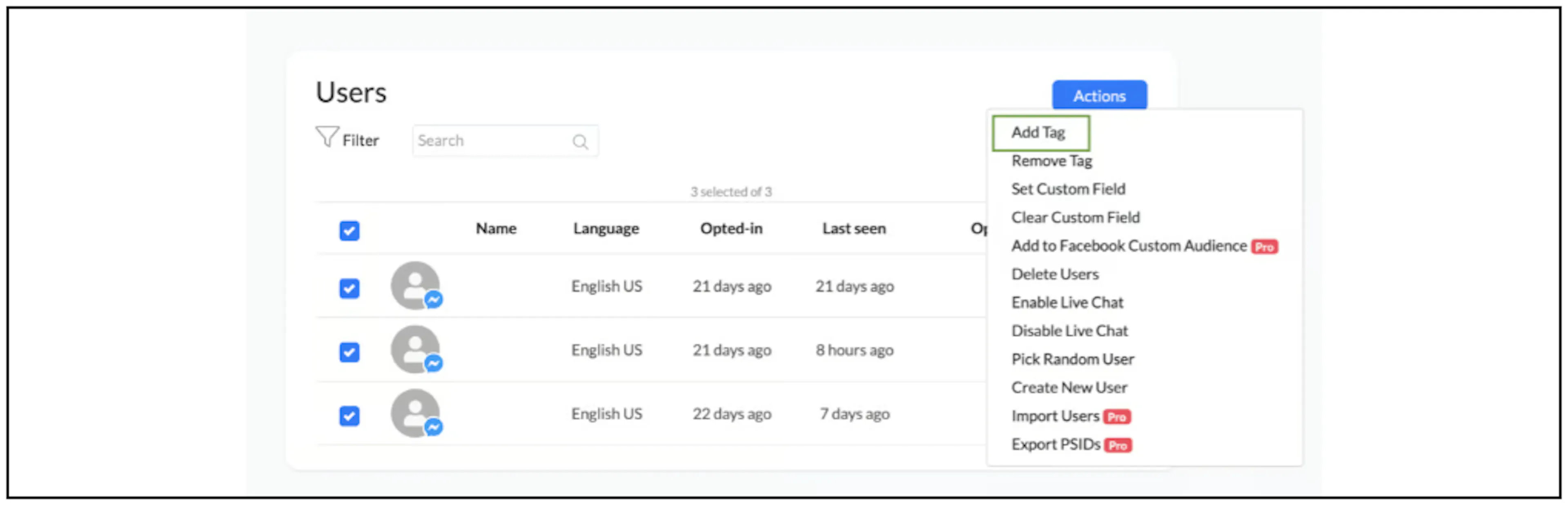
Open the contact list, shown as Users in the screenshot.
For an individual contact, open their details and add the tag under User Tags.
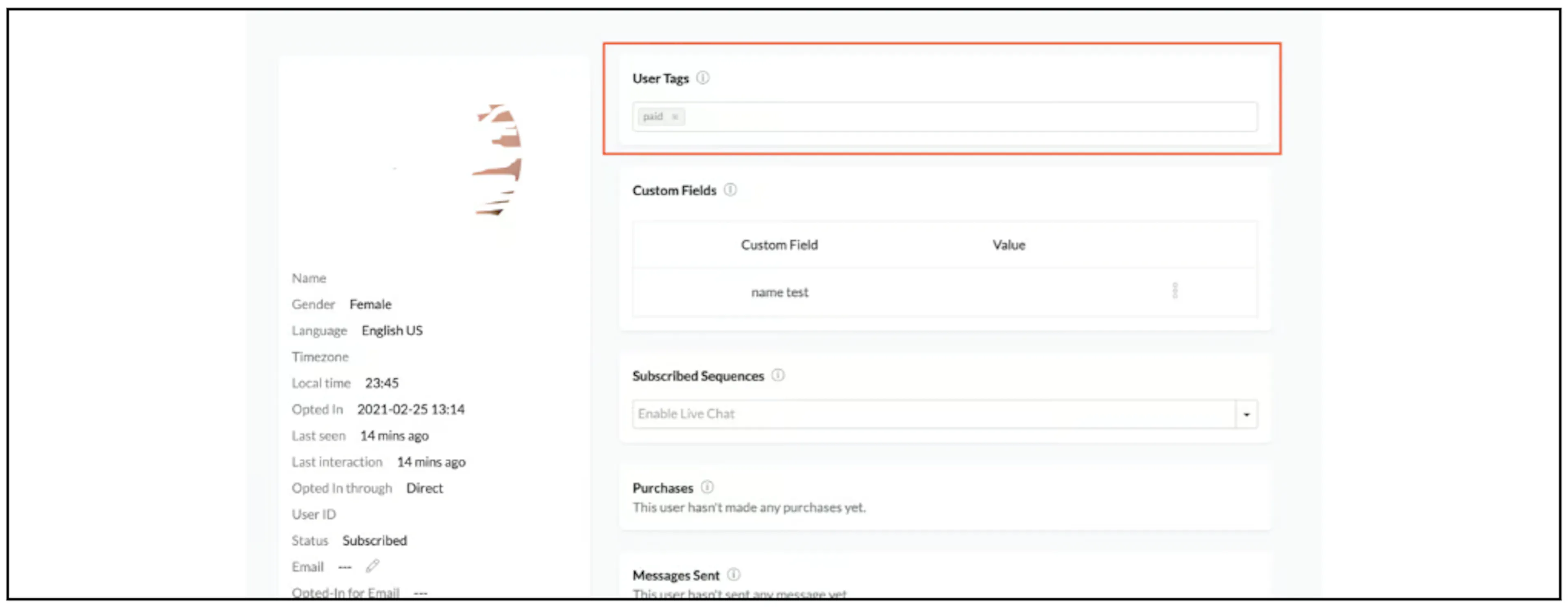
To tag several contacts, select their checkboxes, open Actions, and choose Add Tag.
Add a tag through a flow
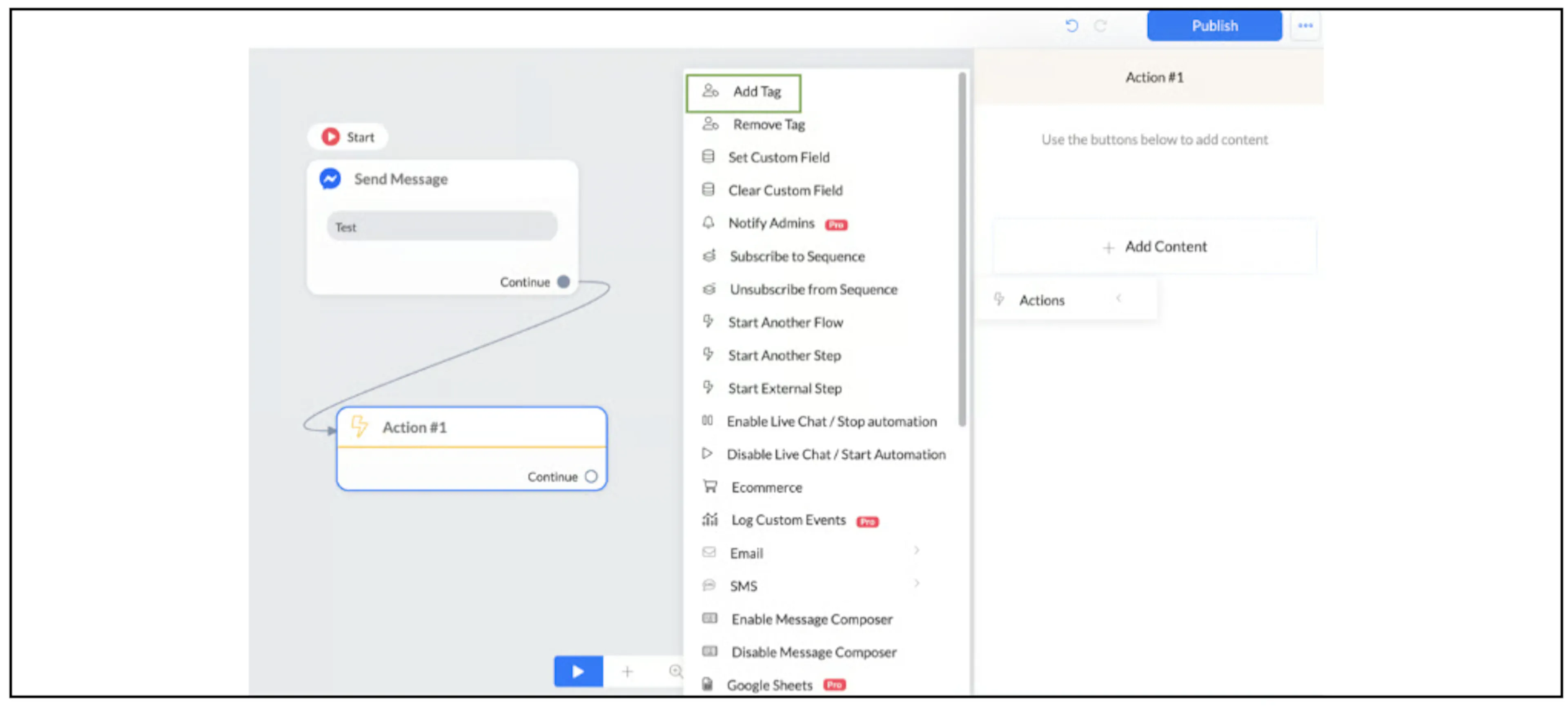
Add an action block with the canvas + control or by double-clicking the canvas. In the block, choose Add Content, then Actions, then Add Tag, and select the tag.
Add a tag when a button is clicked
You can attach an Add Tag action to a reply button or quick reply. Edit the button, add an action, select Add Tag, and choose the tag. Save the button settings.
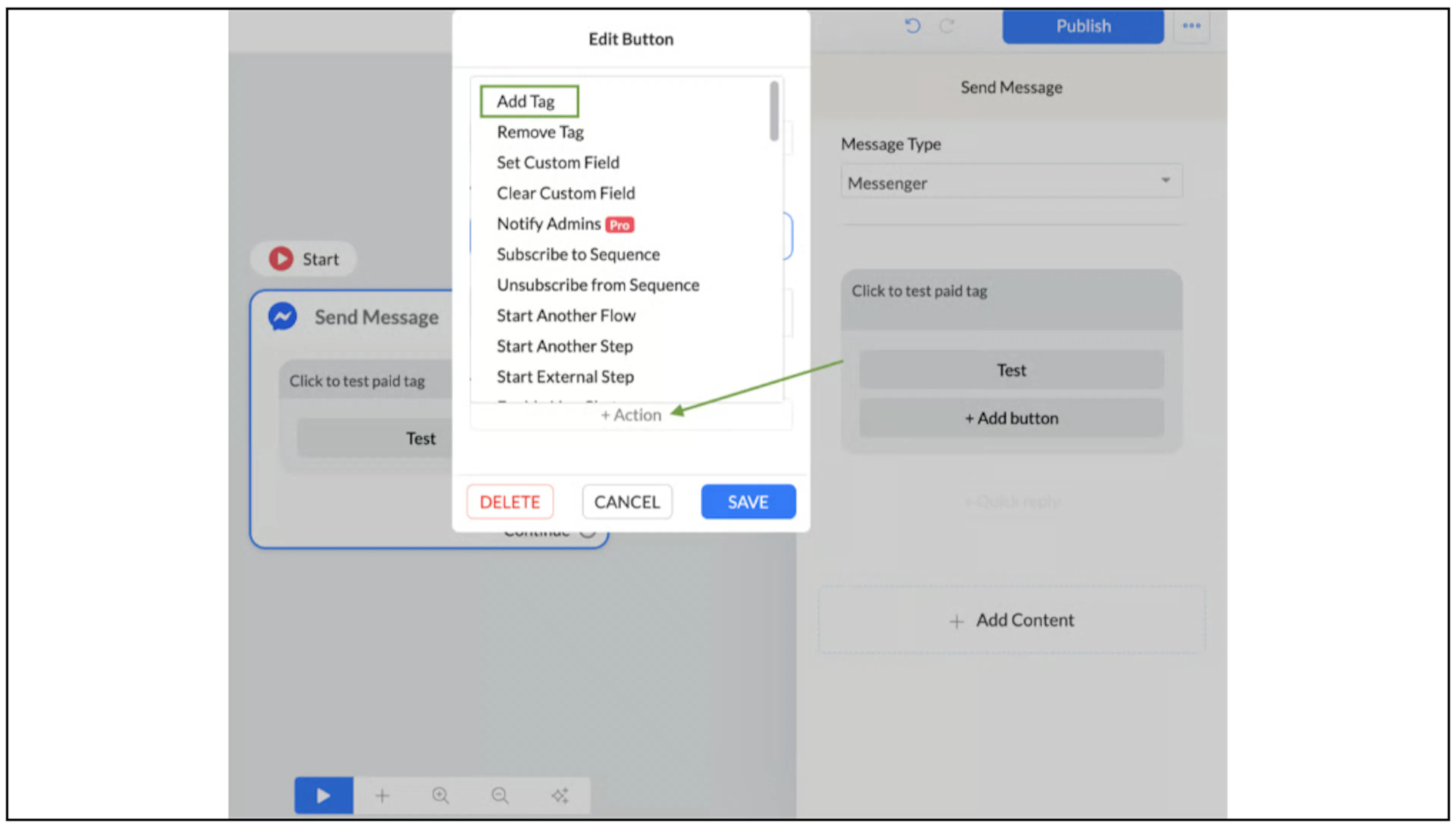
The tag is applied when the contact clicks that button in the flow.