Triggers and Actions
Create an event-based rule, choose its actions and review how often it can run.
A rule connects an event in your bot to an action. Confirm the event and action supported by your account and channel before enabling the rule.
Add a rule
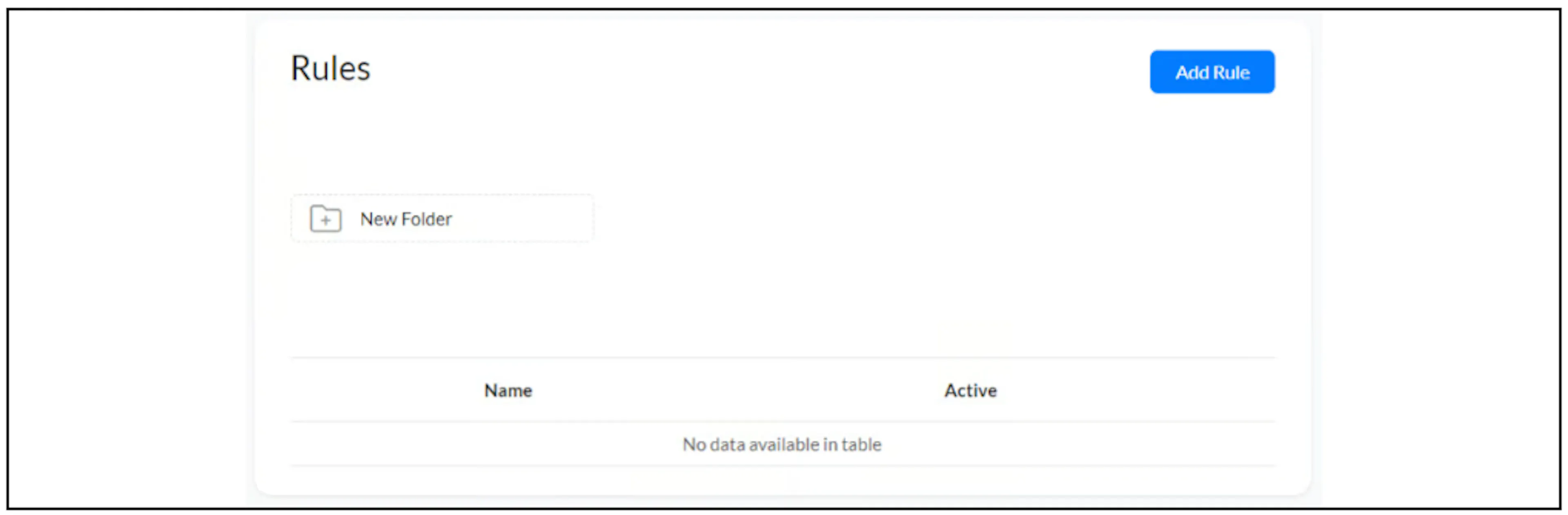
Open Tools > Triggers and Actions and select Add Rule. The list includes an Active column for reviewing rule status.
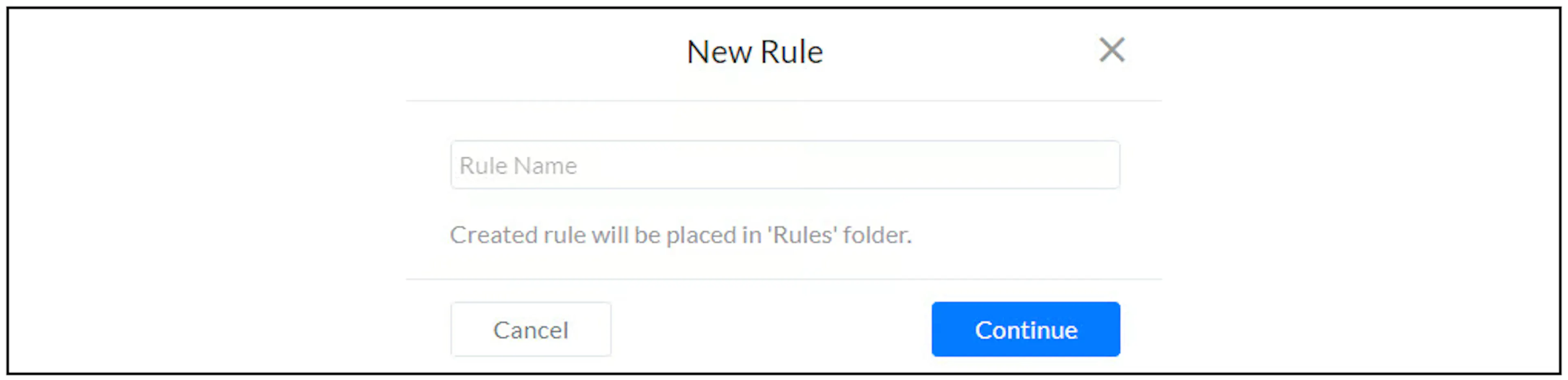
Enter a Rule Name in the New Rule dialog and select Continue.
Choose the trigger and action
In the rule editor, use + Trigger under When this happens to choose the event. Use + Action under Perform these actions to configure the task that should follow.

The earlier guide lists these trigger categories. Check the actual choices and labels in your current interface.
| Category | Events listed in the earlier guide |
|---|---|
| Tags | Tag applied; tag removed. |
| Sequences | Subscribed to a sequence; unsubscribed from a sequence. |
| Fields | Custom field value changed. |
| Orders and carts | Cart abandoned; new order; order concluded; order cancelled; product added to cart; category added to cart; product removed from cart. |
| Delivered; opened; clicked; unsubscribed; dropped. | |
| Live chat | Enabled; disabled. |
| Referrals | User referred a new user; user referred an existing user. |
| Contacts | New subscriber; user unsubscribed from the bot. |
Choose the trigger's required details and then the intended action. An event being listed here does not confirm its availability for every integration or channel. For example, email and ecommerce events depend on the relevant workflow and data reaching Bual Pro.
Set how often the rule can run
The frequency control appears above the action column. The earlier guide describes:
- Once per User: run the rule once for a user.
- Any Number of Times: allow repeated runs when the event occurs.
Confirm what the current product counts as a user and how it handles repeated events, edits to a rule and resets. A once-per-user setting is not a general duplicate-protection guarantee for external operations.
Review before enabling
Save the rule and check its status in the list. Before enabling it for customers, verify the intended event, filters, action details and repeat setting in a controlled test.
Check dependencies for actions that send messages, update an external service or incur charges. The source's examples include notifying an admin after a field change or an order, and linking a tag event to an external audience action. Availability and configuration need separate checks.
The source also mentions delayed follow-ups and date-based reminders but does not show their scheduling setup. Confirm current scheduling controls, time-zone handling and channel requirements before relying on those examples.
Investigate unexpected behavior
Check that the rule is active, the expected event occurred and its conditions match. Review the configured action and any executed actions. Confirm whether the selected repeat setting has already prevented another run.
If an action changes a field or tag that can trigger another rule, check for repeated chains before enabling both rules. Avoid rerunning an external action until you know whether the first attempt completed. Contact support if event ordering, repeat behavior or action availability is unclear.