Dynamic Gallery from Google Sheets
Map spreadsheet rows to gallery cards and save values from a selected item.
Build gallery cards from rows in a connected Google Sheet, then use a card button to save values from the selected row. The earlier walkthrough demonstrates this with Plain and Caramel Frappuccino products.
The screenshots show an earlier Messenger flow. Confirm the gallery action and the target channel's supported card format before building it for customers. This walkthrough does not establish that the same gallery works on WhatsApp.
Prepare the sheet
Connect the intended account using the Google Sheets integration guide. Use a sheet with clear column headers and valid image URLs.
The example sheet has three columns:
| Column | Header | Purpose |
|---|---|---|
| A | Product Name | Card title and the selected product value. |
| B | Photo | Image URL for the card. |
| C | Description | Details shown after the contact selects a product. |

Create the gallery card
- Open the intended flow in Flow Builder.
- Choose Google Sheets > Generate Dynamic Gallery from any Google Sheet.
- Select the Spreadsheet and Worksheet, then review any lookup filters.
- Set the card's image URL, title and subtitle using the appropriate sheet columns.
- Type
{or use the variable icon to choose a column by its header name.
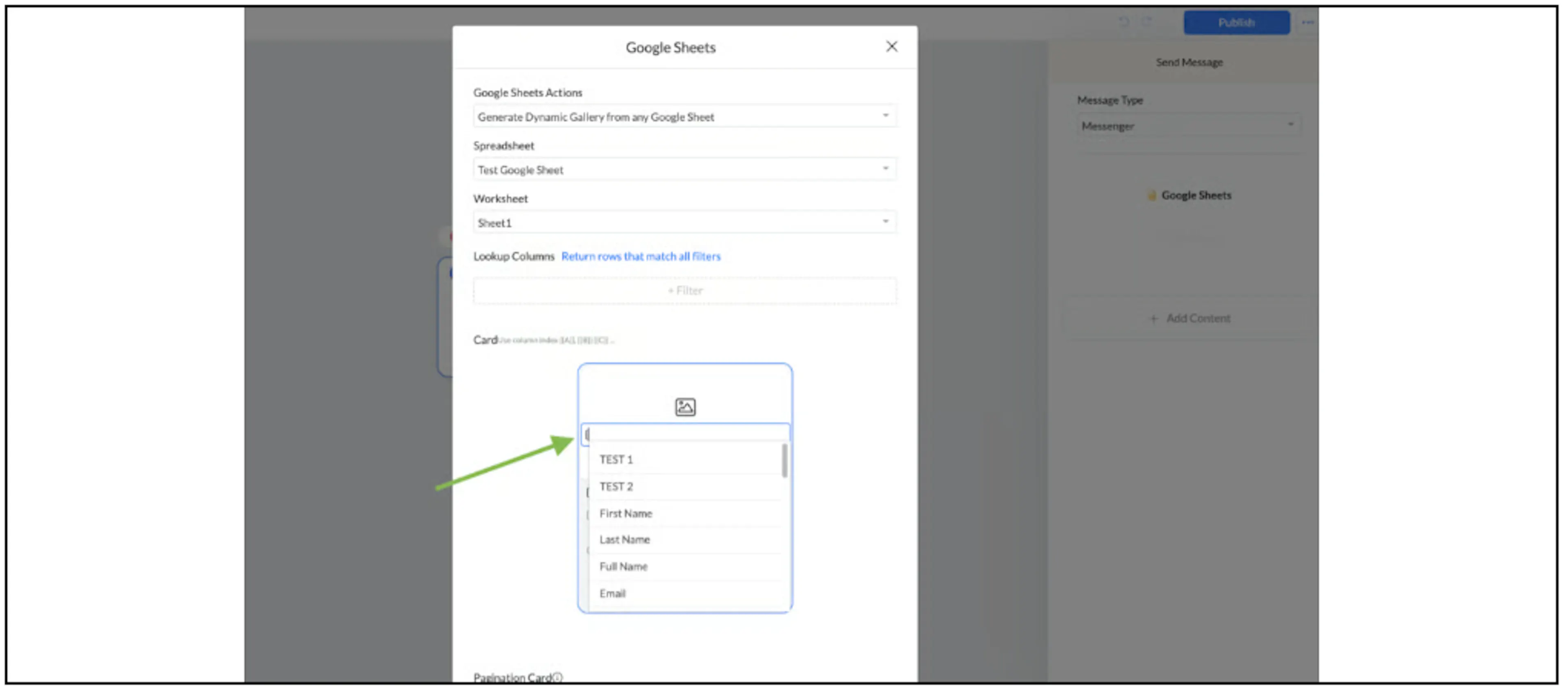
Choose columns through the picker and check the inserted token against the selected sheet. In this sample, Description is column C, represented as {{C}}. The old article's reference to column D does not match the pictured sheet.
Check each image URL before sending the gallery. A missing or inaccessible image can prevent the card from displaying as expected.
Add a button
The earlier button editor offers Open website, Call number, Start step and Start external step. Choose the action that matches the intended response.
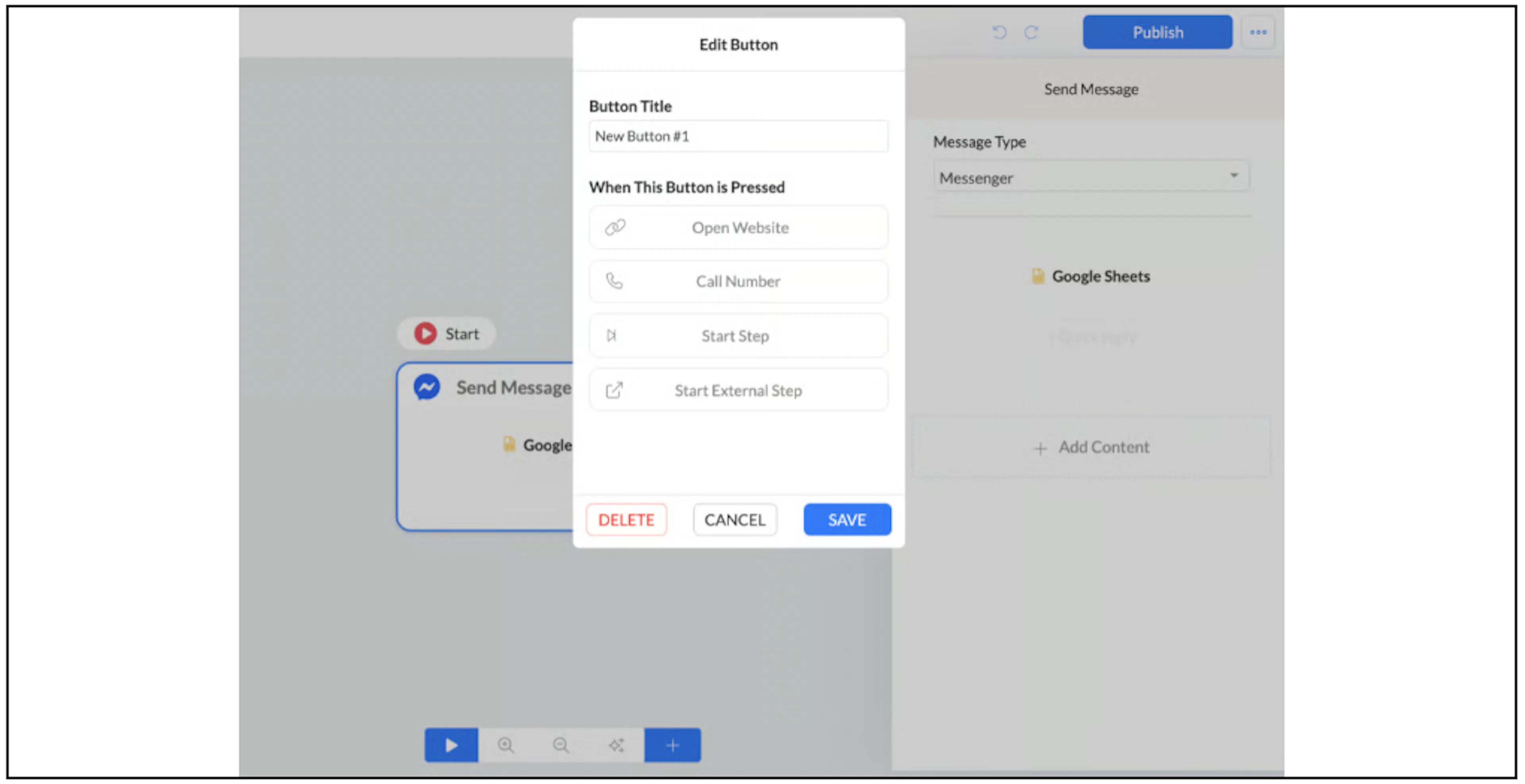
For a More Info button, configure the follow-up step and add Set Custom Field to store the selected row's Description. Select your actual destination field and use the column picker for its value. Insert that field into the follow-up message, then save the button and gallery configuration.
The source also combines column values as {{A}} {{B}}. Check that each token refers to the intended column in your sheet before combining values.
Save which product the contact selected
Add another Set Custom Field action to the button. The source calls the field Last_viewed_product; the screenshot shows last_viewed_product. Select the field that actually exists in your account and map it to Product Name, shown as {{A}} in this sheet.
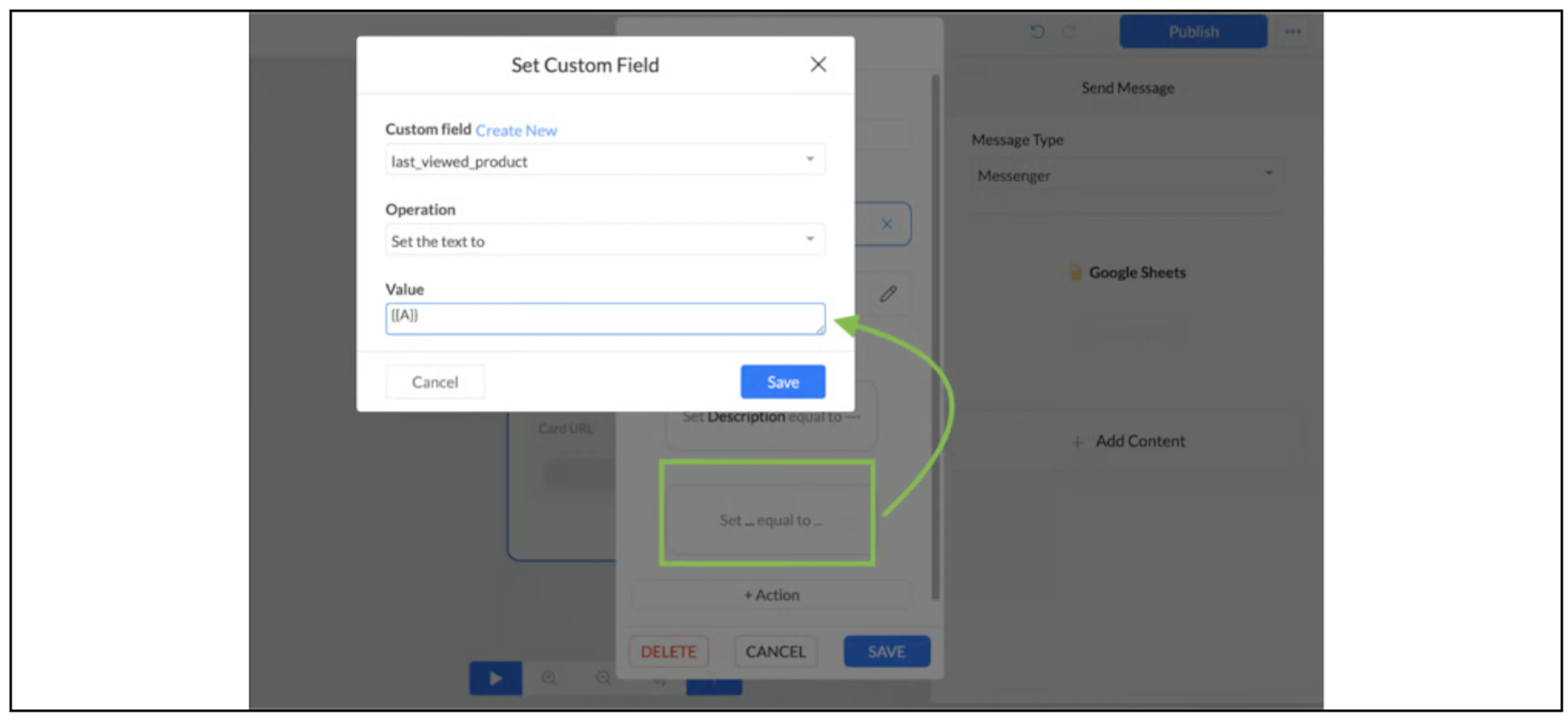
This records a value when the button's action runs. It does not establish that a passive card view is tracked, even though the example field name uses “viewed”.
Use the selected value in a condition
In the next step, check the saved product field. The earlier example checks for Plain or Caramel and applies a corresponding tag. You can also segment by the saved custom field where your current account supports it.
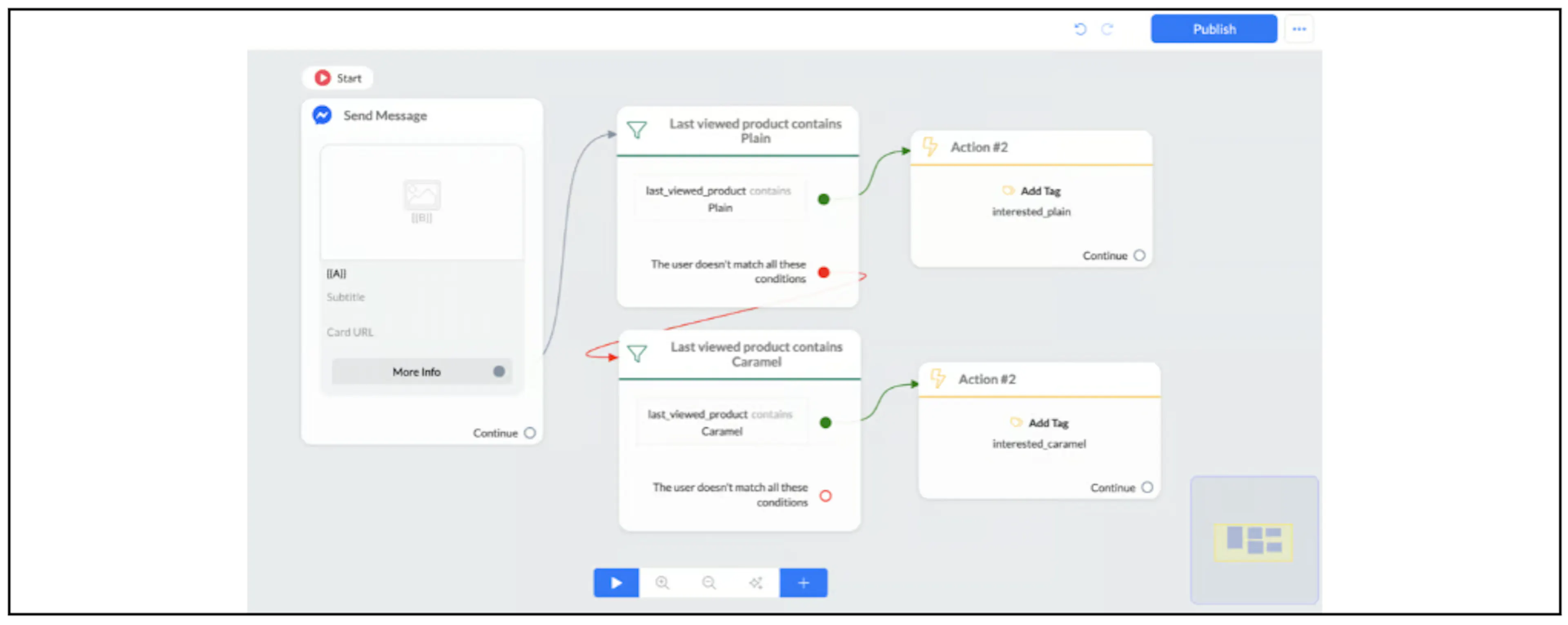
Use explicit conditions and configured tags for this pattern. The old guide's broader claims about dynamic tags and unlimited additional actions have not been verified for the current product.
Check before enabling the flow
Use a test sheet and contact. Confirm the selected rows, card images, button destination, saved description and selected-product value on the intended channel. Try a row with missing data and check what the next step receives.
Long descriptions and combined column values may reach field or channel payload limits. Confirm the current limits with Bual Pro support; the old article's 1,000-character Facebook claim is not a verified limit for every field or channel.
If the sheet or worksheet is renamed, reselect it and review the mappings. See Google Sheets troubleshooting and executed actions.