WhatsApp Commerce
Connect a Meta catalog, match product IDs, and prepare products for WhatsApp conversations.
WhatsApp product messages let customers browse catalog items, add them to a cart, and send the cart to your business. Your business then handles the next steps for delivery and payment.
This guide covers the catalog and product workflow shown in Bual Pro's existing documentation. The screenshots are from that guide; current account availability and the workflow have not been tested in a customer account. Checkout providers, automatic product search, and abandoned-cart automation need separate confirmation.
Connect the catalog
- Create or choose a catalog in Meta Commerce Manager. Follow Meta's catalog inventory setup and connect it to the relevant WhatsApp account.
- In Bual Pro, open Tools → Ecommerce.
- Select Connect to Meta Catalog and follow the connection instructions for your account.
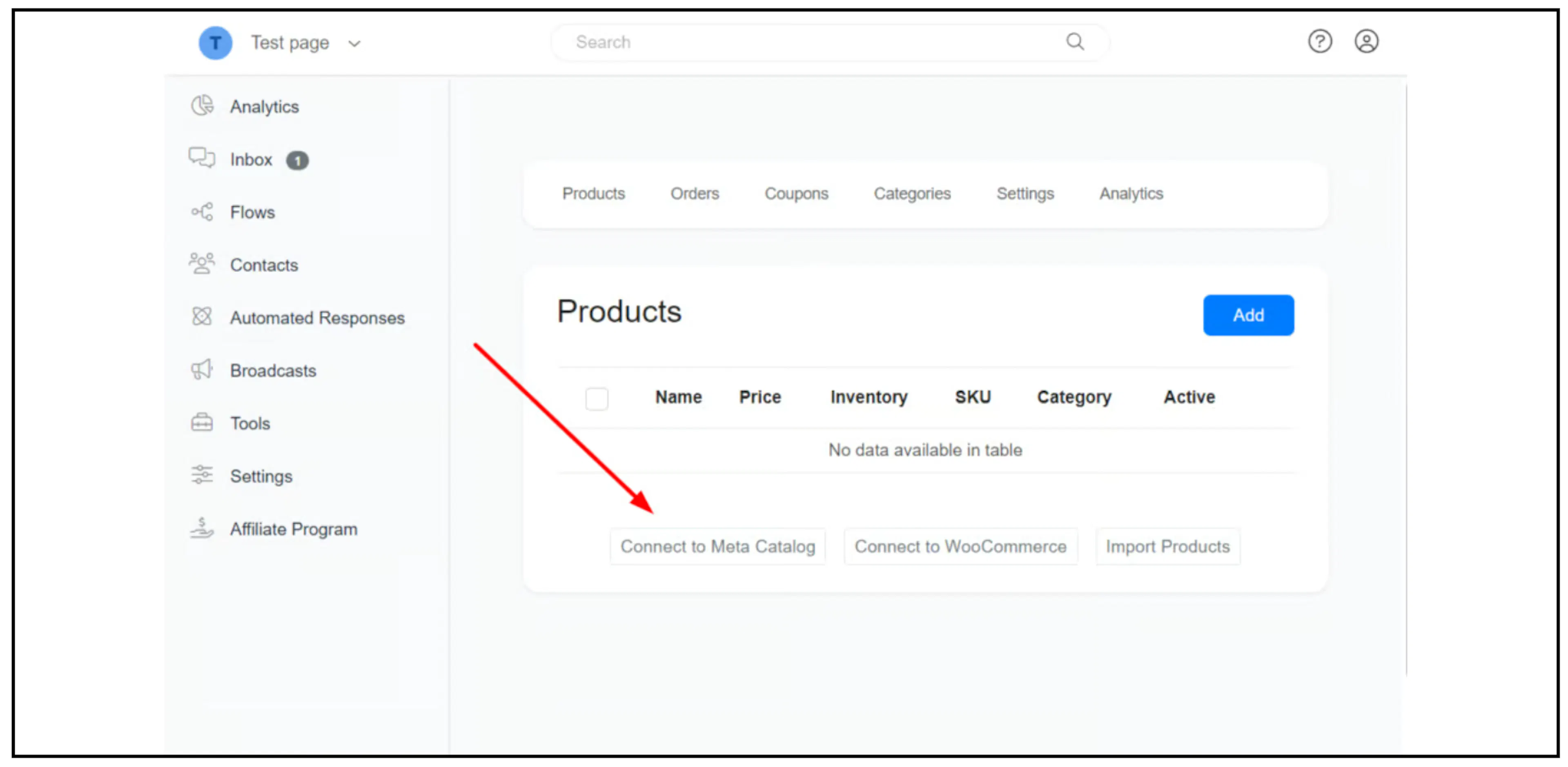
Products must meet Meta's commerce requirements. Check rejected items in Commerce Manager and follow the available review process. See Meta's catalog overview for current requirements.
Match product identifiers
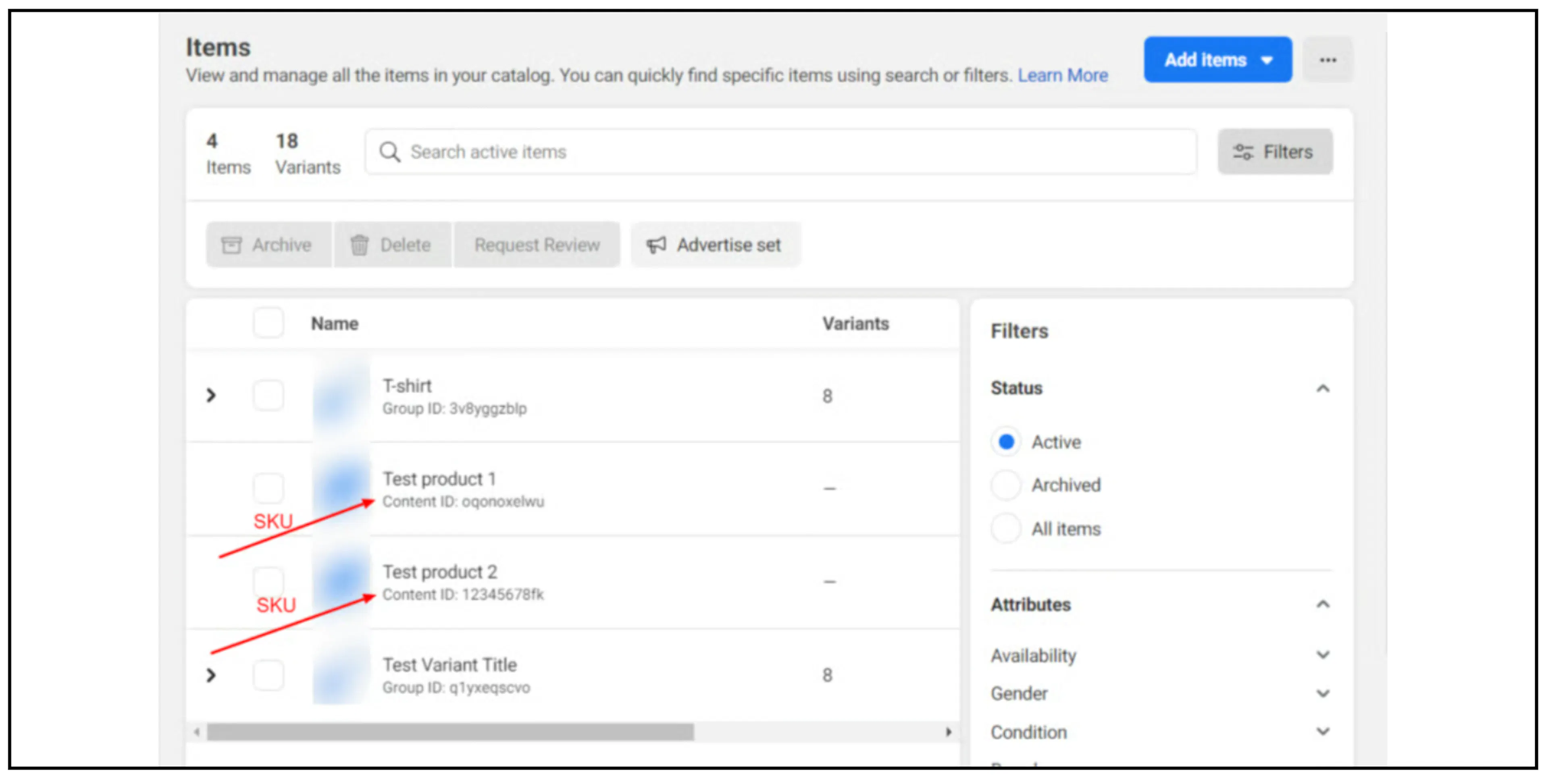
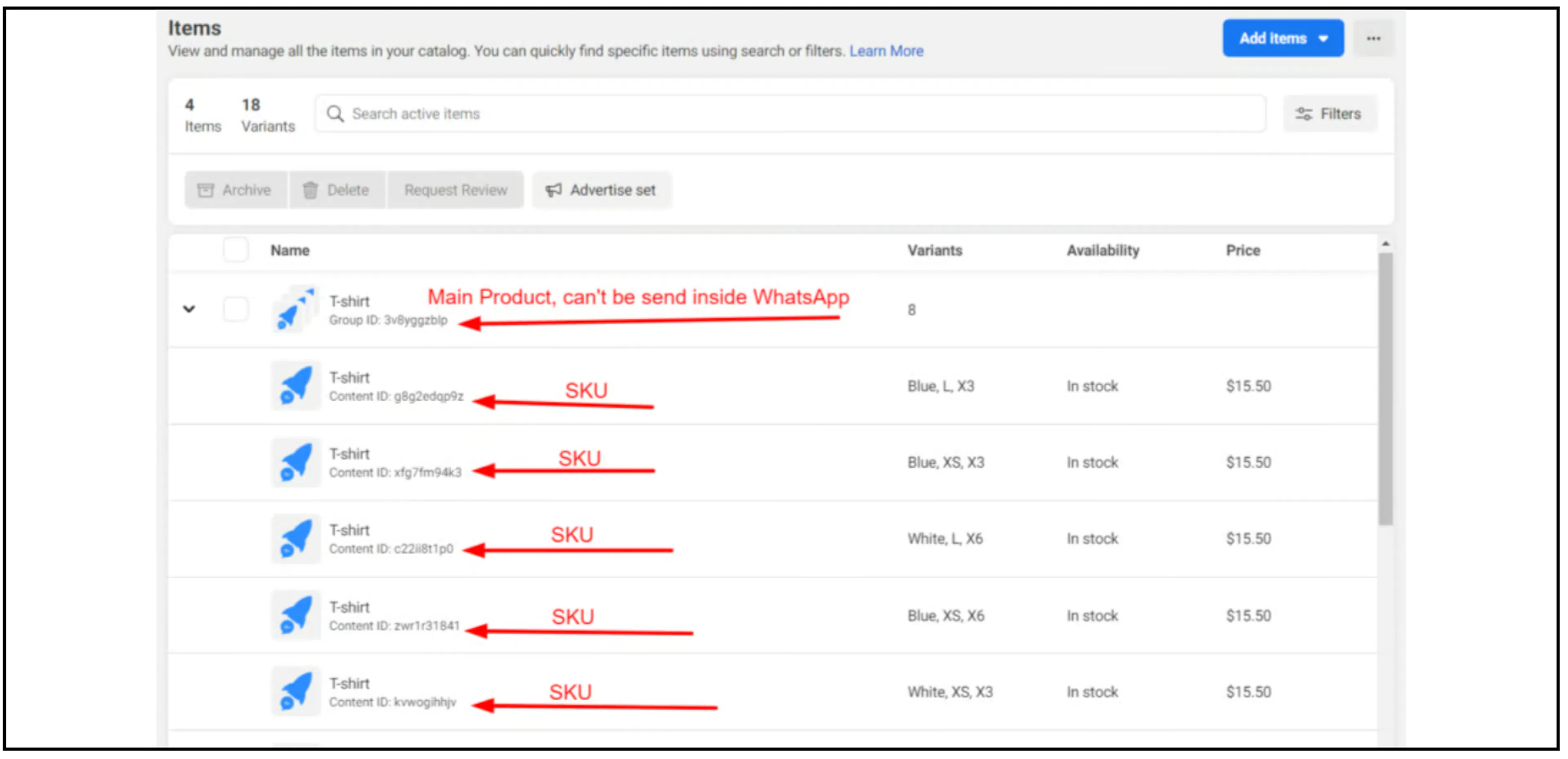
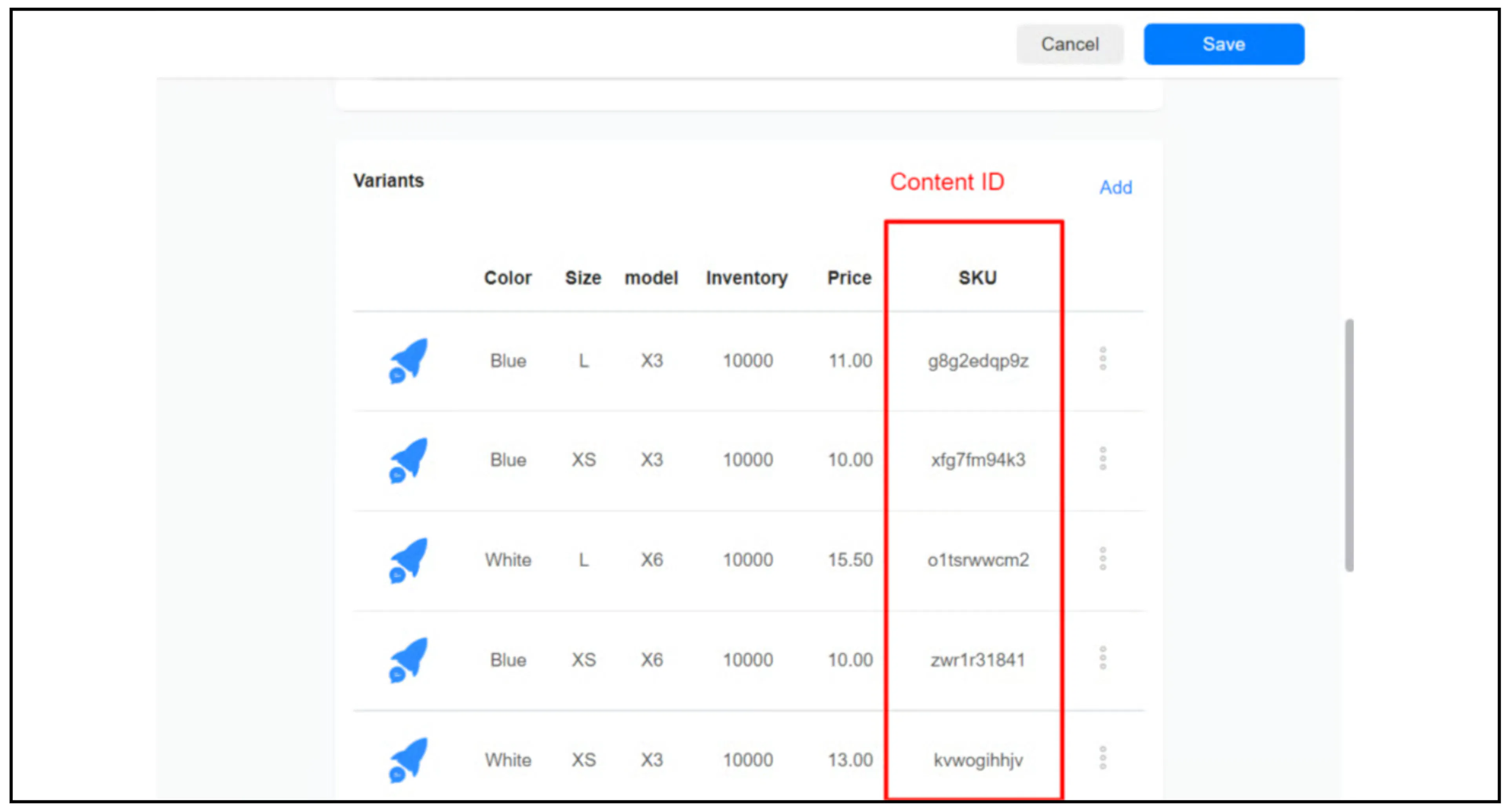
Check that each product's Bual Pro SKU matches the corresponding Meta catalog Content ID or retailer ID. Meta's product-message guide identifies products using their catalog and retailer ID.
The Bual Pro product list shows the SKU used for this mapping:
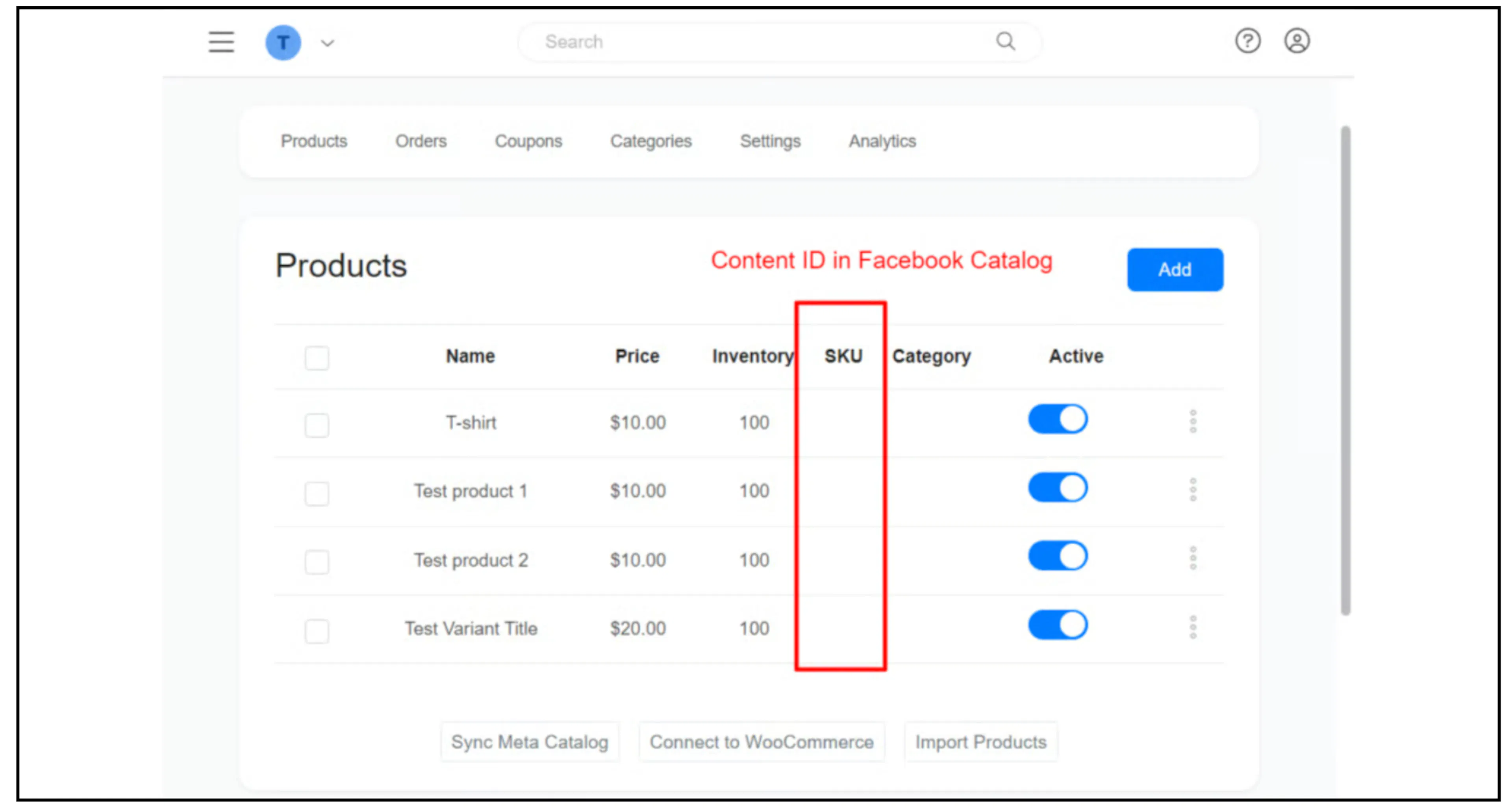
- Open the corresponding item in Meta Commerce Manager and copy its Content ID.
- Edit the matching product in Bual Pro.
- Enter the identifier in Content ID/Retailer ID/SKU, then select Save.
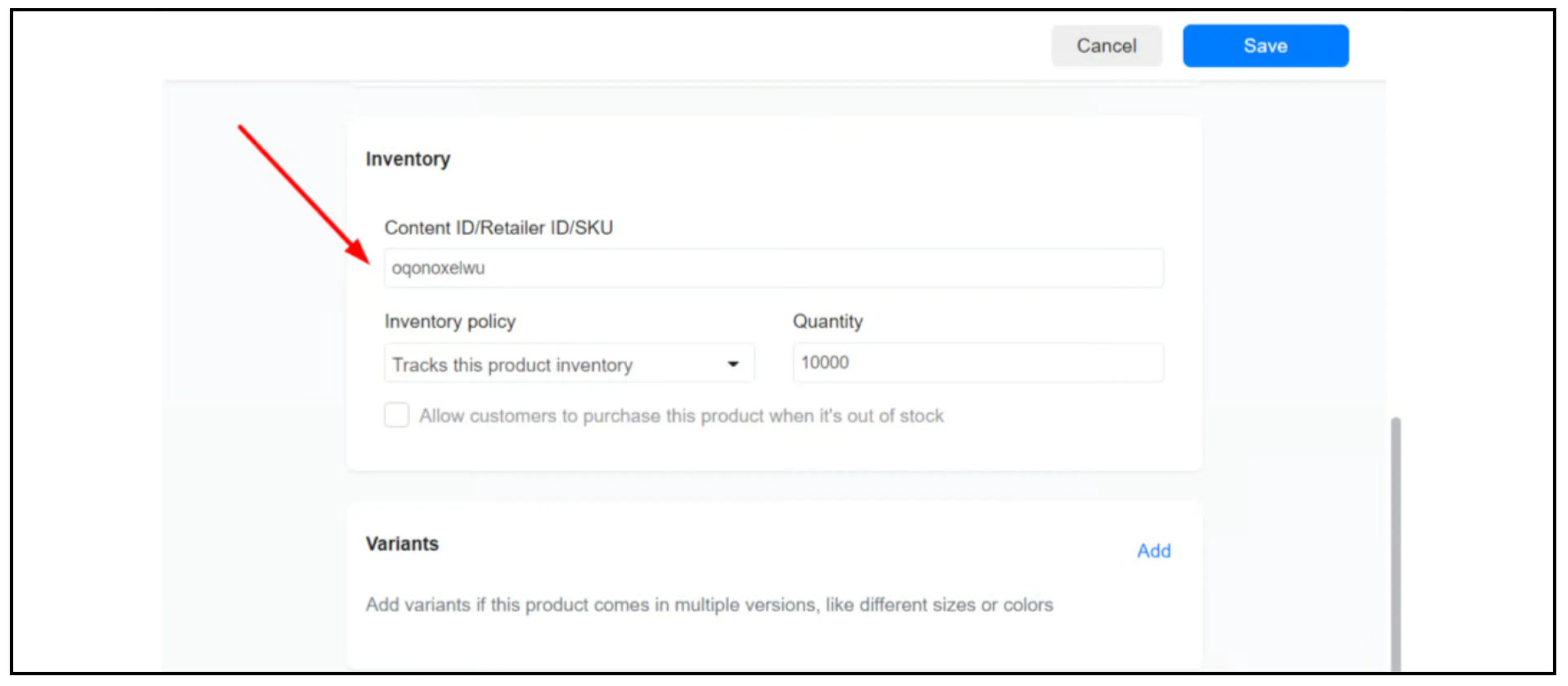
Check every mapping against the correct catalog item. The existing Bual Pro guide requires a defined SKU before the product can be selected for WhatsApp sending.
Products with variants
Repeat the mapping for each variant. Choose the specific variant you want to send. The existing Bual Pro guide uses individual variants for WhatsApp sending and does not send the parent product that contains them.
Add products to a flow
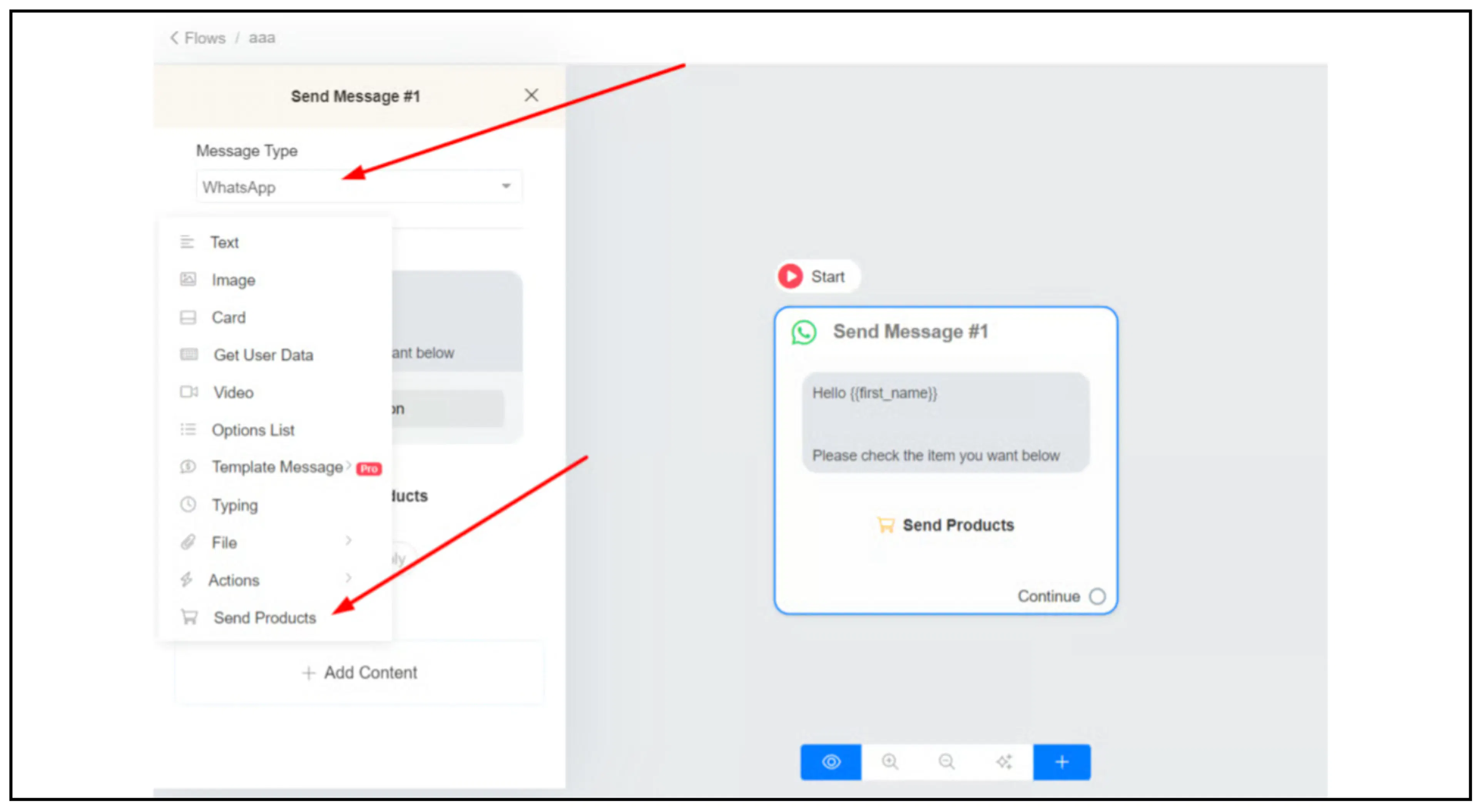
For the WhatsApp message type, use Send Products and choose the mapped product or variant. Review the selected item before making the flow available to customers.
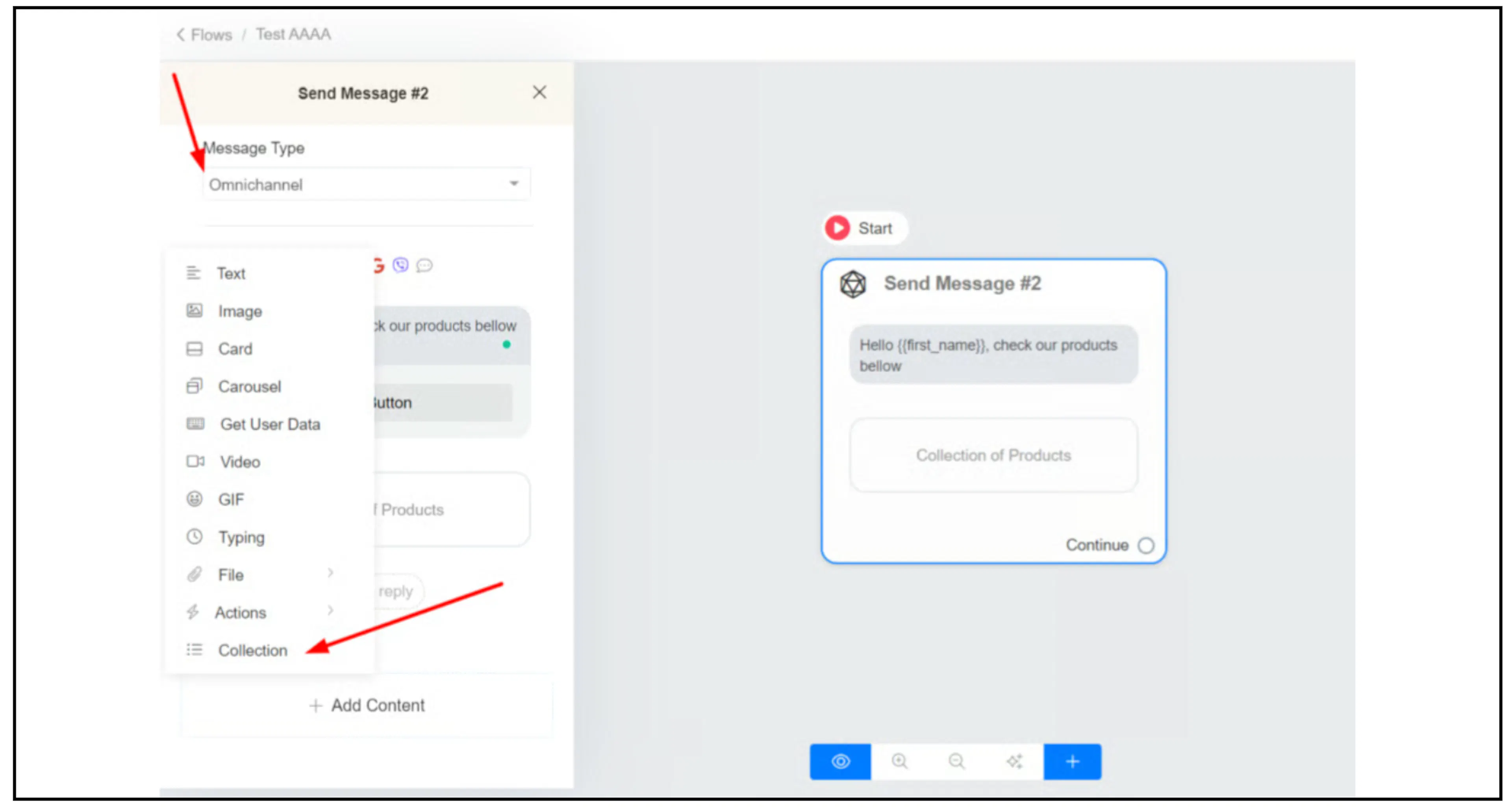
The existing guide also shows Collection under the Omnichannel message type. That Bual Pro workflow does not support sending products with variants on WhatsApp; use Send Products for a specific variant.
Follow the WhatsApp messaging policy when sending. Product messages belong in an eligible conversation. Outside the customer service window, follow the approved-template rules described in Send a broadcast.
Handle product questions and carts
The existing Bual Pro guide provides two commerce triggers:
| Trigger | Event described by the guide |
|---|---|
| User Asked About a Product | A customer asks a question about a product. The guide identifies {{product_id}} and {{product_name}} as the related system fields. |
| WhatsApp Shopping Cart Sent | A customer sends a shopping cart to the business. The guide suggests using this event to notify admins. |
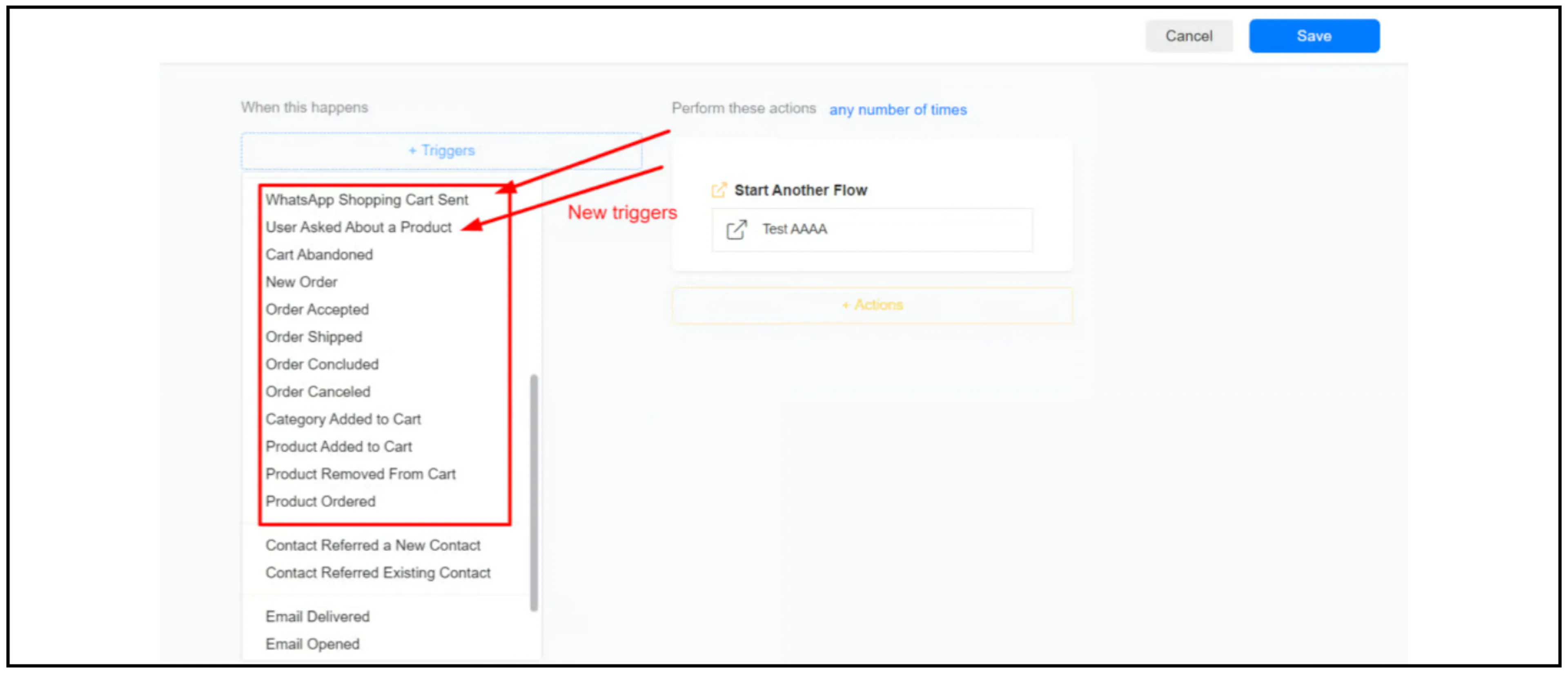
Review the customer's question or cart in the Inbox and confirm the next step. See Notify admins for the general notification setup.
A submitted cart does not confirm payment. Check the actual checkout and payment status before using Mark Order As Paid. Do not use that action merely to record that a customer sent a cart.
Confirm the checkout and payment options available in your account before promising a payment method to a customer. This guide does not establish which providers are currently available or whether recovery and product-search automation is enabled.