Notify admins
Choose notification events and channels, or notify an admin or team from a flow.
Admin notifications can alert your team to account events or actions in a flow.
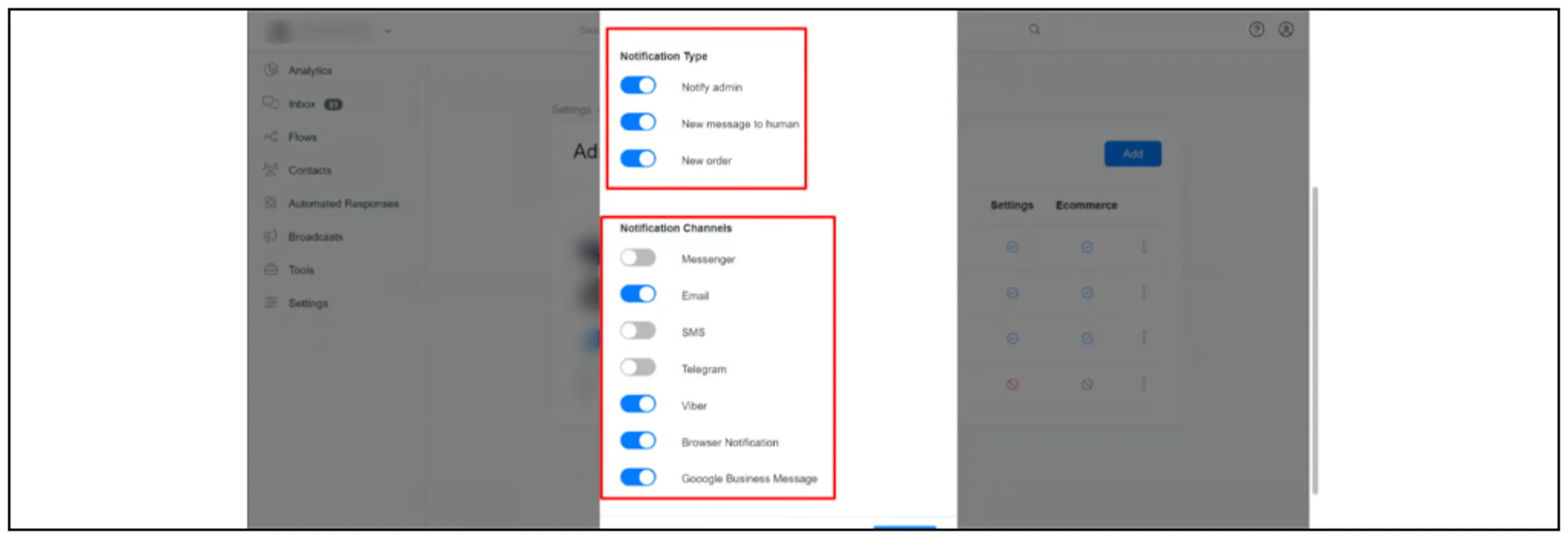
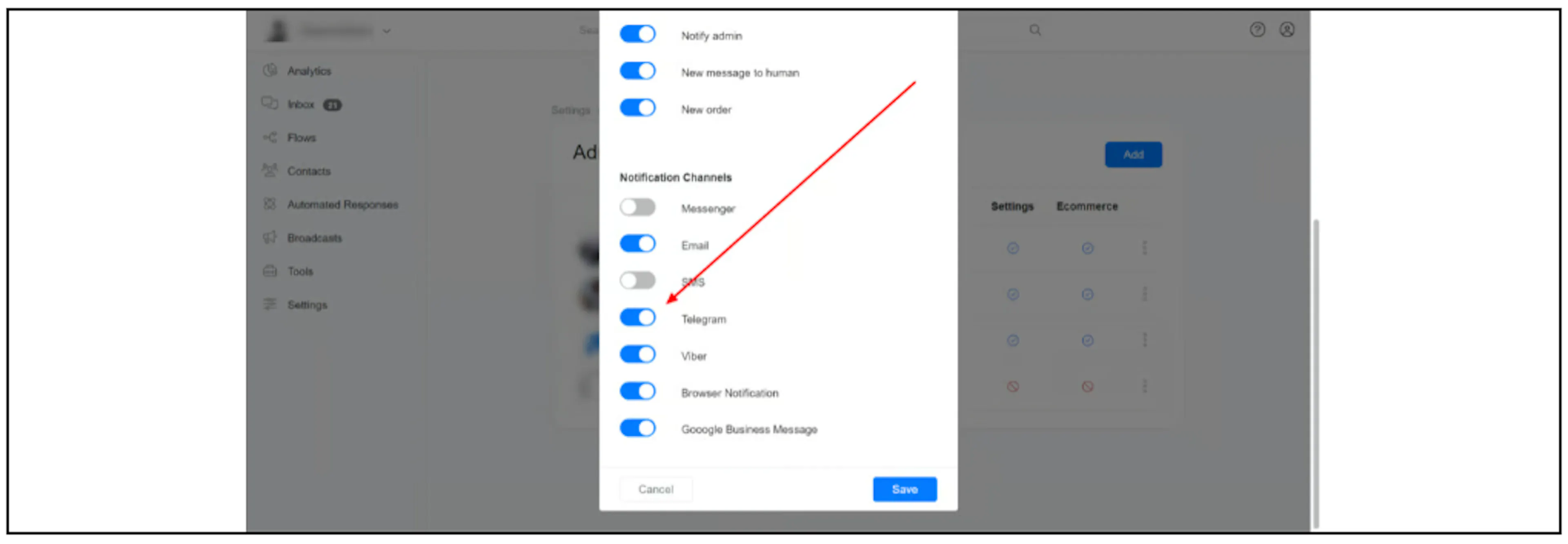
These screenshots show an older channel list. Google ended Business Profile chat on 31 July 2024, so the Google Business Message option shown in them is obsolete. See Google's notice.
Open an admin's notification settings
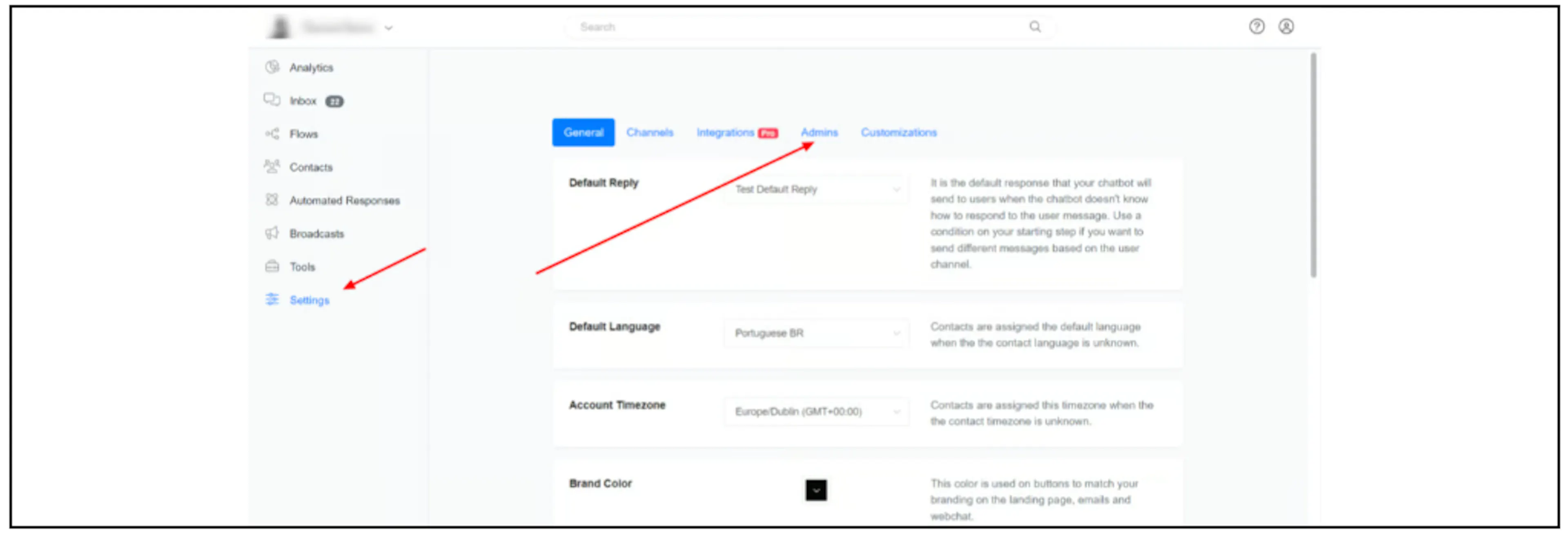
- Open Settings, then Admins.
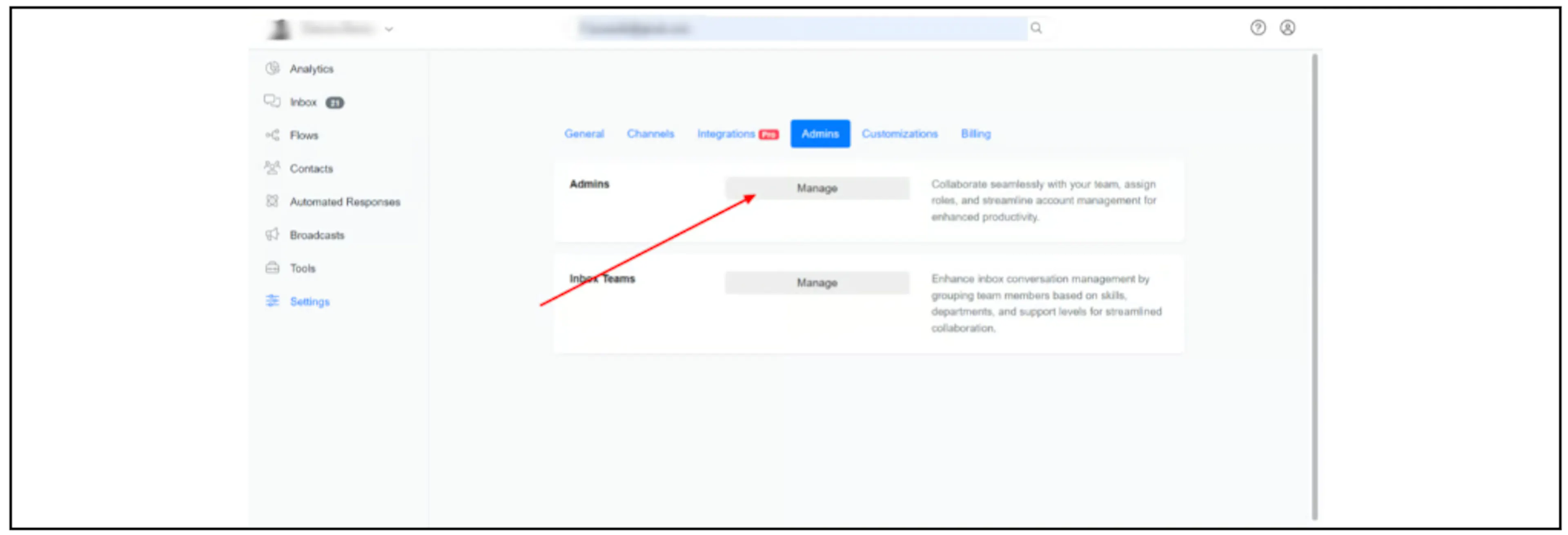
- Beside Admins, click Manage.
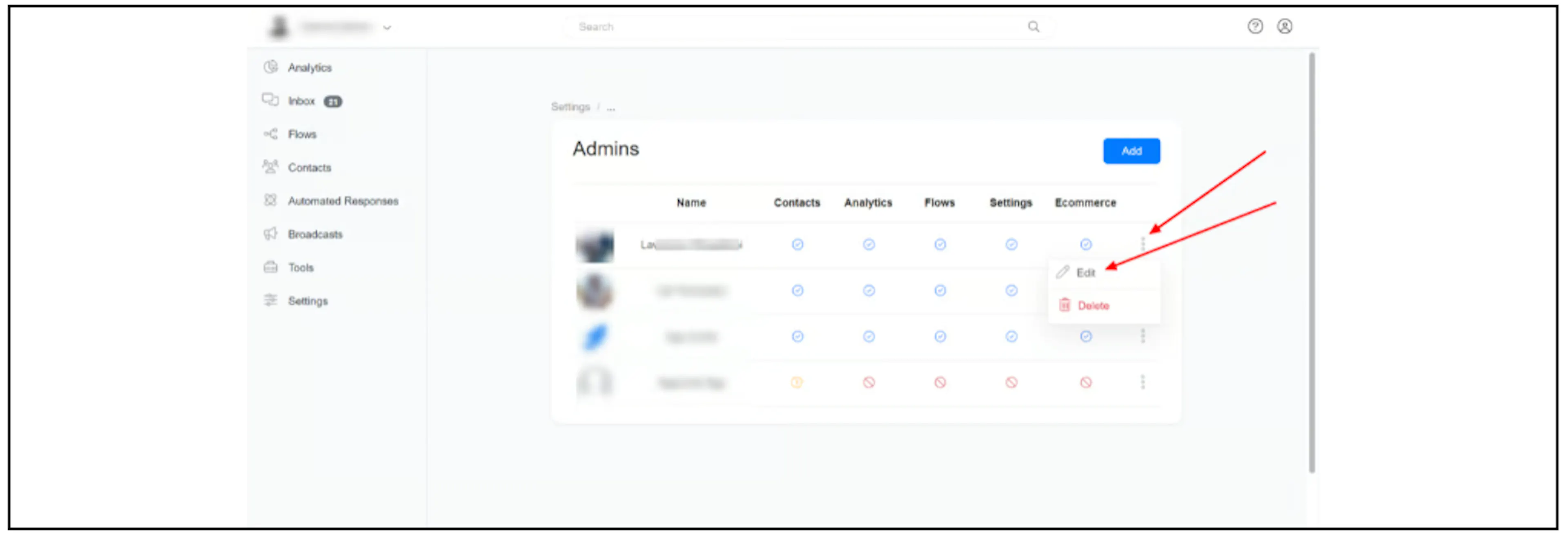
- Open the menu beside the admin and select Edit.
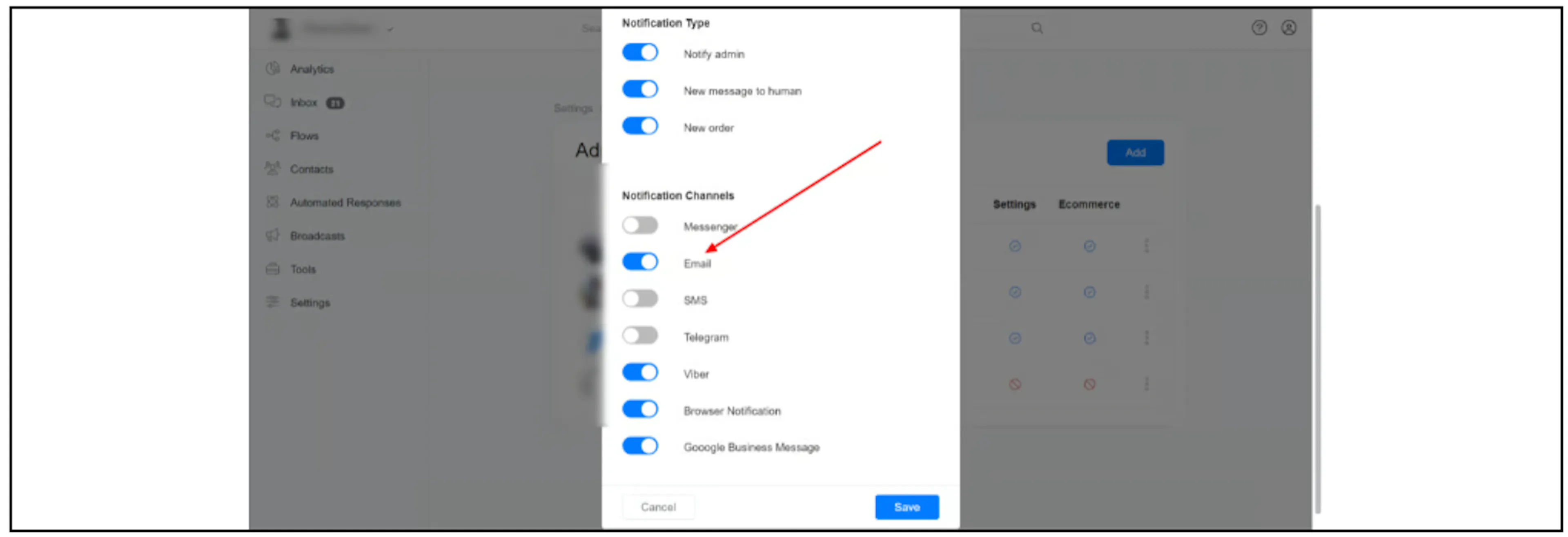
- Choose the events under Notification Type and the channels under Notification Channels. The screenshot shows Notify admin, New message to human, and New order.
Receive notifications by email
Enable Email under Notification Channels.
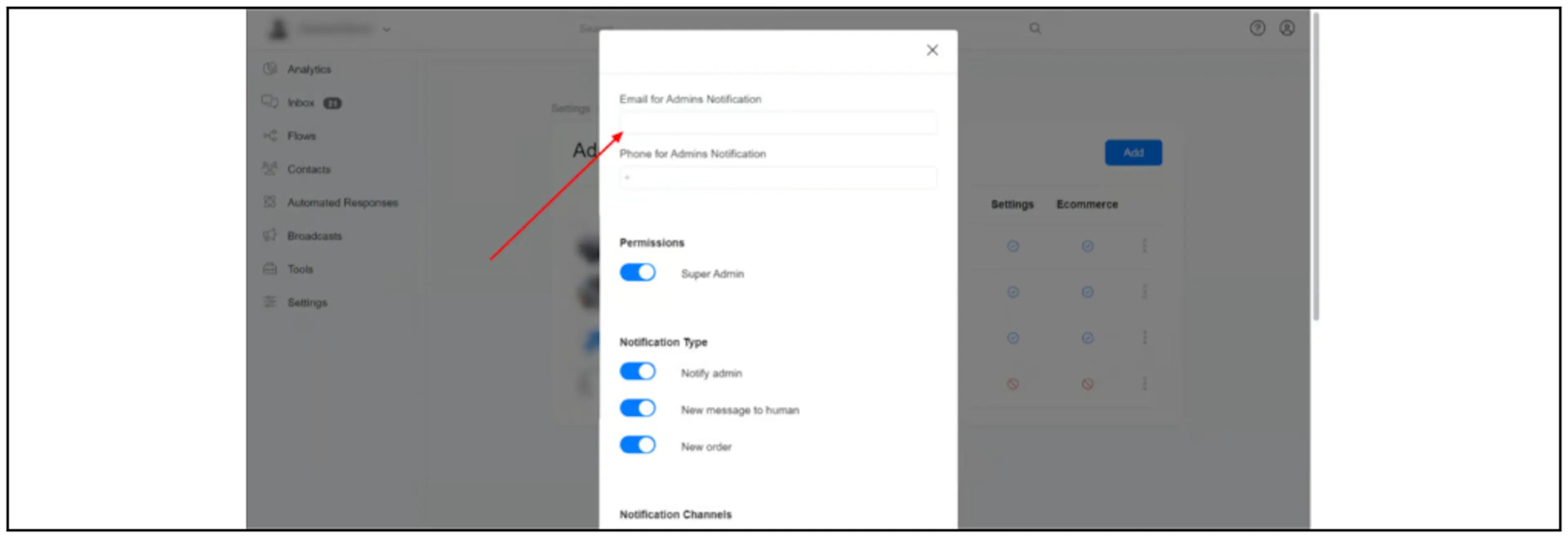
Enter the recipient address in Email for Admins Notification, then save the settings.
Receive notifications on Messenger
Enable Messenger under Notification Channels.
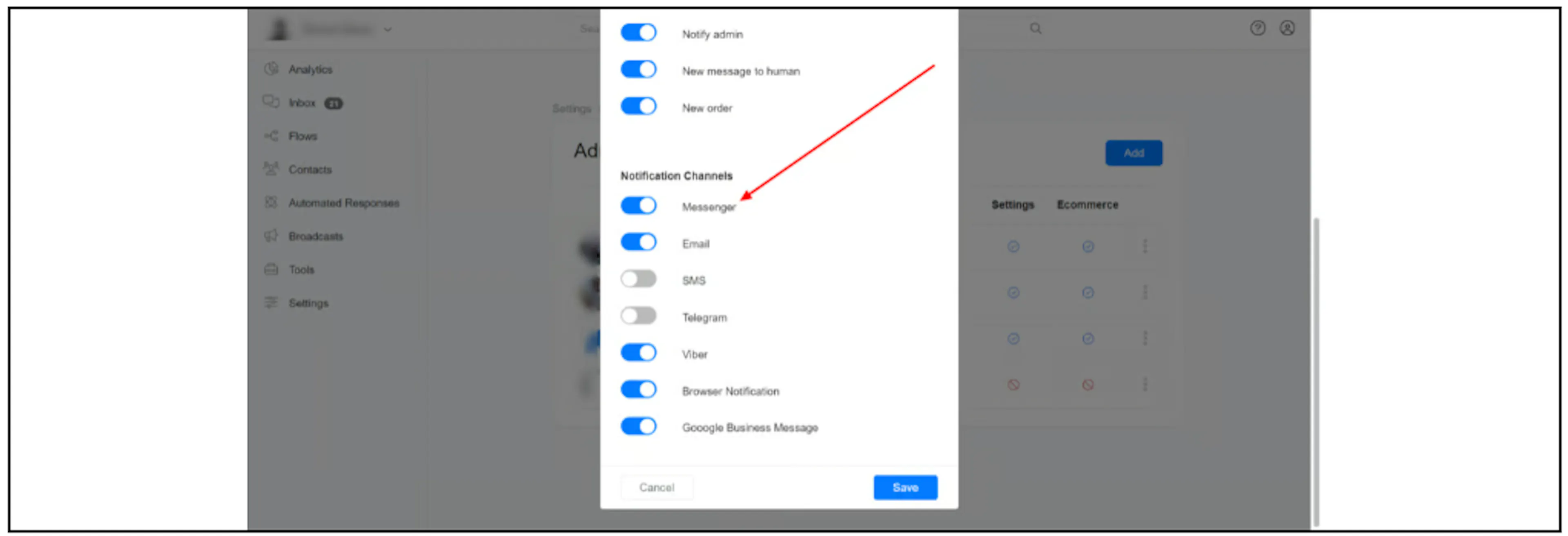
Messenger delivery depends on Meta's messaging-window rules. Most user actions open a 24-hour standard messaging window. For a first message sent after clicking a Click-to-Messenger or Click-to-Direct ad, Meta says the window may last up to 7 days. See Meta's current messaging guide.
Use email if you need notifications without relying on a recent Messenger interaction.
Receive notifications on Telegram
- Connect a Telegram bot to your Bual Pro account.
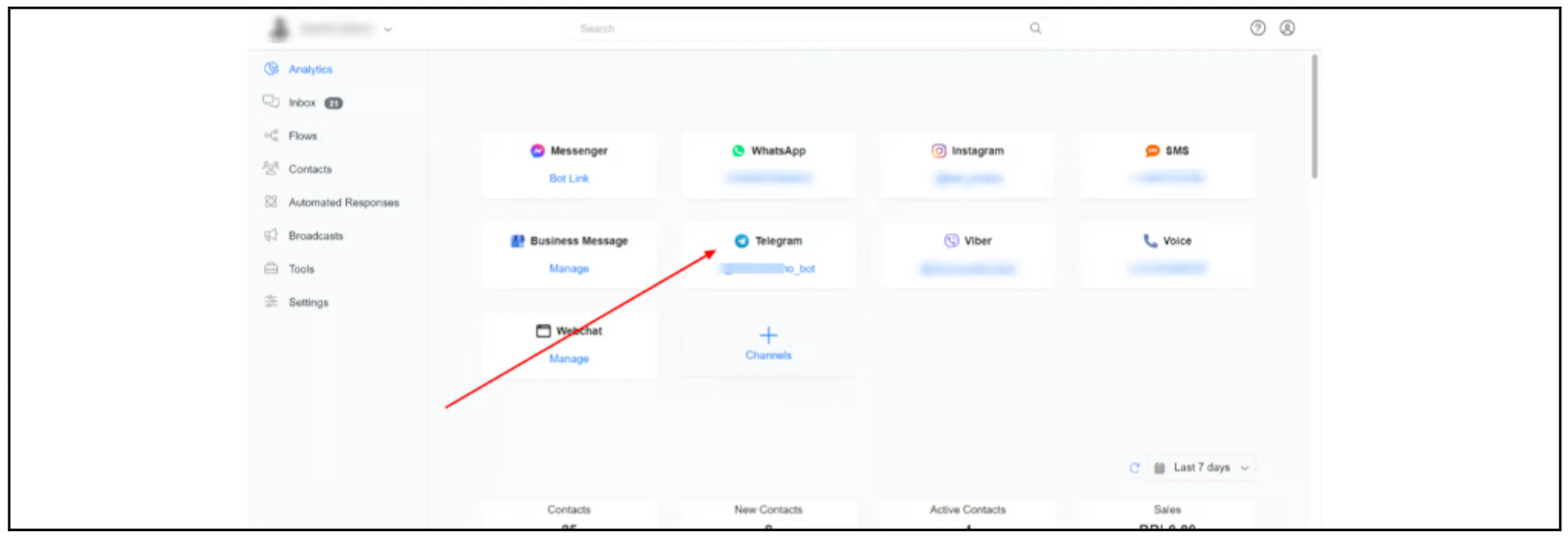
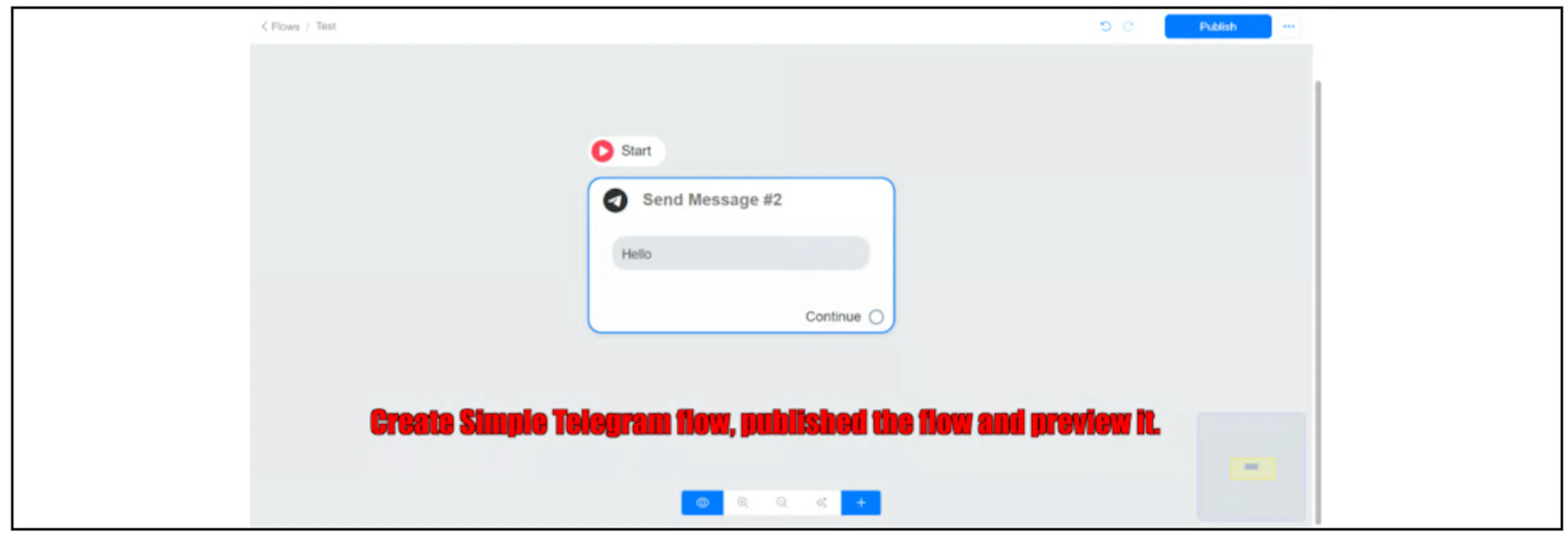
- Create a simple Telegram flow, publish it, and open its preview.
- Enable Telegram under the admin's Notification Channels, then save.
Notify an admin or team from a flow
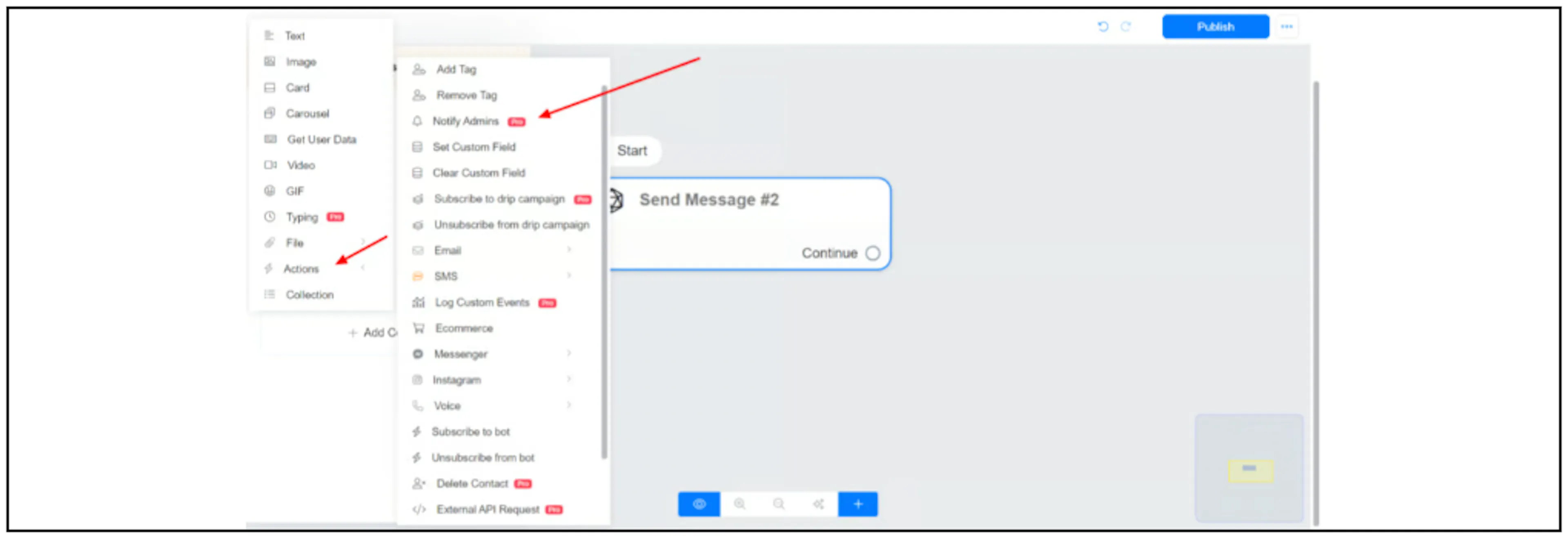
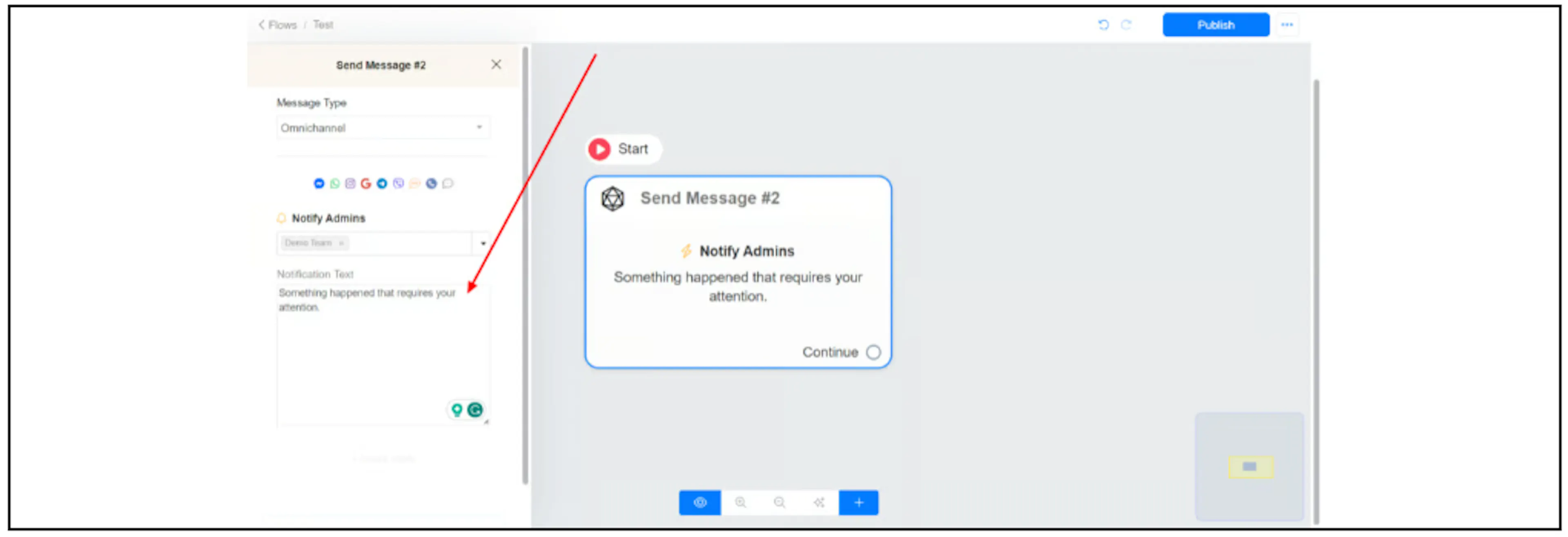
- In Flow Builder, choose Actions, then Notify Admins.
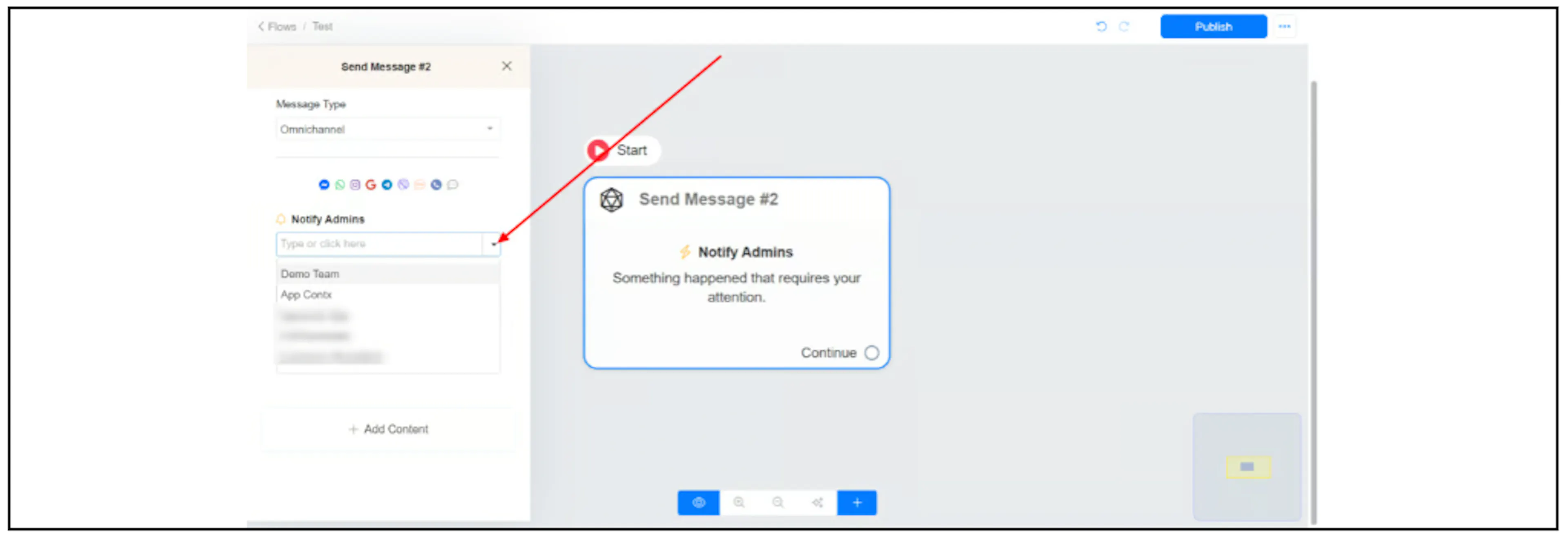
- Select the admin or team that should receive the notification.
- Enter Notification Text for the message you want to send.
For conversation ownership, see Assign a conversation.