Google Sheets integration
Connect a spreadsheet and configure flow actions to send, find, update or clear row data.
Use Google Sheets actions in a flow to exchange data with a spreadsheet. The earlier interface includes Send data, Get Row, Update Row, Clear Row, Get Random Row and a dynamic-gallery option. Check which actions are available in your account.
Connect Google Sheets
- Open Settings > Integrations.
- Find Google Sheets and select Connect.
- Choose the Google account that can access the intended spreadsheet, review the requested permissions and complete the connection.
- Return to Bual Pro and check the connection status.
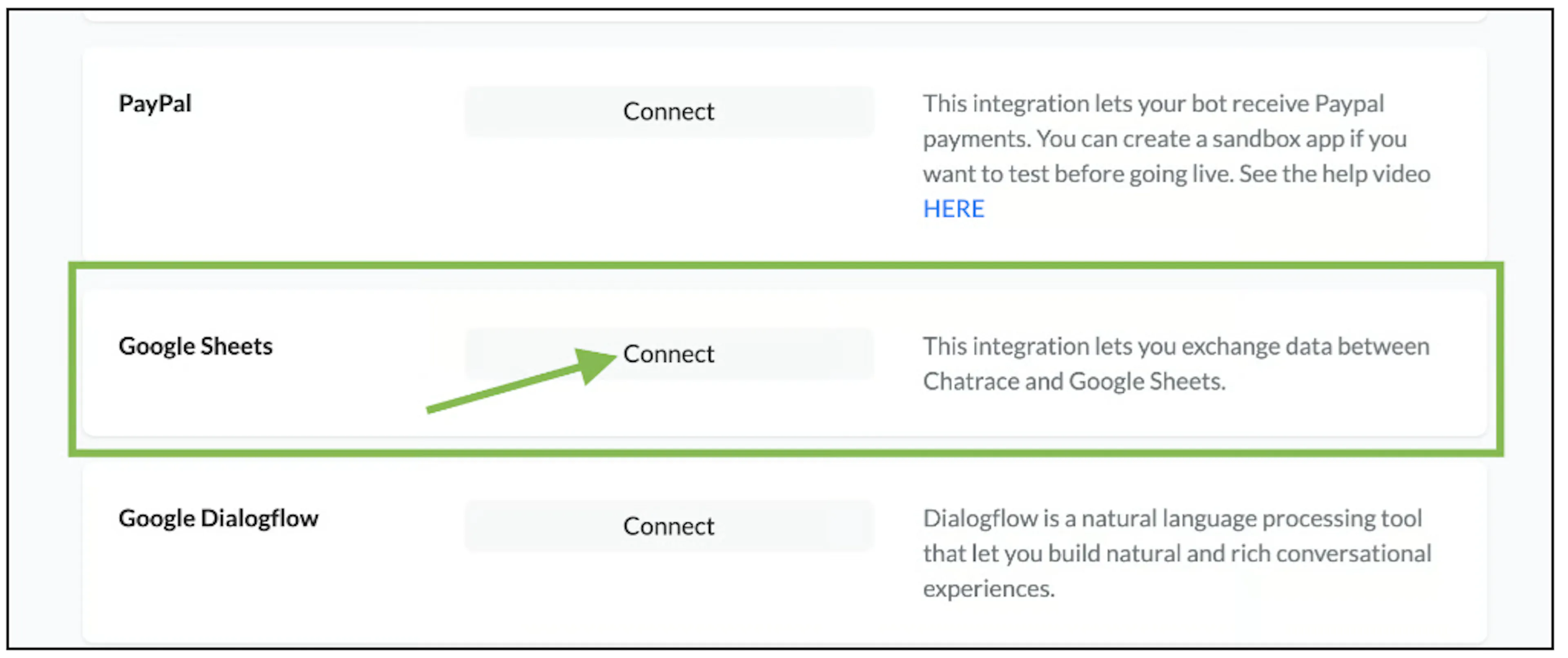
The screenshots show an earlier interface. Use the current labels in your account. To remove the connection, use its disconnect control; check which flows depend on it first.
Prepare the spreadsheet
Create column headers for the data you need. The source example uses Full Name, User ID, Email and Phone Number. Choose a stable lookup value when an action must find an existing record.
Review which contact fields the connected channel supplies and which fields your flow collects. Export only the data needed for the workflow, and use a test spreadsheet with non-sensitive data when checking the mapping.
After renaming a spreadsheet or worksheet, reopen every affected Google Sheets action, reselect the spreadsheet and worksheet, and check its mappings. The earlier integration depends on those names; confirm the current behavior before renaming a sheet used by a live flow.
Add a Google Sheets action
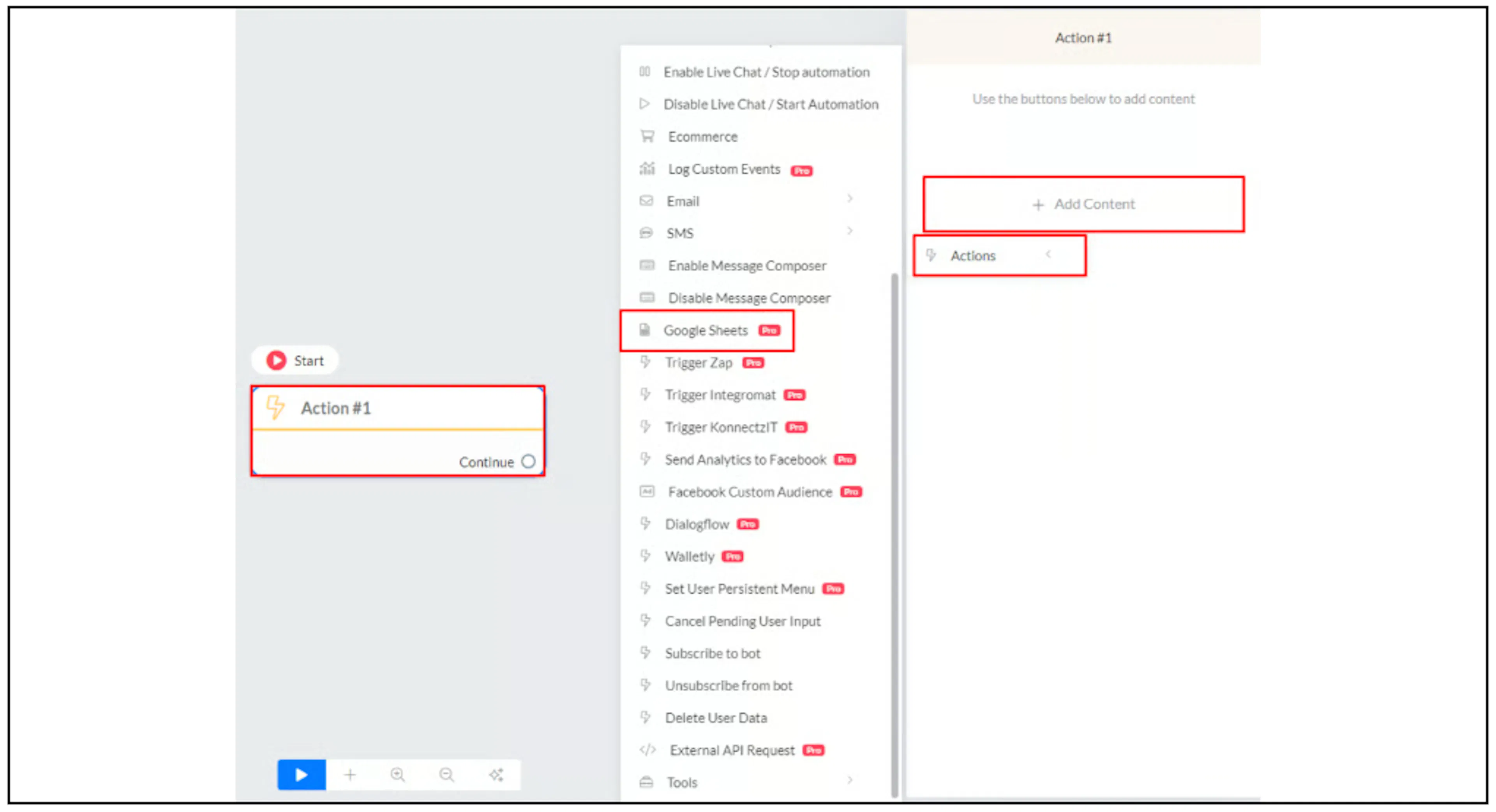
Open Flows and create a flow with Add Flow, or edit the intended flow. In an action block, choose Actions > Google Sheets, then select the action you need.
Send data
Select Send data, choose the spreadsheet and worksheet, then map the Bual Pro fields to the matching Google column titles. Save the action.
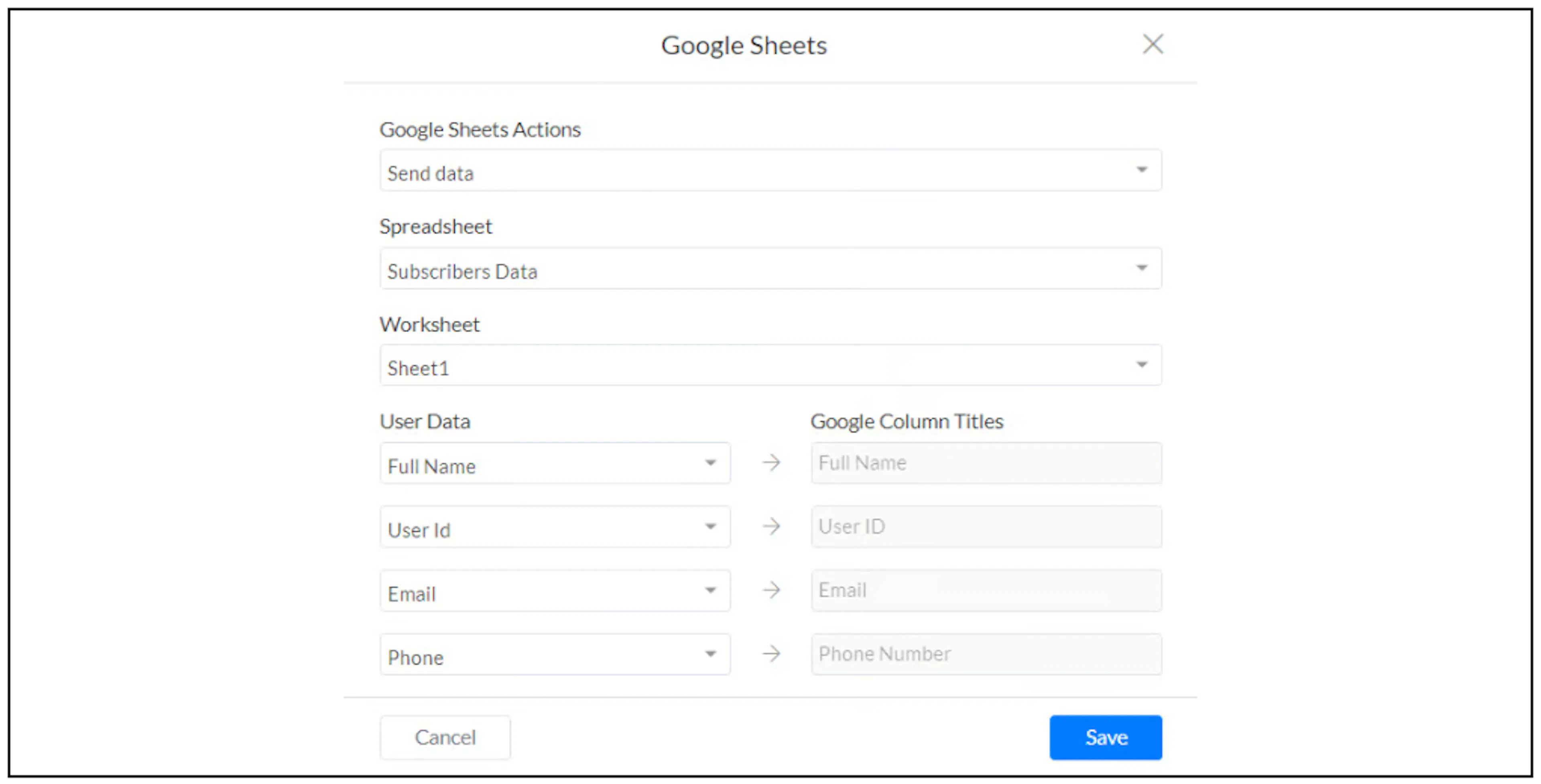
In a controlled test, run the step after the required fields have been collected and check the resulting row. Check how repeated runs affect the sheet before enabling the flow for customers.
Get a row
Select Get Row and choose the spreadsheet and worksheet. Set the lookup column and condition, then map the returned columns to the Bual Pro fields that will receive the values.
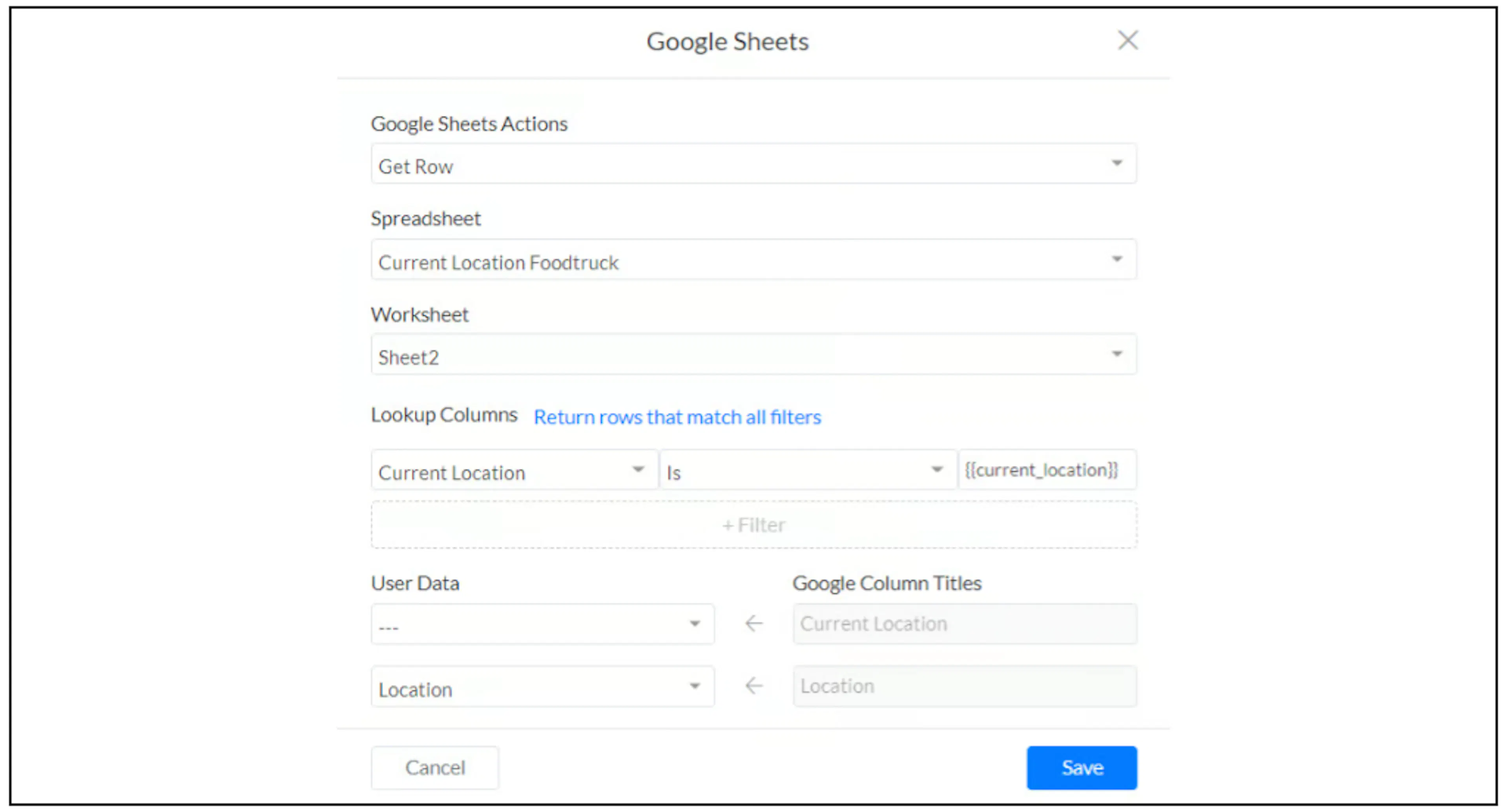
The source example uses a fixed Current Location lookup value to find an address maintained in the sheet. Use the exact value stored in your lookup column. The earlier article uses inconsistent address-field names, so select your actual output field in the mapping.
Check what your action does when no row matches or several rows match before using the result in a reply. Those outcomes are not established by the earlier walkthrough.
Get a random row
Select Get Random Row, choose the spreadsheet and worksheet, then set any lookup filters and map the output columns to destination fields.
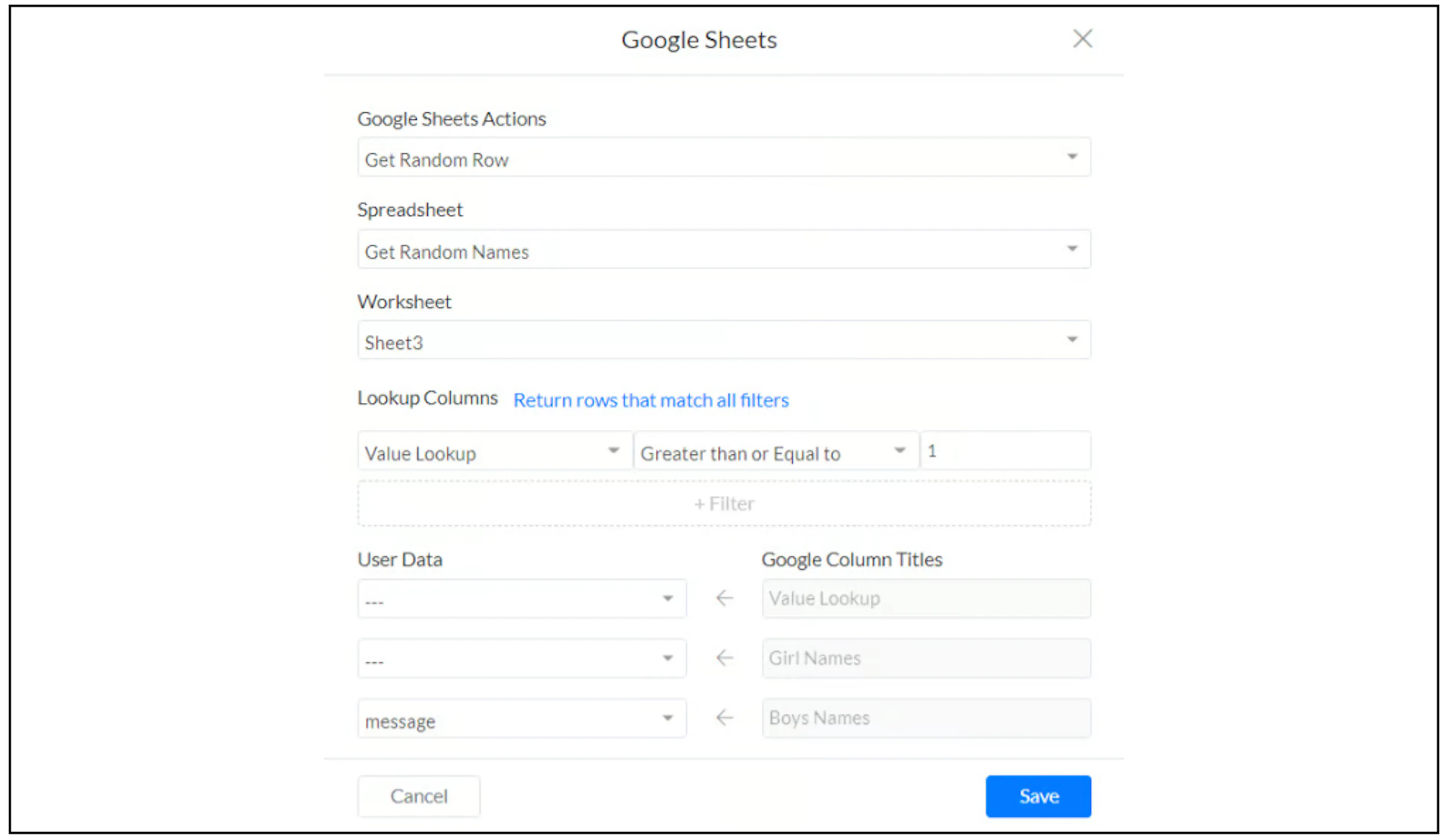
The screenshot filters a numeric Value Lookup column using Greater than or Equal to. Match the filter to your own sheet and check which rows are eligible. Confirm how an empty result is handled; the guide does not establish the selection distribution or repeat behavior.
Update an existing row
Select Update Row, choose the spreadsheet and worksheet, and set the lookup condition for the record you want to change. Map the fields to update and save the action.
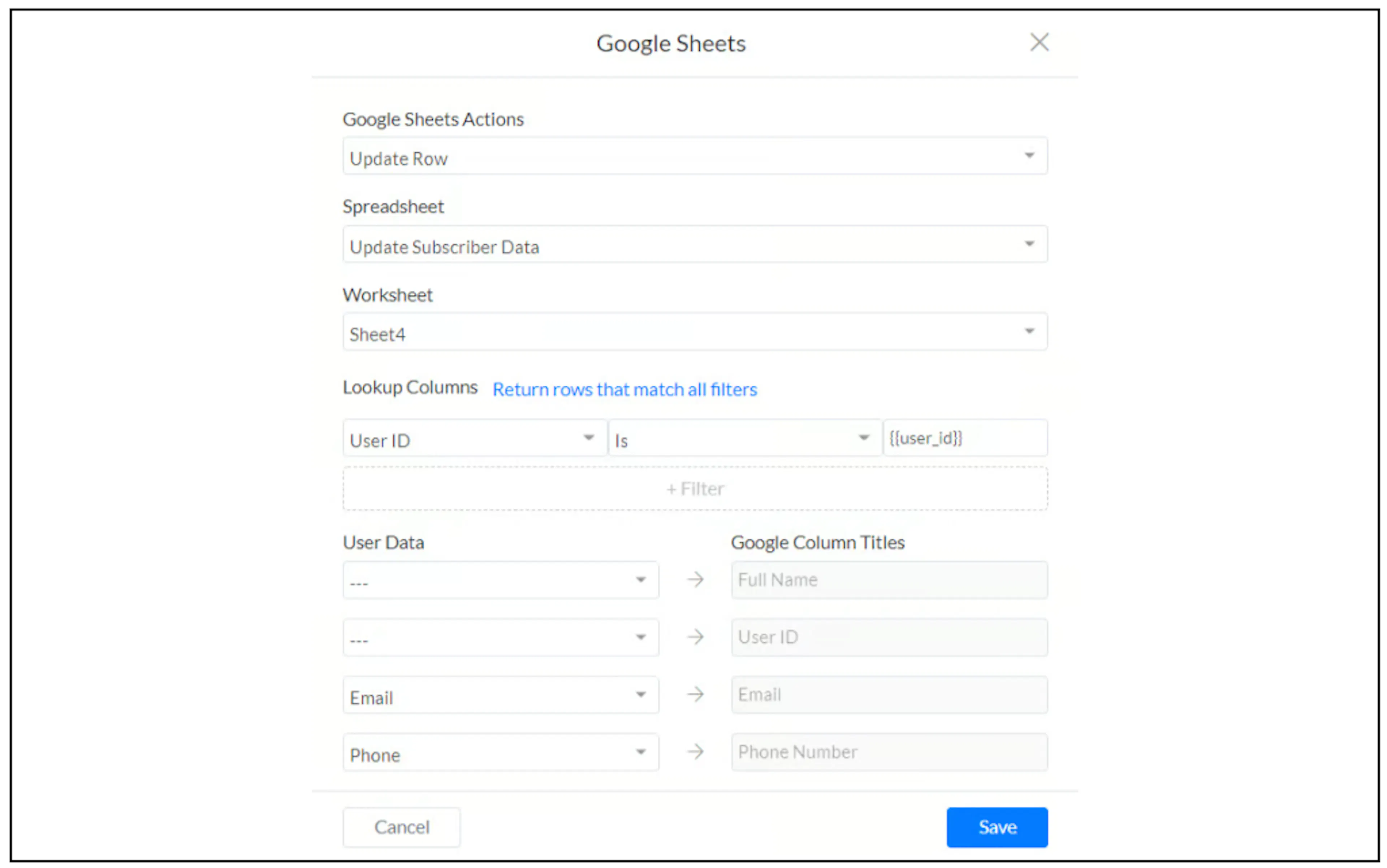
The example matches User ID and updates Email and Phone Number. Use an identifier that remains stable and is unique within the sheet and account context. Check the matched row and the treatment of blank fields in a test copy before updating customer records.
Clear row values
Select Clear Row, choose the spreadsheet and worksheet, then set the lookup condition. Check it against a test row before using it in a live flow.
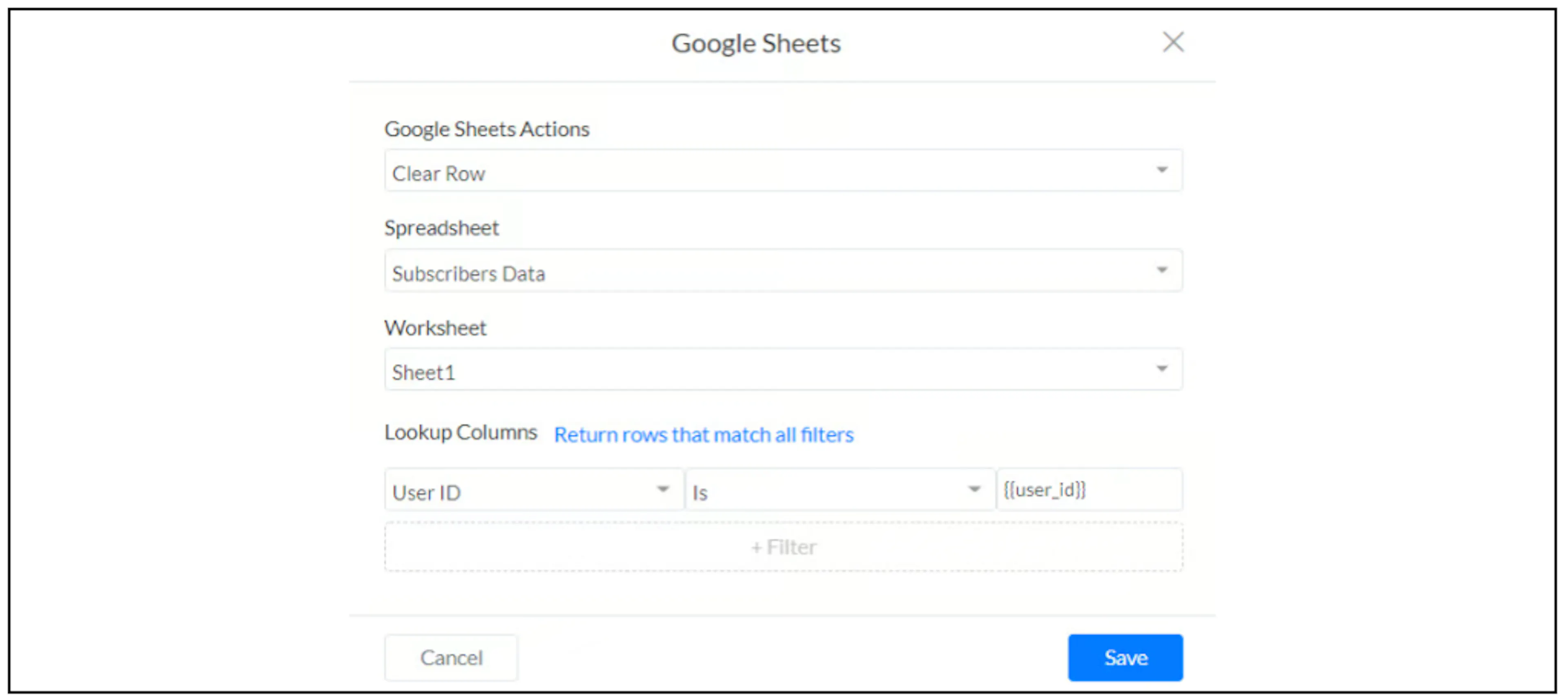
Confirm which cells the action clears and whether the row remains in place. The action name alone does not establish that it deletes the physical spreadsheet row. Keep a recoverable copy of data you may need before using a clearing action.
Dynamic galleries
Follow Dynamic Gallery from Google Sheets to map row values into cards and save a selected item through a button action. The earlier walkthrough uses Messenger; confirm the format supported by your intended channel.
If an action cannot find the sheet or data
Check the connected Google account and its access to the spreadsheet. Reselect the spreadsheet and worksheet if either was renamed. Check the column headers, lookup value, conditions and output mappings, then review the executed flow actions.
If matching or update behavior remains unclear, ask support before rerunning an action that could create duplicates or change existing data.