External Request and Dynamic Content
Call an external API, map JSON responses and review Dynamic Content payloads.
Use External API Request to call an API from a flow. You can map returned JSON values into custom fields or have a service return a Dynamic Content response containing messages and actions.
The steps and payloads below come from the earlier Bual Pro guide. The screenshots show that interface. Confirm the action, response format and connected channel in your current account before using them in a customer flow.
Configure the request
- Open the intended flow in Flow Builder.
- Add Actions > External API Request.
- Choose the Request Type and enter the Request URL required by your API.
- Configure Headers and Body as required by that API.
- Set the response mappings, then save the action.
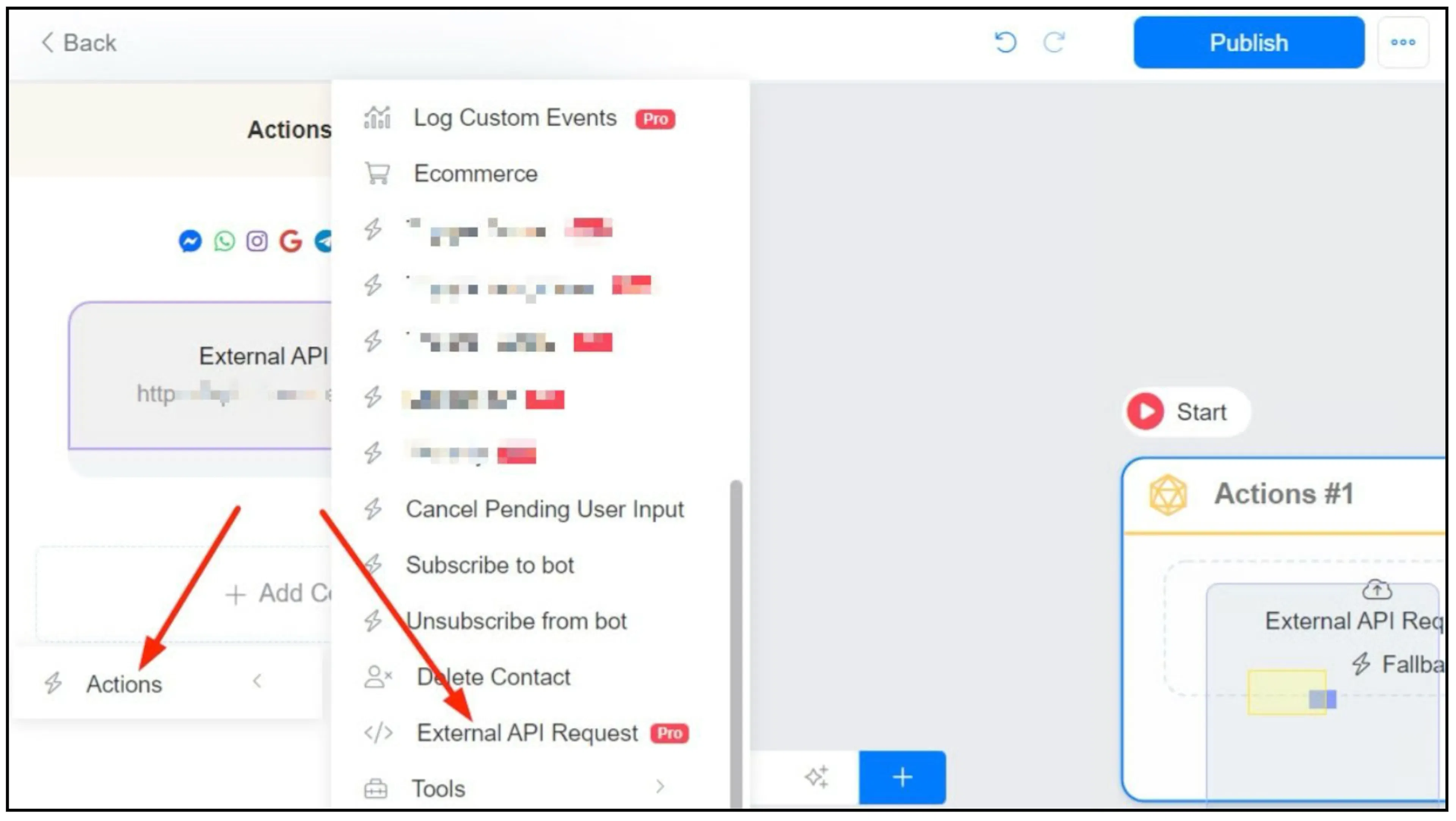
Use the authentication required by the destination API. The earlier guide documents an automatically supplied X-USER-ID header to identify the contact; this header does not establish authentication to your service. Bual Pro's own API reference documents a separate X-ACCESS-TOKEN header.
Save a JSON value to a custom field
In Response mapping, enter the path of the value under JSONPath and choose its destination under Save to custom field.
The earlier example maps rates.USD to a custom field. Start at the response root, without a leading x.. The following response is a historical sample. Its date and timestamp are inconsistent, and its values must not be used as current exchange rates.
{
    "success": true,
    "timestamp": 1519296206,
    "base": "EUR",
    "date": "2021-03-17",
    "rates": {
        "AUD": 1.566015,
        "CAD": 1.560132,
        "CHF": 1.154727,
        "CNY": 7.827874,
        "GBP": 0.882047,
        "JPY": 132.360679,
        "USD": 1.23396
    }
}
For this sample, rates.USD selects 1.23396. Insert the destination custom field into a later flow message using the field picker.
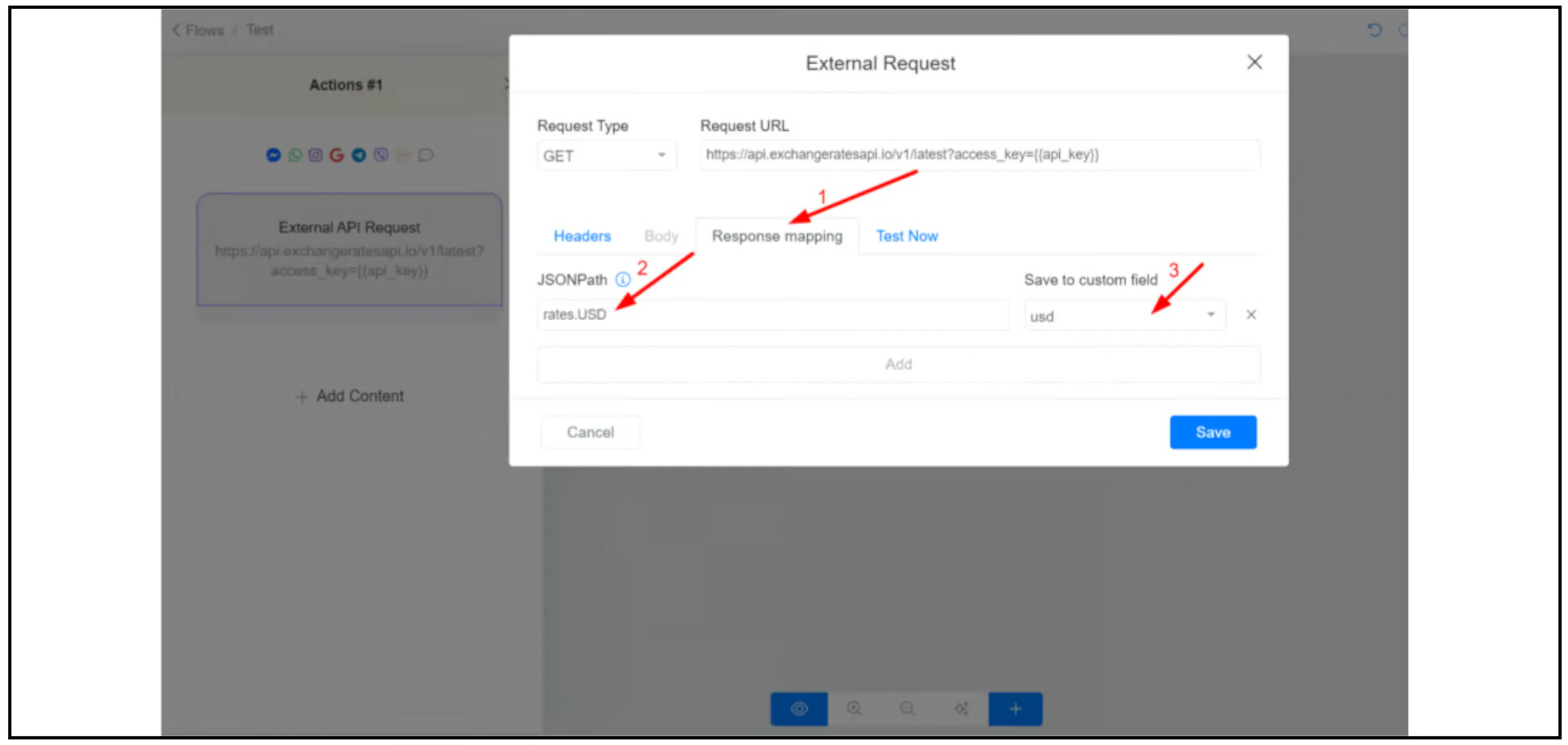
Use a sanitized sample when checking mappings. A test request may execute an operation on the destination service, so review its effect before using Test Now.
Read the status code, body or downloaded file
The earlier guide documents these special response-mapping values:
| Value | Purpose |
|---|---|
http_status_code | Save the HTTP response status code. |
http_response_body | Save the whole response body. |
http_download_EXTENSION | Request a downloaded-file mapping for the specified extension, such as http_download_mp3. |
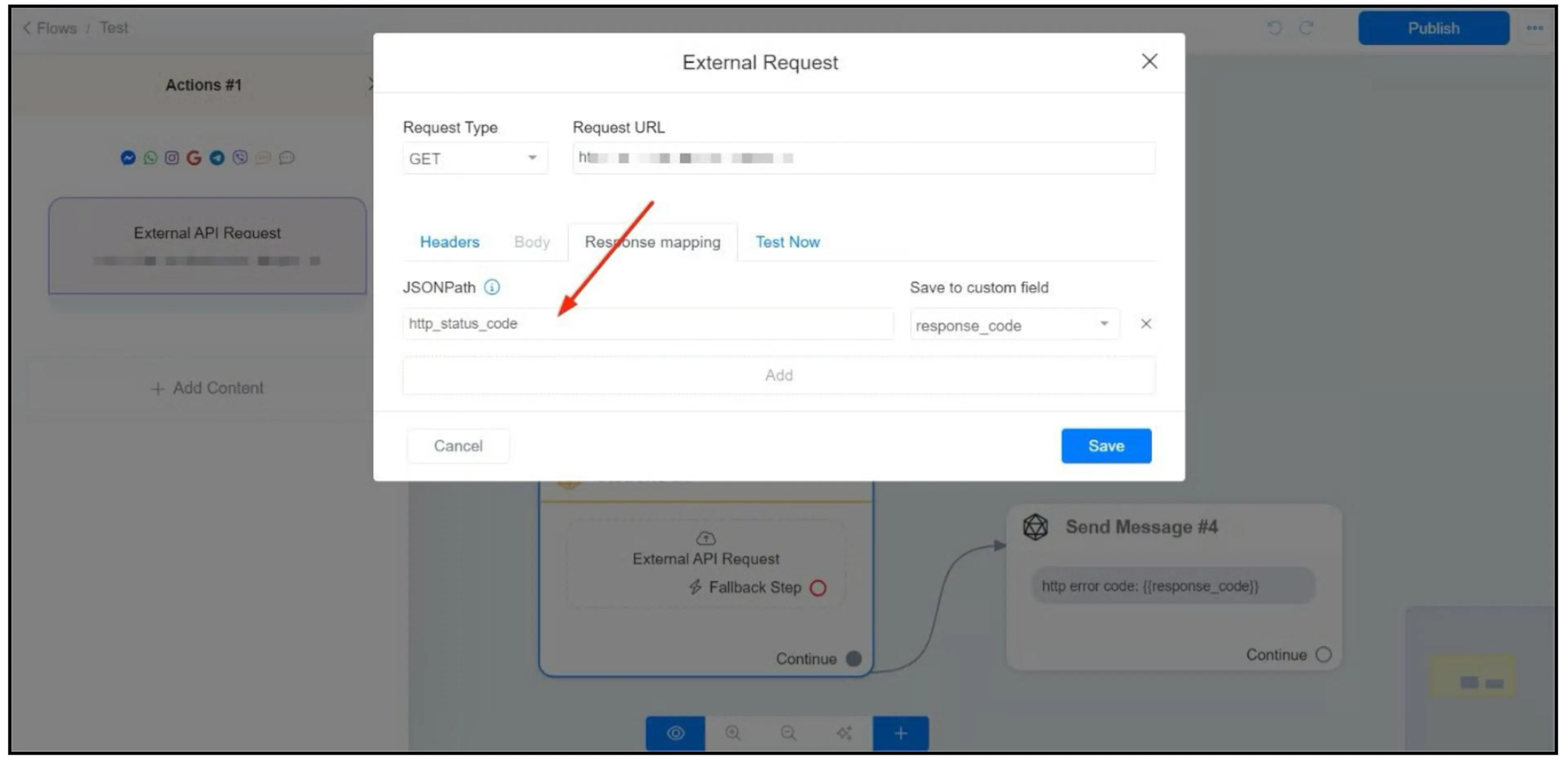
Use a saved status code in a condition to choose a follow-up step. Confirm file handling, supported extensions, size limits and failure behavior with Bual Pro support before relying on a download mapping.
Return Dynamic Content
Dynamic Content requires a service that can return Bual Pro's documented response envelope. If a third-party API returns its own data structure, map its values into custom fields or use a service you control to transform the response.
{
    "messages": [],
    "actions": []
}
The messages array contains messages for the contact. The actions array contains contact or flow actions. The examples below show earlier Messenger-style payloads and a separate WhatsApp example. Check the current channel's supported message types, button rules and delivery conditions; a single payload is not guaranteed to work across every channel.
Replace placeholders such as FLOW_OR_STEP_ID, your_URL and <ASSET_URL> with values from your own configuration. These examples have not been executed against a live Bual Pro flow.
Text message
The earlier schema makes quick_replies optional.
{
    "messages": [
        {
            "message": {
                "text": "Hello world",
                "quick_replies":[]
            }

        }
    ]
}
Multiple text messages
{
    "messages": [
        {
            "message": {
                "text": "Hello world"
            }
        },
        {
            "message": {
                "text": "This is the second Message",
                "quick_replies":[]
            }
        }
    ]
}
Messenger-style buttons
The source uses a website URL, a flow or step ID as a postback payload, and a phone-number payload. Use the button types and limits supported by your current channel.
{
    "messages": [
        {
            "message": {
                "attachment": {
                    "payload": {
                        "buttons": [
                            {
                                "title": "Open Website",
                                "type": "web_url",
                                "url": "your_URL"
                            },
                            {
                                "title": "Send FLow",
                                "payload": "FLOW_OR_STEP_ID",
                                "type": "postback"
                            },
                            {
                                "title": "Call Number",
                                "type": "phone_number",
                                "payload": "<your_phone_number_with_county_code>"
                            }
                        ],
                        "template_type": "button",
                        "text": "Hello world"
                    },
                    "type": "template"
                },
                "quick_replies":[]
            }
        }
    ]
}
Quick replies
A quick-reply payload can reference the intended flow or step ID in the earlier format.
{
   "messages": [
       {
           "message": {
               "text": "Hello world",
               "quick_replies":[
                  {
                     "content_type": "text",
                     "title": "Quick Reply 1",
                     "payload": "FLOW_OR_STEP_ID"
                  },
                  {
                     "content_type": "text",
                     "title": "Any Text Here",
                     "payload": "FLOW_OR_STEP_ID"
                  }
               ]
           }

       }
   ]
}
Media attachment
The source lists image, video, audio and file attachment types. Check channel file formats before choosing a type and asset URL.
{
    "messages": [
        {
            "message": {
                "attachment": {
                    "type": "image",
                    "payload": {
                        "url": "<ASSET_URL>"
                    }
                },
                "quick_replies":[]
            }
        }
    ]
}
Single card
{
    "messages": [
        {
            "message": {
                "attachment": {
                    "payload": {
                        "elements": [
                            {
                                "title": "Card Title",
                                "subtitle": "Card Subtitle",
                                "image_url": "image_url"
                            }
                        ],
                        "template_type": "generic"
                    },
                    "type": "template"
                },
                "quick_replies":[]
            }
        }
    ]
}
Card with buttons
{
    "messages": [
        {
            "message": {
                "attachment": {
                    "payload": {
                        "elements": [
                            {
                                "title": "Card Title",
                                "subtitle": "Card Subtitle",
                                "image_url": "image_url",
                                "buttons": [
                                    {
                                        "title": "Button Label",
                                        "type": "web_url",
                                        "url": "your_URL"
                                    },
                                    {
                                        "title": "Button Label",
                                        "payload": "FLOW_OR_STEP_ID",
                                        "type": "postback"
                                    },
                                    {
                                        "title": "Button Label",
                                        "type": "phone_number",
                                        "payload": "+your_phone_number"
                                    }
                                ]
                            }
                        ],
                        "template_type": "generic"
                    },
                    "type": "template"
                },
                "quick_replies":[]
            }
        }
    ]
}
Gallery of cards
{
    "messages": [
        {
            "message": {
                "attachment": {
                    "payload": {
                        "elements": [
                            {
                                "title": "Card Title 1",
                                "subtitle": "Card Subtitle 1",
                                "image_url": "image_url 1",
                                "buttons": []
                            },
                            {
                                "title": "Card Title 2",
                                "subtitle": "Card Subtitle 2",
                                "image_url": "image_url 2",
                                "buttons": []
                            }
                        ],
                        "template_type": "generic"
                    },
                    "type": "template"
                },
                "quick_replies":[]
            }
        }
    ]
}
WhatsApp interactive buttons
This separate source example uses WhatsApp's native interactive-message structure. It includes to: null; confirm how the current Bual Pro action supplies the recipient before using it. Do not send this unresolved sample directly to Meta's API. For current WhatsApp rules, review Meta's Messages documentation.
{
    "messages":[
        {
            "messaging_product":"whatsapp",
            "recipient_type": "individual",
            "to": null,
            "type": "interactive",
            "interactive": {
                "type": "button",
                "body": {
                    "text": "ANY TEXT"
                },
                "action": {
                "buttons": [
                    {
                        "type": "reply",
                        "reply": {
                            "id": "FLOW_OR_STEP_ID",
                            "title": "BUTTON_TITLE_1"
                        }
                    },
                    {
                        "type": "reply",
                        "reply": {
                            "id": "FLOW_OR_STEP_ID",
                            "title": "BUTTON_TITLE_2"
                        }
                    }
                ]
                }
            }
        }
    ]
}
Return actions
The following action names and keys are preserved from the earlier guide. Confirm current support and field types before using them. A list of actions does not establish execution order, simultaneous execution or an all-or-nothing transaction.
Add a tag
{
    "messages": [],
    "actions": [
        {
            "action": "add_tag",
            "tag_name": "..."
        }
    ]
}
Remove a tag
{
    "messages": [],
    "actions": [
        {
            "action": "remove_tag",
            "tag_name": "..."
        }
    ]
}
Set a custom field
{
    "messages": [],
    "actions": [
        {
            "action": "set_field_value",
            "field_name": "...",
            "value": ""
        }
    ]
}
Clear a custom field
{
    "messages": [],
    "actions": [
        {
            "action": "unset_field_value",
            "field_name": "..."
        }
    ]
}
Send a flow
{
    "messages": [],
    "actions": [
        {
            "action": "send_flow",
            "flow_id": "..."
        }
    ]
}
Transfer a conversation
The source example transfers to human. Confirm the accepted values and their effect on automation in your account.
{
    "messages": [],
    "actions": [
        {
            "action": "transfer_conversation_to",
            "value": "human"
        }
    ]
}
Combine actions
{
    "messages": [],
    "actions": [
        {
            "action": "set_field_value",
            "field_name": "...",
            "value": ""
        },
        {
            "action": "send_flow",
            "flow_id": "..."
        }
    ]
}
Put actions in a button payload
The earlier guide also uses an action object as a button payload. The object is:
{
    "actions": [
        {
            "action": "send_flow",
            "flow_id": "..."
        }
    ]
}
In the button example, that object is serialized as a JSON string. Preserve the escaping inside payload:
{
    "messages": [
        {
            "message": {
                "attachment": {
                    "payload": {
                        "buttons": [
                            {
                                "title": "Click Here",
                                "payload": "{"actions":[{"action":"send_flow","flow_id":"FLOW_OR_STEP_ID" } ]}",
                                "type": "postback"
                            }
                        ],
                        "template_type": "button",
                        "text": "Hello world"
                    },
                    "type": "template"
                },
                "quick_replies":[]
            }
        }
    ]
}
Check the flow before enabling it
Use a test contact and a service with controlled effects. Check the returned status and JSON, saved field values, missing-data handling and the message rendered by the intended channel. Review executed actions when the result differs from the response.
The earlier guide does not establish retry behavior, timeouts or action ordering. Confirm those details before a request can change business records or trigger repeated follow-ups.